





































7 Essential Tips for Switching from iPhone to Galaxy Phone
Switching from iPhone to Galaxy Phone – I’ll be honest with you switching from an iPhone to a Galaxy phone feels a bit like moving to a new country. Everything works, but differently. The buttons are in unexpected places, familiar apps have new interfaces, and you might find yourself frantically searching for features you used daily on your iPhone.
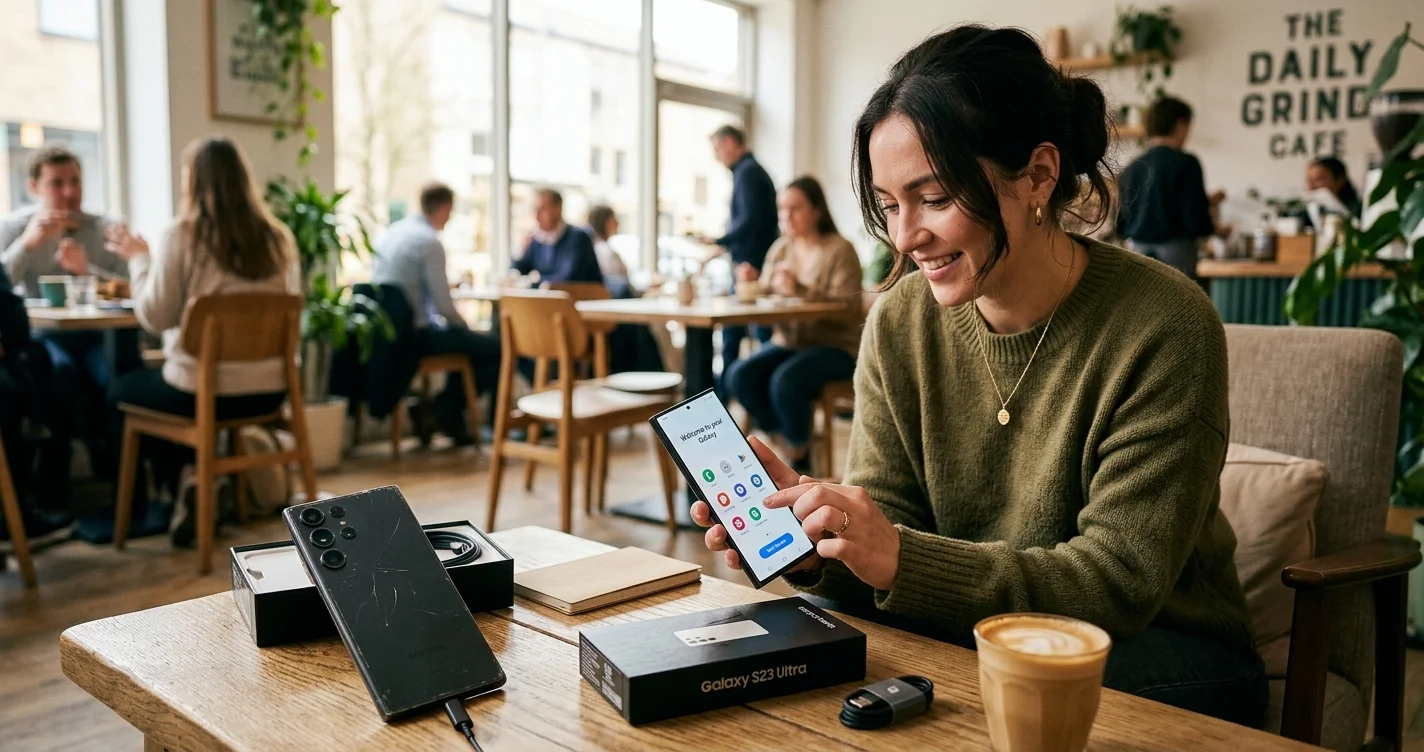
Last year, my colleague Emma made the switch after seven years of iPhone loyalty. “I felt like I was betraying an old friend,” she told me over coffee, laughing nervously as she unboxed her new Galaxy S24. Six months later? She wouldn’t dream of going back. But those first few weeks were, in her words, “an absolute rollercoaster of confusion and pleasant surprises.”
If you’re reading this, you’re probably standing at that same crossroads. Maybe you’re drawn to Samsung’s incredible camera capabilities, the customization freedom Android offers, or perhaps you’re simply ready for a change. Whatever your reason, the actual process of switching can feel overwhelming. Your photos, contacts, messages, apps, and years of accumulated digital life—how do you move all of that without losing something precious?
Here’s the good news: switching from iPhone to Android has never been easier. Samsung and Google have developed sophisticated tools specifically designed to make this transition as painless as possible. With the right preparation and knowledge, you can have your new Galaxy phone set up with all your important data in under an hour.
In this comprehensive guide, I’ll walk you through seven essential tips that will transform your switch from a potentially stressful ordeal into a smooth, even enjoyable experience. These aren’t just basic instructions—they’re hard-won insights from people who’ve actually made the journey, including common pitfalls to avoid and clever shortcuts that will save you hours of frustration.
Ready to make the leap? Let’s ensure you land on your feet.
Table of Contents
Switching from iPhone to Galaxy Phone - Understanding the iPhone to Android Ecosystem Shift
Before we dive into the practical steps, it's worth understanding what you're actually changing. This isn't just swapping one phone for another—you're transitioning between two distinct digital ecosystems, each with its own philosophy, strengths, and quirks.
Apple's iOS operates like a carefully curated garden. Everything is optimized, controlled, and designed to work seamlessly within their ecosystem. Android, particularly Samsung's version, is more like a customizable workshop where you have far more control over how things look and function.
Key differences you'll notice immediately:
- Home screen flexibility: Unlike iOS where apps must sit in a grid, Android lets you place widgets, icons, and shortcuts anywhere you want
- Back button behavior: Android has a universal back gesture that works across all apps (this alone is worth celebrating)
- File management: Actual access to your file system, which feels revolutionary if you've been locked into iOS
- Default apps: You can finally set Chrome, Gmail, or any browser and email client as your default
- Customization depth: Change everything from icon packs to entire launchers if you wish
According to Android Authority, one of the most common mistakes new Android users make is trying to replicate their iPhone experience exactly. Instead, embrace Android's different approach—that's where you'll discover why so many people make this switch and never look back.
Tip 1: Master the Switch to Android App for Seamless Data Transfer
Here's where most people stress unnecessarily. They envision manually typing hundreds of contacts or losing years of photos. In reality, Samsung's Smart Switch app—which works in conjunction with Google's Switch to Android app—makes the entire process surprisingly straightforward.
How the iPhone to Android Transfer App Actually Works
Samsung Smart Switch is your primary tool for the migration. Think of it as a digital moving truck that carefully packs everything from your iPhone and unpacks it neatly on your Galaxy phone. It's available in two versions: a cable connection method and a wireless transfer option.
What Smart Switch can transfer:
- Contacts (all of them, with full details)
- Photos and videos (maintaining original quality)
- Calendar appointments and reminders
- Messages (SMS, though iMessage history won't transfer)
- Call logs
- Device settings and alarms
- Music (non-DRM protected files)
- Documents and files
- Apps (it will find Android equivalents where available)
What won't transfer (and why):
- iMessages (these are encrypted and proprietary to Apple's ecosystem)
- FaceTime call history
- Apple-specific apps like Wallet, Health, or Home
- App data for apps that don't support cross-platform backup
- DRM-protected music from Apple Music (you'll need to re-download)
Transfer from iPhone to Android Wirelessly: Step-by-Step Guide
The wireless method is incredibly convenient, though it takes longer than using a cable. Here's exactly how to do it:
Before you start:
- Charge both phones to at least 80% battery
- Connect both devices to the same Wi-Fi network
- Disable iMessage on your iPhone (more on this critical step later)
- Back up your iPhone to iCloud—just as a safety net
The transfer process:
Step 1: On your new Galaxy phone, during initial setup, you'll see "Bring data from old device." Select this option.
Step 2: Choose "iPhone/iPad" as your source device. Your Galaxy will display a unique code.
Step 3: On your iPhone, download the "Smart Switch" app from the App Store (yes, Apple allows this in their store).
Step 4: Open Smart Switch on your iPhone, grant necessary permissions, and tap "Receive data."
Step 5: Select "Wireless" as the transfer method and enter the code displayed on your Galaxy phone.
Step 6: Choose what you want to transfer. My recommendation? Transfer everything on the first pass. You can always delete things later, but it's much harder to go back and transfer specific items once you're set up.
Step 7: Tap "Transfer" and wait. Depending on how much data you have, this could take anywhere from 15 minutes to several hours. A typical user with 64GB of photos, videos, and data should expect about 45-90 minutes.
Step 8: Keep both phones close together, on the same Wi-Fi network, and preferably plugged in during the transfer.
The Faster Cable Method Alternative
If you prefer speed over convenience, the cable transfer method is significantly faster. You'll need:
- Your iPhone
- Your new Galaxy phone
- A Lightning to USB-C cable (or Lightning cable plus the adapter that came with your Galaxy phone)
The process is nearly identical to wireless transfer, but you'll select "Cable" instead of "Wireless" at Step 5. Transfer times drop dramatically what might take 90 minutes wirelessly could complete in 15-20 minutes via cable.
Jessica, a graphic designer from Manchester, shared her experience: "I had seven years of photos over 40GB—and I dreaded the transfer. The cable method took about 20 minutes, and literally everything came across. Even my alarm settings transferred, which I found oddly delightful when my morning alarm went off the next day exactly as it had on my iPhone."
Common Transfer Issues and Solutions
Problem: Transfer stops at 99% and seems frozen.
Solution: Don't panic and don't cancel. The final 1% often involves indexing and organizing transferred data. Wait at least 30 minutes before assuming something's wrong.
Problem: "Connection lost" error during wireless transfer.
Solution: Ensure both phones are connected to the same Wi-Fi network, disable any VPN connections, and keep the phones within a meter of each other. Also, prevent your iPhone from auto-locking during transfer set it to "Never" under Display & Brightness > Auto-Lock.
Problem: Some photos transferred but appear as grey thumbnails.
Solution: Your Galaxy is still processing the full-resolution images. Give it a few hours connected to Wi-Fi and power to complete the optimization process.
Problem: Apps didn't transfer or many are missing.
Solution: Smart Switch identifies Android equivalents but can't transfer the apps themselves due to different app stores. You'll need to manually download Android versions from the Google Play Store. Most popular apps are available, though some iOS-exclusive apps won't have direct equivalents.
Tip 2: Properly Prepare Your iPhone Before the Switch
This step is absolutely crucial, yet it's where most people rush through and create problems for themselves later. Proper iPhone preparation isn't just about making the transfer smooth—it's about avoiding persistent annoyances that could plague you for months.
The iMessage Deregistration: Don't Skip This!
This is the single most important step, and skipping it causes endless frustration. Here's why: when someone with an iPhone messages you, their device checks if your number is registered with iMessage. If it is, the message gets sent through Apple's system rather than standard SMS. Once you switch to Android, you won't receive these iMessages, but the sender's iPhone doesn't know that so messages vanish into the void.
I've heard too many stories of people missing important messages for weeks before realizing the issue.
How to properly deregister from iMessage:
Method 1 – If you still have your iPhone:
- Open Settings on your iPhone
- Scroll to and tap "Messages"
- Toggle off "iMessage" (it will turn from green to grey)
- Also toggle off "FaceTime" under Settings > FaceTime
- Go to Settings > Phone > My Number and verify your phone number is correct
Method 2 – If you've already switched:
Visit Apple's deregister iMessage page and follow the instructions. You'll need to enter your phone number, receive a confirmation code via SMS, and complete the deregistration process.
Allow 24-48 hours for the deregistration to fully propagate through Apple's servers. During this time, you might want to let frequent contacts know you've switched, so they can send regular SMS if they notice delivery issues.
Create a Complete iPhone Backup
Even though Smart Switch handles the transfer, creating an iCloud backup provides essential insurance. If something goes wrong during the transfer, you won't have lost anything permanently.
To create an iCloud backup:
- Connect to Wi-Fi (cellular won't work for backups)
- Settings > [Your Name] > iCloud > iCloud Backup
- Tap "Back Up Now" and wait for completion
- Verify the backup timestamp shows today's date
If you're running low on iCloud storage space, consider temporarily upgrading to a larger plan for one month—it costs less than £1 and provides tremendous peace of mind.
Organize and Document Your Apps
This might sound tedious, but taking screenshots of your iPhone home screens and app folders helps you remember what apps you actually use. Many people discover they can't remember half their installed apps when setting up a new phone.
- Take screenshots of each home screen page
- Open your most-used apps and check if they offer Android versions
- Make a list of critical apps that might not have direct Android equivalents
- Look up Android alternatives before you switch (I'll provide recommendations later)
Download Your Apple Music/iTunes Content
If you have music purchased through iTunes or downloaded from Apple Music, you'll want to ensure continuous access:
For Apple Music subscribers: Simply download the Apple Music app for Android from Google Play Store and sign in with your Apple ID. Your entire library transfers seamlessly.
For purchased iTunes music: This is trickier. DRM-protected purchases won't transfer through Smart Switch. You have two options:
- Continue using Apple Music app on Android to access purchased content
- Use a computer to transfer non-DRM music files manually via USB
Save Your Authenticator Codes
If you use two-factor authentication apps (like Google Authenticator or Authy), you must prepare these for transfer before switching phones. Losing access to these codes can lock you out of important accounts.
For Google Authenticator:
- Open the app on your iPhone
- Tap the three dots menu > Transfer accounts > Export accounts
- You'll generate a QR code to scan with your new phone
For Authy:
Simply download Authy on your new Galaxy and log in—it syncs across devices automatically.
For other authenticators: Check each app's specific transfer process, as it varies.
Tip 3: Navigate the App Ecosystem Transition Successfully
One of the biggest adjustments when you switch from iPhone to Android isn't the operating system—it's the apps. While most major applications have Android versions, they often look different, have varying feature sets, or in some cases, don't exist at all on Android.
Finding Android Alternatives to iOS-Exclusive Apps
Some apps are genuinely iOS-exclusive, but most have excellent Android alternatives that are often better suited to Android's strengths.
Essential app equivalents:
| iPhone App | Best Android Alternative | Why It's Great |
|---|---|---|
| Safari | Samsung Internet or Chrome | Samsung Internet has incredible privacy features and dark mode |
| iMessage | Google Messages | RCS support for rich messaging, though no iPhone interoperability |
| FaceTime | Google Meet or WhatsApp | Both offer excellent video calling across platforms |
| Apple Mail | Gmail or Samsung Email | More features, better organization, unified inbox |
| Apple Maps | Google Maps | Superior navigation, more detailed information |
| Notes | Samsung Notes or Google Keep | Samsung Notes excels for S Pen users, Keep for simple cross-platform notes |
| Reminders | Google Tasks or Microsoft To Do | Better integration with productivity apps |
| Wallet | Google Pay or Samsung Pay | Samsung Pay works with more payment terminals |
| Health | Samsung Health or Google Fit | Comprehensive fitness tracking with broader device compatibility |
| AirDrop | Nearby Share or Quick Share | Android's answer to AirDrop, works brilliantly |
Apps That Work Better on Android
Here's a pleasant surprise: some apps actually function better on Android because of the operating system's flexibility.
YouTube: Picture-in-picture mode works system-wide on Android, letting you watch videos while using other apps—something iOS restricts.
File management apps: Apps like Solid Explorer or Files by Google give you actual access to your file system, making document organization far more intuitive.
Customization apps: Nova Launcher, KWGT, and icon packs let you transform your phone's entire appearance—impossible on iOS.
Automation tools: Tasker and Bixby Routines offer automation possibilities that make iOS Shortcuts look primitive.
Default app selection: Any browser, email client, or messaging app can be set as default, unlike iOS which forces Safari and Mail for certain actions.
Re-downloading Your Essential Apps
Once your Galaxy phone is set up, you'll need to download Android versions of your apps. The Smart Switch process identifies equivalents but doesn't automatically install them due to different app store policies.
Efficient app reinstallation strategy:
- Start with critical apps first: Messaging, email, banking, and work-related apps
- Use Google Play Store's search intelligence: Type the iOS app name—Google usually knows the Android equivalent
- Check your old screenshots: Remember those home screen screenshots? Use them to identify apps you're forgetting
- Don't rush to reinstall everything: This is a perfect opportunity to declutter. Only install apps as you realize you need them
According to research from Google's Android team, the average person reinstalls about 60% of their previous apps after switching platforms—discovering they rarely used the other 40% anyway.
Handling Apps with Cross-Platform Accounts
Many apps maintain accounts in the cloud, making the transition seamless:
Apps that transfer perfectly:
- Netflix, Spotify, YouTube (just sign in)
- Social media (Facebook, Instagram, Twitter, TikTok)
- Microsoft Office apps
- Banking and financial apps
- Password managers (1Password, LastPass, Bitwarden)
- Cloud storage (Dropbox, Google Drive, OneDrive)
Apps requiring special attention:
- WhatsApp: Back up chats on iPhone, then restore on Android using the same phone number
- Game apps: Many games sync progress through accounts, but some don't—check before switching
- Fitness apps: Most sync through accounts, but verify your historical data transfers
- Subscription apps: Verify your subscription transfers when you sign in (most do automatically)
The Painful Truth About iMessage
Let's address the elephant in the room. Losing iMessage group chats, reactions, read receipts, and seamless integration with other iPhone users is the most commonly cited frustration among switchers.
The reality is that there's no perfect solution. iMessage is proprietary to Apple, and they have zero incentive to make it available on Android. However, you do have options:
For group chats:
- Convince your groups to move to WhatsApp, Telegram, or Signal (cross-platform and often better featured)
- Accept that you'll receive these as SMS group messages (clunky but functional)
- Use the iMessage-to-SMS bridge that now works better since Apple adopted RCS
For individual conversations:
- RCS messaging (available in Google Messages) provides many iMessage-like features when chatting with other Android users
- Read receipts and typing indicators work with RCS
- High-quality photo and video sharing improved dramatically with RCS
Marcus from Dublin shared his experience: "The iMessage thing was my biggest concern. I warned everyone in my family group chat that I was switching. To my surprise, half of them said, 'Finally! Can we just use WhatsApp instead?' We made the switch and honestly, it's better—my parents can finally join from their Android phones."
Tip 4: Transfer Your Photos and Videos Without Losing Quality
For most people, photos are the most precious data on their phones—years of memories, family moments, and important documentation. The thought of losing or degrading these during transfer causes genuine anxiety.
Good news: when done correctly, your photos and videos will transfer to your Galaxy phone at full, original quality.
Using Smart Switch for Photo Transfer
Smart Switch transfers photos at their original resolution, maintaining all metadata (date, location, camera settings). However, the organization might differ from what you're used to on iPhone.
What transfers:
- All photos from your Camera Roll
- Albums you've created (though organization might differ)
- Live Photos (converted to short video files on Android)
- Edited photos (the edited version transfers, not the original unedited version)
- Screenshots and saved images
- Videos at original quality
What requires extra steps:
- Photos in iCloud Photo Library that aren't downloaded to your iPhone (you'll need to download these first or access them separately)
- Shared albums (these are iCloud-specific and won't transfer)
- Photos stored in third-party apps
The iCloud Photo Library Challenge
If you use iCloud Photo Library with "Optimize iPhone Storage" enabled, your iPhone doesn't actually contain full-resolution versions of all photos—just optimized versions with originals stored in iCloud.
To transfer these properly:
Option 1 – Download everything to iPhone first:
- Settings > [Your Name] > iCloud > Photos
- Change to "Download and Keep Originals"
- Connect to Wi-Fi and wait for all full-resolution photos to download
- Check Settings > General > iPhone Storage to verify photos have downloaded (the Photos app size should increase significantly)
- Then proceed with Smart Switch transfer
Option 2 – Transfer from iCloud to Google Photos directly:
- On a computer, visit photos.google.com
- Sign in with your Google account
- Click Upload > Computer
- Visit icloud.com and sign into your iCloud account
- Download all photos from iCloud Photos
- Upload them to Google Photos
- Google Photos will then sync to your Galaxy phone automatically
The second method is more time-consuming but ensures absolutely nothing gets missed, especially if you have years of photos stored in iCloud.
Setting Up Google Photos on Your Galaxy
Google Photos offers unlimited storage for "Storage saver" quality (which is still excellent—better than most people can distinguish from original) and paid storage for original quality through Google One plans.
Initial Google Photos setup:
- Open Google Photos (pre-installed on Samsung Galaxy phones)
- Sign in with your Google account
- Choose "Backup & sync" settings
- Select upload quality: Storage saver (free, excellent quality) or Original quality (requires storage, typically £1.99/month for 100GB)
- Enable "Back up over Wi-Fi only" to save mobile data
- Select "While charging" if you have lots of photos to upload
Once configured, every photo you take automatically backs up to the cloud. You'll never lose photos to a broken or lost phone again.
Organizing Your Photo Library on Galaxy
Samsung Gallery app and Google Photos offer different but complementary approaches to photo organization.
Samsung Gallery strengths:
- Intuitive album organization
- Excellent editing tools built-in
- Stories and automatic compilations
- Integration with Samsung Cloud if you use it
- Better privacy for those who prefer local storage
Google Photos strengths:
- Incredible AI-powered search ("beach," "birthday," "dogs")
- Automatic person recognition and grouping
- Shared albums that actually work across platforms
- Unlimited free storage at high quality
- Accessible from any device anywhere
Most Galaxy users keep both apps and use them for different purposes—Samsung Gallery for organization and quick access, Google Photos for search and backup.
Handling Live Photos and Videos
iPhone's Live Photos capture 1.5 seconds of video before and after each photo. During transfer, these become short MP4 video files on Android. Some find this annoying, others don't mind.
If you want to clean these up:
- Live Photos appear as videos in your Gallery
- You can bulk-delete them or keep them as short video memories
- Alternatively, use a third-party app like "Motion Stills" to convert them back to single images
Videos transfer at original quality through Smart Switch. However, extremely large videos (like hour-long 4K recordings) sometimes need verification after transfer to ensure they're fully playable.
Tip 5: Seamlessly Transition Your Cloud Services and Accounts
Beyond the physical data transfer, successfully switching from iPhone to Android involves migrating your cloud services, email accounts, and various app subscriptions. This is where organization pays dividends.
Email Account Setup Made Simple
The good news: email account configuration on Galaxy phones is generally simpler and more flexible than on iPhone.
For Gmail users:
Your Google account is the foundation of your Android experience. When you first set up your Galaxy phone, you'll sign in with a Google account, and your Gmail, contacts, calendar, and other Google services automatically sync.
For iCloud Mail users:
You can continue using your iCloud email address on Android:
- Open Samsung Email or Gmail app
- Add account > Other
- Enter your full iCloud email address
- For password, you'll need to generate an app-specific password from appleid.apple.com
- Use these settings:
- Incoming: imap.mail.me.com, Port 993, SSL
- Outgoing: smtp.mail.me.com, Port 587, TLS
For other email providers:
Most major providers (Outlook, Yahoo, ProtonMail, etc.) configure automatically. Simply add the account and Android handles the technical settings.
Cloud Storage Transition Strategy
Many iPhone users rely heavily on iCloud Drive for document storage. While you can access iCloud Drive on Android through the web browser, it's clunky and limited.
Better alternatives:
Google Drive (15GB free, integrated into Android):
- Built into the file system on Galaxy phones
- Access files from any app through the "Open from" menu
- Automatic backup of documents
- Excellent collaboration features
- Affordable storage upgrades (100GB for £1.59/month)
OneDrive (5GB free, excellent for Microsoft users):
- Perfect if you use Microsoft Office
- Automatic camera backup available
- Integrates beautifully with Microsoft 365
- Cross-platform access
Dropbox (2GB free, professional favorite):
- Industry-standard for professional file sharing
- Excellent version history
- Superior sharing controls
- Works identically across all platforms
Migration strategy:
Rather than moving everything at once, I recommend a gradual transition:
- Set up Google Drive as your primary cloud storage
- Move actively used documents from iCloud Drive first
- Keep iCloud Drive accessible on your computer for archival access
- Gradually migrate remaining files as needed
Sarah, a project manager from Amsterdam, shared her approach: "I kept iCloud for three months while gradually moving important files to Google Drive. Once I realized I hadn't opened iCloud in weeks, I knew the transition was complete. Now everything's in Google Drive, and honestly, the integration with Android is so much better than iCloud ever was with iPhone."
Password Manager Integration
If you relied on Apple's iCloud Keychain for password management, you'll need to transition to a cross-platform alternative. This is actually an opportunity to upgrade to something more robust.
Top password manager recommendations:
Bitwarden (Free, open-source):
- Excellent free tier with all essential features
- Superior autofill on Android
- Browser extensions
- Cross-platform sync
1Password (£2.99/month):
- Beautiful interface
- Excellent security
- Family plan available
- Travel mode for border crossings
LastPass (Free tier available, premium £3/month):
- Established reputation
- Easy to use
- Good free tier
- Emergency access feature
Google Password Manager (Free, built-in):
- No setup required
- Automatic sync across devices
- Built into Chrome
- Limited compared to dedicated apps but sufficient for basic needs
Migration process:
Most password managers offer direct import from iCloud Keychain via CSV export. The process typically takes 15-30 minutes to export, import, and verify your passwords are accessible.
Subscription and App Store Management
This is a crucial step many people overlook: managing your subscriptions from the Apple ecosystem.
Before you fully switch:
- Open Settings > [Your Name] > Subscriptions on your iPhone
- Review all active subscriptions
- For subscriptions you'll continue, verify they're platform-independent (most are)
- Cancel iOS-only subscriptions you won't use on Android
- Note any subscriptions that need to be reactivated on Android
Common subscription scenarios:
Cross-platform apps (Netflix, Spotify, YouTube Premium):
- Your subscription continues seamlessly
- Just sign in with the same account on Android
- Billing continues through Apple until you cancel and resubscribe through Google Play (optional)
Platform-specific subscriptions (Apple Arcade, Apple TV+, Apple Fitness+):
- These only work on Apple devices
- Decide whether to keep them for other Apple devices or cancel
Apps with separate platforms (Some news apps, productivity tools):
- Check if you need to subscribe again through Google Play
- Some honor your existing subscription; others require separate Android subscription
- Contact the app developer for clarification if uncertain
According to Which? Digital, consumers waste an average of £40 annually on forgotten subscriptions during platform switches. Take this opportunity to audit what you actually use.
Tip 6: Master the Galaxy Interface and Essential Features
Once your data is transferred and accounts are configured, you'll face the real learning curve: actually using your Galaxy phone effectively. Samsung's One UI interface is powerful and customizable, but it differs significantly from iOS in philosophy and execution.
Essential Galaxy Features That Replace iPhone Functions
Quick Settings Panel:
On iPhone, you swipe down from the top-right for Control Center. On Galaxy phones, swipe down from anywhere at the top to access Quick Settings—toggles for Wi-Fi, Bluetooth, flashlight, etc. It's actually more accessible since you don't need to reach the corner.
Edge Panels:
Swipe in from the right edge (or left, if you prefer) to access Edge Panels—customizable shortcuts to apps, tools, contacts, and functions. This has no iPhone equivalent and becomes indispensable once you configure it to your preferences.
Samsung DeX:
Connect your Galaxy phone to any TV or monitor, and it transforms into a desktop-like environment. Absolutely no iPhone equivalent—it's genuinely transformative for productivity.
Bixby Routines:
Far more powerful than iOS Shortcuts, Bixby Routines automate actions based on triggers. Examples:
- "When I connect to my car's Bluetooth, open Spotify and turn on Do Not Disturb"
- "When I arrive at the office, switch to vibrate and open my work email"
- "At bedtime, enable blue light filter, switch to dark mode, and set alarm"
Secure Folder:
Create an encrypted, separate space for private apps and files—protected by additional authentication. Perfect for sensitive work documents or apps you want extra protection for.
S Pen (on Ultra models):
If you've upgraded to a Galaxy S Ultra, the S Pen offers capabilities iPhone users don't have access to—handwritten notes, precise photo editing, remote shutter control, and screen-off memos.
Customization Basics Every New Galaxy User Should Know
Android's customization options can be overwhelming at first. Start with these fundamental tweaks:
Home Screen Setup:
- Long-press empty space on home screen
- Select "Widgets" to add useful information displays
- Choose "Wallpaper and style" to change appearance
- Adjust grid size (4×5, 4×6, 5×5, etc.) to fit more apps
Notification Management:
Unlike iOS where notifications can feel chaotic, Android gives you granular control:
- Long-press any notification
- Tap the settings gear icon
- Choose notification priority, sound, vibration, lock screen behavior
- Repeat for each app to create the perfect notification experience
Default Apps:
Set your preferred browser, phone app, messaging app as defaults:
- Settings > Apps > Choose default apps
- Select category (Browser app, Phone app, SMS app, etc.)
- Choose your preference
Navigation Style:
Galaxy phones offer three navigation methods:
- Settings > Display > Navigation bar
- Choose: Buttons (like old Android), Swipe gestures (like iPhone), or Full screen gestures (most screen space)
- Try each to find your preference
Keyboard Shortcuts and Typing Improvements
Samsung's keyboard (and Gboard, if you prefer Google's option) offers features unavailable on iPhone's keyboard:
Clipboard history:
Press the clipboard icon on the keyboard to access your last 20 copied items. Game-changing for copying multiple things and pasting them later.
Swipe typing:
Glide your finger from letter to letter instead of tapping—significantly faster once mastered. (iPhone added this recently, but Android's implementation is more refined.)
Translation:
Highlight any text, tap "Translate" from the menu—instant translation without switching apps.
Text editing cursor:
Long-press the spacebar and drag to move the cursor precisely—far more accurate than iPhone's implementation.
Mastering the Camera App
Samsung Galaxy cameras are exceptional, but the camera app differs from iPhone's minimalist approach. Taking time to learn its capabilities pays dividends.
Essential camera features:
Scene Optimizer:
Automatically detects what you're photographing (food, landscape, sunset, etc.) and adjusts settings accordingly. Usually worth leaving enabled.
Single Take:
Press once, and your Galaxy captures photos and videos from multiple angles and settings, then lets you choose the best results—perfect for dynamic scenes where you're not sure what will work best.
Pro Mode:
Manual control over ISO, shutter speed, white balance, and focus—photography enthusiasts will appreciate this level of control.
Night Mode:
Exceptional low-light photography that often surpasses iPhone—multiple exposures combined for bright, clear night shots.
Portrait Mode (Live Focus):
Similar to iPhone's Portrait mode, but with adjustable background blur even after taking the photo.
Director's View (on newer models):
See all camera angles simultaneously and switch between them while recording video—revolutionary for content creators.
Tip 7: Protect Your Privacy and Secure Your New Galaxy Phone
Security and privacy function differently on Android than iOS, and understanding these differences ensures you maintain the same level of protection (or better) on your new Galaxy phone.
Setting Up Biometric Security Properly
Galaxy phones offer multiple biometric options—use them in combination for optimal security.
Fingerprint Scanner:
Samsung's ultrasonic fingerprint scanner (on newer models) is sophisticated and reliable:
- Settings > Biometrics and security > Fingerprints
- Register at least two fingers (your thumb and index finger)
- Consider registering the same finger twice from different angles for better recognition
- Enable "Show icon when screen is off" for easier location
Face Recognition:
Works well in most lighting conditions, though not as secure as Apple's Face ID:
- Settings > Biometrics and security > Face recognition
- Complete the setup
- Enable "Faster recognition" for speed (reduces security slightly)
- Disable for banking apps if concerned about security
Iris Scanner (older models):
Some older Galaxy models include iris scanning—extremely secure but slower than fingerprint.
Smart Lock:
Keep your phone unlocked in trusted scenarios:
- Trusted places (home, office)
- Trusted devices (smartwatch, car Bluetooth)
- On-body detection (stays unlocked while you're carrying it)
Privacy Settings Every Galaxy User Should Configure
Samsung and Google have made privacy controls more transparent and powerful. Take advantage of them:
Permission Management:
- Settings > Privacy > Permission manager
- Review which apps have access to camera, microphone, location, contacts
- Change from "Allow all the time" to "Ask every time" for sensitive permissions
- Revoke unnecessary permissions
Location Controls:
- Settings > Location > App permissions
- Set most apps to "Allow only while using the app"
- Only essential apps (navigation, weather) should have "Allow all the time"
Privacy Dashboard:
- Settings > Privacy > Privacy dashboard
- View a timeline of which apps accessed camera, microphone, or location
- Tap any app to adjust its permissions immediately
Remove Permissions for Unused Apps:
Enable this feature, and Android automatically removes permissions from apps you haven't used in months—excellent for security.
Anti-Tracking:
- Settings > Privacy > Ads
- Enable "Delete advertising ID" to limit tracking
- Install Samsung Internet browser and enable "Smart anti-tracking"
Understanding Android Updates and Security Patches
One common misconception is that Android phones don't receive updates. Samsung Galaxy phones receive:
- Major OS updates: Four generations (One UI 6 → One UI 10, for example)
- Security patches: Five years of monthly security updates
- Feature drops: Regular updates with new features throughout the phone's life
This matches or exceeds iPhone's support timeline for most models.
To check for updates:
- Settings > Software update
- Tap "Download and install"
- Enable "Auto download over Wi-Fi" for hands-free updates
Securing Sensitive Data
Samsung Knox:
Your Galaxy phone includes Knox, military-grade security built into the hardware. It works silently in the background, protecting against malware, unauthorized access, and tampering.
Secure Folder:
For ultimate privacy, use Secure Folder:
- Settings > Biometrics and security > Secure Folder
- Set up with separate authentication
- Move sensitive apps, photos, and files inside
- They're encrypted and invisible outside Secure Folder
Find My Mobile:
Samsung's equivalent to Find My iPhone:
- Settings > Biometrics and security > Find My Mobile
- Enable all features
- Test it at findmymobile.samsung.com
- You can locate, lock, or erase your phone remotely
App Safety and Google Play Protect
Google Play Protect scans all apps for malware automatically. Verify it's enabled:
- Open Play Store
- Tap profile icon > Play Protect
- Ensure scanning is enabled
- Check that no harmful apps are detected
Unlike iOS where everything comes from Apple's App Store, Android allows "sideloading" apps from outside sources. Unless you have specific technical reasons, keep this disabled:
- Settings > Biometrics and security > Install unknown apps
- Verify all sources are turned off
Real-World Switching Experiences: What Actually Happens
Beyond the technical steps, I want to share genuine experiences from people who've made this transition. Their insights reveal the emotional journey and practical realities of switching ecosystems.
Emma's Story: Seven Years of iPhone Loyalty
Emma, a 34-year-old marketing consultant from London, used iPhones exclusively since the iPhone 5. Her switch to a Galaxy S24 Ultra came from frustration with Apple's walled garden approach and expensive storage upgrades.
"The first week was honestly disorienting," Emma admits. "I'd reach for features that didn't exist or existed differently. The keyboard felt wrong. The settings structure confused me. I almost returned it."
What changed her mind? "The customization freedom became addictive. I started with simple things—widgets that actually showed useful information, not just pretty icons. Then I discovered Bixby Routines and automated half my daily phone interactions. Now, when I pick up my work iPhone, it feels restrictive and dated."
Her biggest challenges:
- iMessage group chats (resolved by moving family to WhatsApp)
- Learning new gesture patterns (took about two weeks to feel natural)
- Finding equivalent apps (90% had Android versions, adapted to alternatives for the rest)
Her unexpected benefits:
- Camera quality that consistently outperformed her old iPhone
- File management that actually made sense
- YouTube playing in a small window while she checked email
- Customizing absolutely everything to match her preferences
David's Technical Transition: Developer's Perspective
David, a software developer from Berlin, approached the switch from iPhone 13 Pro to Galaxy S23 with technical curiosity.
"As a developer, I appreciated Android's openness immediately," David explains. "Access to the file system, true multitasking, automation possibilities—it felt liberating after iOS's restrictions."
His systematic approach:
- Documented every iOS setting and configuration
- Created spreadsheets mapping iPhone apps to Android equivalents
- Tested the Smart Switch transfer on secondary devices before committing
- Maintained both phones active for two weeks during transition
"The transfer process was 95% flawless," David notes. "Photos, contacts, even most app data came across perfectly. The 5% that didn't—mostly app-specific settings—I recreated manually over a few days."
His technical insights:
- Android's notification system is objectively superior to iOS
- Samsung's One UI has matured into a polished, cohesive experience
- The ecosystem lock-in concerns were overstated—most services work cross-platform
- He doesn't miss iOS as much as he expected
Maria's Family Perspective: Practical Considerations
Maria, a mother of three from Manchester, switched her entire family from iPhones to Galaxy phones to save £150+ monthly on phone contracts.
"I was terrified I'd mess up the transfer and lose years of family photos," Maria shares. "I spent a week researching, watching YouTube tutorials, and reading Reddit threads before attempting it."
Her methodical process:
- Backed up everything to iCloud and Google Photos (double redundancy)
- Transferred her phone first as a test
- Once comfortable, helped her children transfer theirs
- Kept old iPhones active for a month as backup
The results? "We haven't looked back. The kids love the customization—they've personalized their phones in ways iOS never allowed. My husband adores the Samsung Notes app with his S Pen. And we're saving enough money to fund a holiday this summer."
Her practical advice:
- Don't rush the process
- Transfer during a quiet weekend when you have time to troubleshoot
- Keep both phones active briefly during transition
- Accept that some things will be different, not necessarily worse
Frequently Asked Questions About Switching from iPhone to Galaxy
How long does it take to transfer everything from iPhone to Android?
The transfer time varies based on how much data you're moving. For the average user with 64GB of photos, videos, apps, and data, expect 45-90 minutes using the wireless transfer method with Smart Switch. The cable transfer method is significantly faster, typically completing the same amount in 15-30 minutes. However, the physical transfer is just the beginning. Budget additional time for app reinstallation (30-60 minutes), configuring settings to your preferences (1-2 hours), and general familiarization with Android (a few days to feel comfortable, 1-2 weeks to feel proficient). Most people report being fully comfortable with their new Galaxy phone within two weeks of regular use.
Will I lose my WhatsApp messages when switching from iPhone to Android?
No, you won't lose your WhatsApp messages, but you must follow the correct transfer process. WhatsApp now supports direct chat history transfer from iPhone to Android during the Smart Switch process. Ensure you have the latest WhatsApp version installed on both devices. During the Smart Switch transfer, select "WhatsApp" when choosing what to transfer. Your complete chat history, including text messages, photos, and videos, will transfer to your Galaxy phone. However, call history and peer-to-peer payment messages won't transfer due to technical limitations. After transfer, verify your chats appeared correctly before deleting WhatsApp from your old iPhone. This process works reliably but requires using Smart Switch—manual methods or third-party apps are less reliable.
Can I still use my Apple Watch with an Android phone?
Unfortunately, no. Apple Watch requires an iPhone to function and is completely incompatible with Android phones. This is one of the ecosystem trade-offs when switching. However, Samsung offers excellent smartwatch alternatives that integrate beautifully with Galaxy phones. The Galaxy Watch 6 or Galaxy Watch 6 Classic provide comparable (often superior) fitness tracking, health monitoring, and smartphone integration. They offer longer battery life than most Apple Watches, rotating bezels for navigation, and comprehensive health features including sleep tracking, ECG, and body composition analysis. If you're heavily invested in Apple Watch-specific features or have medical data you need to preserve, export your Health data from your iPhone before switching and import it into Samsung Health or Google Fit.
What happens to my Apple Music subscription and library?
Your Apple Music subscription works perfectly on Android—simply download the Apple Music app from Google Play Store and sign in with your Apple ID. Your entire library, playlists, and subscription transfer seamlessly. However, if you have music purchased from iTunes, the situation is more complex. DRM-protected iTunes purchases require the Apple Music app to play on Android. Non-DRM music files can transfer through Smart Switch as regular audio files. For the best experience, consider either continuing with Apple Music (which works excellently on Android) or gradually transitioning to YouTube Music or Spotify, both of which offer comparable libraries and better Android integration. Your subscription will continue billing through Apple unless you cancel and resubscribe through Google Play, which is optional but provides unified billing.
Is it safe to use third-party iPhone to Android transfer apps?
I recommend sticking with official tools—Samsung Smart Switch and Google's Switch to Android app—rather than third-party transfer applications. Official tools are free, reliable, secure, and specifically designed for this purpose. Third-party apps often charge fees, may have security vulnerabilities, typically offer no real advantages over official tools, and can potentially access your personal data inappropriately. Samsung Smart Switch has been refined over years and handles the vast majority of transfer scenarios flawlessly. The only exception might be specialized apps for specific data types (like WhatsApp's own transfer tool), but even these are increasingly integrated into Smart Switch. If a third-party app claims to transfer data that official tools cannot, research it thoroughly, read recent reviews, verify it's from a reputable developer, and understand exactly what it's accessing before granting permissions.
Can I transfer my iPhone backup to my Samsung Galaxy phone?
Not directly. iPhone backups created through iTunes or iCloud are in Apple's proprietary format and cannot be restored to Android phones. This is why Smart Switch uses a different approach—it connects to your active iPhone and copies data directly rather than working from a backup file. However, your iPhone backup serves as crucial insurance during the switching process. If something goes wrong with the transfer, you can restore your iPhone from backup and start fresh. For this reason, create a fresh iCloud or iTunes backup immediately before beginning the transfer process. Once you've successfully switched and verified all important data transferred correctly, you can maintain the iPhone backup for a few weeks before deciding whether to keep or delete it.
Do Android phones get viruses like everyone says?
The "Android gets viruses" concern is largely outdated and exaggerated. Modern Android, particularly Samsung Galaxy phones with Knox security, provides robust protection against malware. The reality is that Android malware primarily affects users who install apps from unofficial sources outside the Google Play Store or who ignore security warnings. Following basic security practices keeps you safe: only install apps from Google Play Store, keep Play Protect enabled (it scans apps automatically), install monthly security updates promptly, don't click suspicious links in emails or messages, and use common sense with app permissions. Google Play Protect scans over 100 billion apps daily and removes harmful apps automatically. Samsung Knox provides additional hardware-level security that protects against sophisticated attacks. If you follow these standard practices, your Android phone is as secure as an iPhone—different security model, equivalent protection.
How do I get my photos off iCloud and onto my Galaxy phone?
You have several reliable methods for transferring iCloud photos to your Galaxy phone. The simplest approach during initial setup is ensuring all photos download to your iPhone first (Settings > Photos > Download and Keep Originals), then using Smart Switch to transfer them. Alternatively, use Google Photos to create a bridge: install Google Photos on your iPhone, let it back up all your photos to your Google account, then access them automatically on your Galaxy phone through Google Photos app. For massive photo libraries or if you've already switched phones, use a computer as intermediary—visit iCloud.com, download all photos to your computer, then upload them to Google Photos or transfer directly to your Galaxy phone via USB cable. The Google Photos method is particularly elegant because once photos are in Google Photos, they're accessible from any device anywhere, providing better long-term flexibility than iCloud Photos.
Will my carrier need to do anything when I switch phones?
In most cases, no carrier involvement is necessary beyond moving your SIM card. Modern phones in Europe use standard SIM cards or eSIM technology that transfers between devices easily. If both phones use the same SIM size (likely nano-SIM), simply remove it from your iPhone and insert it into your Galaxy phone. If sizes differ, visit your carrier for a free SIM swap or request a new SIM. For eSIM users, the process varies by carrier but typically involves scanning a QR code provided by your carrier to activate service on your new phone. Some carriers require deactivating eSIM on your old phone first. Contact your carrier's support if you use eSIM—they'll walk you through their specific process. Your phone plan, number, and all services transfer automatically with your SIM. The only exception is if you have carrier-specific features tied to iOS (like Wi-Fi calling on some networks), which may need manual activation on Android through carrier settings.
Can I go back to iPhone if I don't like Android?
Absolutely—you're never locked into Android permanently. If you decide Galaxy phones aren't for you, returning to iPhone is straightforward, particularly if you maintained your iCloud account and backups. Before making the switch, keep your iPhone activated for 2-4 weeks as insurance. This gives you time to genuinely test the Android experience while maintaining an easy return path if needed. To switch back, simply restore your iPhone from your iCloud backup, reactivate iMessage (Settings > Messages > toggle on), sign back into all Apple services, and continue where you left off. However, most people who switch from iPhone to Galaxy and give Android a fair chance (2-3 weeks of genuine use) discover they prefer Android's flexibility. The initial discomfort is primarily about different patterns, not inherent inferiority. Give yourself adequate adjustment time before deciding.
Conclusion: Your Confident Transition to Galaxy Awaits
Switching from iPhone to Galaxy represents more than just changing phones—it's embracing a different philosophy about how technology should work. Where Apple offers a curated, controlled experience, Samsung provides flexibility, customization, and openness. Neither approach is inherently superior; they simply serve different preferences and priorities.
If you've read this far, you now have comprehensive knowledge that most switchers wish they'd had before making the leap. You understand the preparation necessary before switching, the tools that make transfer effortless, the common pitfalls to avoid, and the realistic timeline for feeling comfortable with your new Galaxy phone.
The seven essential tips we've explored—mastering Smart Switch for data transfer, properly preparing your iPhone, navigating the app ecosystem, transferring photos without quality loss, transitioning cloud services, learning Galaxy-specific features, and securing your privacy—provide a complete roadmap for successful transition.
Remember Emma's experience: the first week felt disorienting, but two weeks later she couldn't imagine returning to iPhone's restrictions. Or David's technical discovery that Android's openness enabled capabilities he'd only dreamed about on iOS. Or Maria's family successfully switching together, saving significant money while discovering they genuinely preferred the Galaxy experience.
Your journey will be personal and unique, but you're now equipped with knowledge, realistic expectations, and proven strategies that make success virtually guaranteed.
Your action plan starting today:
- This week: Research which Galaxy model suits your needs and budget
- Before switching: Deregister from iMessage, create fresh iPhone backup, download iCloud photos
- Switching day: Set aside 2-3 uninterrupted hours, use Smart Switch, follow the cable method for speed
- First week: Reinstall essential apps, configure privacy settings, explore customization options
- First month: Truly learn your Galaxy's capabilities, join Samsung Members community, discover features that delight you
The switch from iPhone to Android is no longer the technical challenge it once was. Modern tools like the iPhone to Android transfer app make moving your data essentially foolproof. The real journey is discovering what becomes possible when you're no longer constrained by Apple's walled garden.
Thousands of people make this switch daily across Europe, and the overwhelming majority are delighted they did. Your photos will transfer safely. Your contacts won't disappear. Your important apps exist on Android (often in better versions). And within two weeks, you'll navigate your Galaxy phone as intuitively as you once navigated your iPhone—except now with capabilities you never had before.
The transition might feel daunting today, but this time next month, you'll wonder why you waited so long.
Ready to experience what you've been missing? Your Galaxy adventure begins now.
Have you recently switched from iPhone to Galaxy? Share your experience, unexpected discoveries, or questions in the comments below. Your insights help others making this same exciting transition.