































How do I fix EPG not loading on IPTV?
Fix EPG not loading on IPTV – Why Your EPG Keeps Stalling and What That Means for Your IPTV Experience
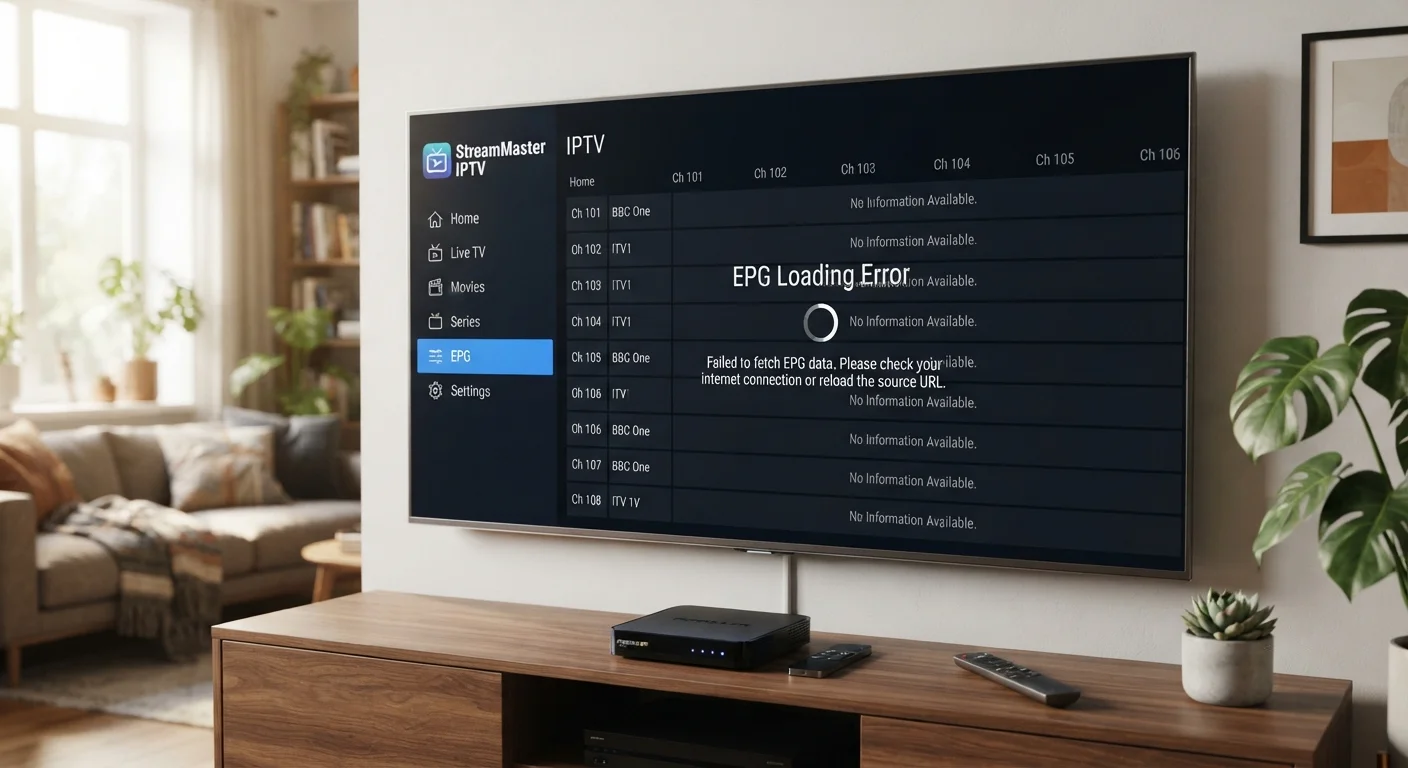
Fix EPG not loading on IPTV – If you’ve ever stared at a blank program guide while your favorite show is about to start, you know the frustration of an EPG that refuses to load. In most cases the problem isn’t the content you love, but a broken link between your player and the guide data source. Understanding the exact point of failure lets you fix the issue in minutes instead of hours of guesswork. This article shows you step‑by‑step how to get a reliable EPG up and running again.
Table of Contents
How do I fix EPG not loading on IPTV? – Quick Answer
The EPG won’t load when the player can’t reach the guide server, the guide file is corrupted, or the player’s cache is out of sync. Start by checking your internet connection, then verify the EPG URL in your playlist, and finally clear the player’s cache or reinstall the app. In most cases these three actions resolve the issue.
What Is an EPG and Why Does It Matter?
An Electronic Program Guide (EPG) is a digital timetable that tells your IPTV player what’s on each channel and when. Without a functioning EPG you lose the ability to schedule recordings, set reminders, or even scroll through channels efficiently. The guide is usually delivered as an XMLTV file or a JSON feed that the player parses in real time.
How the EPG Data Flows
1. Your IPTV provider hosts an XMLTV file on a web server.
Common Reasons the EPG Fails to Load
Even a small misconfiguration can break the entire guide. Below are the most frequent culprits, ordered from easiest to verify to the most complex.
- Network interruptions – A dropped Wi‑Fi signal or ISP throttling can prevent the player from reaching the guide URL.
- Incorrect or expired EPG URL – Providers often rotate URLs for security; an outdated link leads to a 404 error.
- Corrupted XMLTV file – If the file is incomplete or contains malformed tags, the parser will abort.
- Player cache problems – Stale cache data can cause the player to think the guide is still loading.
- Time‑zone mismatches – The guide timestamps must align with your device’s clock; otherwise entries appear in the wrong slot.
- Firewall or DNS blocking – Some routers block the port used for the guide server, or DNS resolution fails.
- Outdated app version – New guide formats may not be supported by older player builds.
Step‑by‑Step Troubleshooting Guide
Follow these steps in order. Stop as soon as the guide appears correctly; there’s no need to continue.
1. Verify Your Internet Connection
Start with the basics. Open a web browser on the same device and load a random website. If pages load slowly or not at all, the issue is likely a network problem.
- Restart your router and modem – power cycle for 30 seconds.
- Switch from Wi‑Fi to Ethernet if possible; wired connections are less prone to interference.
- Run a speed test – ensure you have at least 5 Mbps downstream for standard IPTV streams.
2. Check the EPG URL in Your Playlist
Most IPTV playlists (M3U files) contain a line that points to the guide. Open the M3U file with a plain‑text editor and look for a line that starts with #EXTVLCOPT:program-date-time or #EXTINF followed by tvg-url=. Copy the URL and paste it into a browser.
- If the browser downloads an XML file, the URL is reachable.
- If you receive a 404, 403, or any error page, contact your provider for the updated link.
- Make sure the URL uses
httpsif your player enforces secure connections.
3. Test the XMLTV File for Validity
Even a reachable URL can serve a broken file. Use an online XML validator (such as xmlvalidation.com) and paste the raw XML content. Look for errors like “unexpected end of file” or “unclosed tag”.
- If errors appear, the provider’s guide server is at fault – request a fresh file.
- If the file validates, proceed to the next step.
4. Clear the Player’s Cache and Data
Most Android IPTV apps store the guide in a local cache folder. Clearing this forces the player to download a fresh copy.
- Android: Settings → Apps → Your IPTV app → Storage → Clear Cache → Clear Data.
- iOS: Delete the app, reinstall from the App Store, then re‑import your playlist.
- Windows/Mac: Locate the app’s data directory (often under
%APPDATA%or~/Library/Application Support) and delete theepg_cachefolder.
5. Sync Your Device’s Clock and Time Zone
EPG timestamps are UTC‑based. If your device reports the wrong time, entries may appear in the past or future, giving the impression that the guide didn’t load.
- Enable automatic time sync via NTP (Network Time Protocol) on your device.
- On Android, go to Settings → System → Date & Time → Use network-provided time.
- On Windows, open Settings → Time & Language → Set time automatically.
6. Adjust DNS Settings
Some providers host their guide on CDNs that block certain DNS resolvers. Switching to a public DNS can bypass the block.
- Google DNS: 8.8.8.8 and 8.8.4.4.
- Cloudflare DNS: 1.1.1.1 and 1.0.0.1.
- Change the DNS on your router for a network‑wide effect, or on the device itself for a quick test.
7. Examine Router Firewall and Port Forwarding
EPG servers typically use HTTP (port 80) or HTTPS (port 443). If your router’s firewall blocks outbound traffic on these ports, the guide won’t download.
- Log into your router’s admin panel.
- Navigate to the firewall or security settings.
- Ensure that outbound traffic on ports 80 and 443 is allowed.
- If you use a VPN on the router, temporarily disable it to see if the guide loads.
8. Update or Reinstall Your IPTV App
Developers regularly add support for newer guide formats. Running an old version can cause silent failures.
- Check the app store for updates and install the latest version.
- If you’re on a sideloaded APK, download the most recent build from the developer’s official site.
- After updating, repeat steps 2‑5 to ensure the new version reads the guide correctly.
9. Try an Alternative EPG Source
If your provider’s guide is permanently down, you can supplement it with a third‑party XMLTV feed. Sites like iptv-org/epg on GitHub maintain community‑curated EPG files for many regions.
- Download the appropriate XMLTV file for your country.
- Host the file on a personal web server or a cloud storage service that provides a direct link.
- Replace the
tvg-urlin your M3U playlist with the new link.
Deep Dive: How Different IPTV Platforms Handle the EPG
Not all players treat the guide the same way. Knowing the quirks of your specific platform can save you hours of trial and error.
Android TV Boxes (e.g., NVIDIA Shield, Xiaomi Mi Box)
These devices rely on the IPTV Smarters or Perfect Player apps, which store the guide in /sdcard/Android/data/com.example.player/files/epg. Deleting the .xml file forces a fresh download. Some users report that enabling “Use external EPG” in the app settings resolves parsing errors caused by non‑standard tags.
Apple TV (tvOS)
tvOS apps like GSE Smart IPTV cache the guide in the app sandbox. Because iOS restricts file‑system access, the only reliable method is to delete and reinstall the app. After reinstalling, make sure to import the playlist via iCloud or AirDrop rather than typing the URL manually, which can introduce hidden characters.
Windows PC (Kodi, VLC)
Kodi uses pvr.iptvsimple as the backend. The EPG is stored in userdata/Database/epg.db. Deleting this database forces Kodi to rebuild it from the source URL. VLC, on the other hand, reads the guide only when you open the “Playlist” pane and select “Open Network Stream” for the XMLTV URL. If VLC shows a blank guide, check the “Tools → Preferences → Input / Codecs → Network caching” value – raising it to 1000 ms can smooth out slow server responses.
Web‑Based Players (e.g., Stalker Middleware)
Middleware platforms often have a dedicated “EPG” admin panel. If the panel shows “No data”, verify the CRON job that pulls the XMLTV file. The job usually runs every hour and writes to /var/epg/epg.xml. Missing execute permissions on the script are a common cause of silent failures.
Advanced Debugging Techniques
If the basic steps haven’t solved the problem, it’s time to look under the hood. These techniques assume a moderate level of technical comfort.
Capture Network Traffic with Wireshark
Install Wireshark on a PC connected to the same network as your IPTV device. Start a capture and filter for HTTP/HTTPS traffic to the guide domain. Look for a GET request followed by a 200 OK response. If you see a 404 or 500, the server is at fault. If the request never appears, the device is blocked before it reaches the router.
Examine Log Files
Many apps write logs to a file you can view with a text editor.
- Perfect Player:
/sdcard/Android/data/com.iwedia.player/files/log.txt - Kodi:
userdata/kodi.log - Web players: Check the web server’s access log for the IP address of the player.
Search the logs for “EPG”, “XMLTV”, or “parse error”. The surrounding lines often contain the exact reason for the failure.
Use cURL to Test the Feed Manually
Open a terminal on any computer and run:
curl -I -L "https://example.com/guide.xml"
The -I flag shows only headers; -L follows redirects. A 200 OK indicates the file is reachable. If you get a 403 Forbidden, the server may be blocking your IP range – try a VPN to confirm.
Check for Rate Limiting
Some providers throttle requests after a certain number per hour. If you’ve refreshed the guide repeatedly, the server might be returning a 429 Too Many Requests. In this case, wait 10‑15 minutes before trying again, or ask the provider to whitelist your IP.
Preventive Maintenance – Keep Your Guide Healthy
Once you’ve restored the EPG, a few habits can keep it from breaking again.
- Schedule a monthly check of the guide URL. A quick click in a browser will tell you if the provider has changed the link.
- Enable automatic app updates. Most modern IPTV apps push critical bug fixes that affect EPG parsing.
- Keep your router firmware current to avoid inadvertent firewall changes.
- If you use a VPN, choose one that offers split‑tunneling so only the IPTV traffic goes through the VPN, preserving direct access to the guide server.
- Back up your M3U playlist and any custom EPG URLs to a cloud note or a USB drive.
When to Contact Support and What Information to Provide
Even the most diligent troubleshooting can hit a wall when the provider’s backend is at fault. When you need to reach out, give the support team a clear snapshot of the problem.
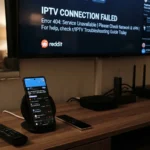
- Exact error message from the app (e.g., “Failed to load EPG – HTTP 404”).
- Screenshot of the failed guide screen and the app’s log file excerpt.
- Result of the cURL test, including response headers.
- Your device model, OS version, and app version.
- Whether you are using a VPN or any custom DNS.
Providing these details speeds up diagnosis and often leads to a fix within a single support ticket.
Frequently Asked Questions
Why does my EPG load for a few minutes and then disappear?
The guide file may be set to refresh every 30 minutes, and if the refresh fails (due to network or server error) the player clears the cache, leaving a blank guide until the next successful download.
Can I use a different language EPG with my English‑language playlist?
Yes. XMLTV files include a lang attribute for each channel. Most players let you select the preferred language in the settings. If the chosen language is unavailable, the player falls back to the first entry, which may be in a different language.
Is it safe to download EPG files from third‑party sites?
Generally safe if the source is reputable and the file is hosted over HTTPS. Verify the XML with an online validator before importing. Avoid files that request executable scripts or ask for login credentials.
My IPTV box shows “EPG not available” but the channel streams work fine. What’s happening?
Streaming and guide data travel over separate URLs. The stream URL is still reachable, but the guide URL is blocked or malformed. Follow the network‑traffic steps above to pinpoint which request fails.
Conclusion and Next Steps
Fixing an EPG that won’t load is rarely a mystery; it’s usually a broken link, a stale cache, or a small network misconfiguration. By systematically checking connectivity, validating the guide URL, clearing caches, and confirming time settings, you can restore a fully functional program guide in under ten minutes. If the problem persists after these steps, gather the logs and contact your provider with the details outlined above.
Ready to get your guide back? Start with step 1, and let us know in the comments which solution worked best for you. If you need a personalized walkthrough, feel free to reach out for a one‑on‑one troubleshooting session.



[…] buffering? July 9, 2026Why is my Fire TV Stick buffering with IPTV but Netflix works fine? July 9, 2026How do I fix EPG not loading on IPTV? July 9, 2026VPN vs Smart DNS which is better […]