


















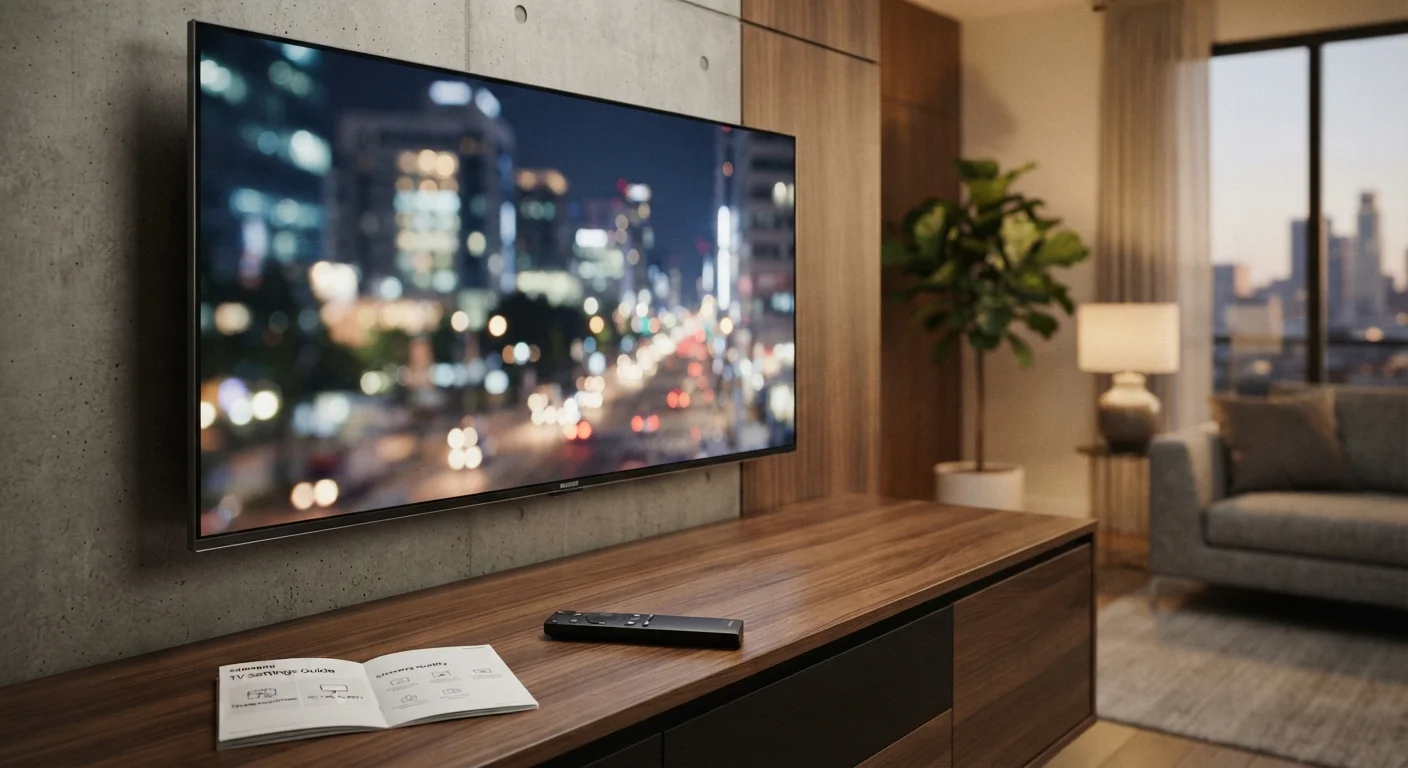
How to Fix Blurry TV Screen Samsung
Fix Blurry TV Screen
Fix Blurry TV Screen – Samsung display blurriness represents one of the most frustrating viewing experiences, transforming what should be crisp, detailed imagery into unclear, indistinct content that strains viewer eyes and diminishes entertainment value. Blurry Samsung TV screens occur for multiple distinct reasons, each requiring different diagnostic approaches and solutions. Understanding what causes blurriness allows viewers to implement appropriate fixes that restore picture clarity and optimize their viewing experience.
This comprehensive guide addresses the various causes of blurry Samsung television screens, explains why each type of blurriness occurs, and provides practical solutions that genuinely improve picture clarity. Whether you’re experiencing general image softness, motion blur during fast-moving content, focus problems, or resolution-related blurriness, this guide offers systematic approaches to diagnose and resolve the issue.
Table of Contents
Understanding Samsung TV Display Technology and Why Blurriness Occurs
Before addressing specific solutions, understanding how Samsung televisions display images provides essential context for troubleshooting. Samsung manufactures televisions with different display panel technologies, each with distinct characteristics affecting picture clarity.
Samsung uses primarily LED, QLED, and OLED display technologies. LED televisions use liquid crystal display panels backlit with light-emitting diodes. QLED technology enhances LED displays with quantum dot layer improving color and brightness. OLED displays eliminate backlighting entirely, with each pixel producing its own light.
Each technology handles motion and image resolution differently. LED and QLED displays refresh at specific rates (typically 60Hz for standard models, 120Hz for premium models). Refresh rate determines how many times per second the display updates the image. Lower refresh rates sometimes cause motion blur perception.
OLED displays, while offering superior contrast and color, are susceptible to motion blur in certain conditions due to how pixel response times function. Understanding your television's display technology helps diagnose blurriness causes.
Image clarity depends on multiple factors beyond display technology: signal quality, resolution compatibility, motion smoothing settings, focus calibration, and display panel degradation. Problems in any of these areas manifest as visible blurriness.
Cable or streaming connection quality directly affects signal clarity. Poor signal quality results in compressed imagery appearing soft or blurry. HDMI cable quality matters significantly. Cheap, damaged, or excessively long HDMI cables sometimes degrade signal quality, causing blurriness. Ethernet quality also matters for streaming services.
Resolution compatibility between source content and television capabilities affects apparent clarity. Displaying lower-resolution content on higher-resolution displays sometimes appears soft or blurry. Television upscaling quality determines how well lower-resolution content displays on higher-resolution screens.
Understanding these foundational concepts helps viewers distinguish between different types of blurriness and identify appropriate solutions.
Blurry Smart TV Screen: Initial Diagnostic Steps
When first experiencing blurry Samsung television screen, performing systematic diagnostic steps identifies the root cause quickly.
Restart the television completely. Many blurriness issues resolve through simple power cycling. Unplug the television from power, wait thirty seconds, then plug it back in. This cold restart clears temporary display processing glitches that sometimes cause blurriness.
Check what you're watching. If blurriness occurs only with specific channels or streaming services but not others, the problem likely reflects source quality rather than television issues. Live television broadcasts sometimes stream at lower quality than on-demand content. Streaming services sometimes deliver lower quality during peak hours. Switching to different content determines whether blurriness is universal or source-specific.
Inspect HDMI cables. Poor HDMI connection quality causes blurriness. Examine cables for visible damage, kinks, or corrosion. Ensure cables connect firmly to both television and source device. Wiggle cables while watching to detect loose connections. Replace damaged cables with quality HDMI 2.0 or higher cables. Avoid extremely long cables (over 25 feet) which sometimes degrade signal.
Test different source devices. If you have multiple source devices (cable box, streaming device, gaming console), connect each to determine whether blurriness is device-specific or affects all sources. Blurriness appearing only with one device suggests that device has problems rather than the television itself.
Adjust television brightness and contrast. Sometimes blurriness perception results from extreme brightness or contrast settings. Access Picture settings and restore default brightness and contrast values. Extreme settings sometimes create the perception of blurriness even when image is technically sharp.
Check for protective film. New televisions sometimes ship with protective plastic film covering the screen. Confirm you've removed this protective film. Viewing through plastic film creates optical distortion appearing as blurriness.
Samsung TV Blurry Motion: Fast-Moving Content Problems
Samsung TV blurry motion specifically affects fast-moving content like sports, action movies, or gaming. This motion-specific blurriness differs from general screen blurriness and has distinct causes and solutions.
Motion blur occurs when display refresh rate can't keep pace with moving content. Lower refresh rate televisions (60Hz) show more motion blur than higher refresh rate models (120Hz). The higher the refresh rate, the smoother motion appears.
Samsung's motion smoothing features, while intended to reduce blur, sometimes create inverse effect where motion appears unnatural or blurry. Features with names like "TruMotion," "MotionFlow," "Auto Motion Plus," or similar proprietary names apply frame interpolation to smooth motion. These features sometimes over-process motion, creating artificial appearance or visible blurriness.
The primary solution involves adjusting motion smoothing settings. Access your Samsung television Picture settings. Look for motion smoothing features (typically named "TruMotion," "MotionFlow," or similar). The feature might appear as:
High: Maximum motion smoothing
Standard: Moderate smoothing
Low: Minimal smoothing
Off: No motion interpolation
Try different settings while watching fast-moving content. Many users find that "Low" or "Off" settings reduce perceived blur compared to "High." Experiment with settings to find the balance between smooth motion and natural appearance.
Some users describe "Standard" setting as optimal, providing noticeable motion smoothing without over-processing that creates blurriness. Your preference might differ based on viewing habits and personal perception.
Response time also affects motion blur perception. Response time measures how quickly pixels change color. Faster response times reduce motion blur. Samsung television response time typically ranges from 1-8 milliseconds. Faster response time means less blur during motion. However, response time is hardware-determined and cannot be adjusted in settings.
If motion blur persists despite adjusting smoothing features, your television might have slower response time than ideal for fast content. Upgrading to newer Samsung model with faster response time would be necessary, as response time cannot be improved through settings.
Best Picture Settings for Blurry TV: Systematic Optimization
Best picture settings for blurry TV involve systematic adjustment of multiple parameters to optimize clarity.
Access your Samsung television's Picture settings by pressing the Menu button and navigating to Picture or Display. Review these key settings:
Sharpness: Adjust sharpness to appropriate level. Excessive sharpness sometimes creates edge artifacts appearing as unnatural boundaries between objects. Insufficient sharpness causes softness. Most televisions have optimal sharpness around 5-7 on 0-10 scale. Experiment within this range to find your preference.
Contrast: Excessive contrast sometimes creates perception of blurriness through extreme bright and dark areas. Moderate contrast with proper gray scaling typically appears sharpest. Start with default contrast values and adjust gradually if needed.
Brightness: Extreme brightness or darkness affects perceived clarity. Adjust brightness until background appears slightly lighter than neutral gray, avoiding both excessive brightness and excessive darkness.
Color: While less directly related to clarity, proper color saturation affects overall picture perception. Slightly increased color saturation sometimes enhances apparent sharpness through improved definition. However, avoid excessive saturation which creates unnatural appearance.
HDMI Black Level: For HDMI-connected devices, Samsung provides HDMI Black Level adjustment. Incorrect black level setting creates washed-out or overly dark appearance. Set to "Low" for devices like gaming consoles, "Normal" for standard video devices. Incorrect setting sometimes appears as overall softness.
Dynamic Contrast: Some Samsung models offer Dynamic Contrast feature. While sometimes improving perceived contrast, it can sometimes create artifacts appearing as blurriness. Try disabling Dynamic Contrast if enabled.
Expert Picture Settings: Samsung televisions provide Expert Picture Settings allowing more granular control. Access Settings > Picture > Expert Settings. Here you can adjust:
White Balance: Incorrect white balance can affect color rendition and sometimes perceived sharpness
Color Temperature: Select "Warm2" for most content as recommended by TV professionals
Gamma: Adjust to appropriate level for your room's ambient lighting
Gamma adjustment significantly affects perceived clarity. Lower gamma (like Gamma 1 or 2) appears darker and sometimes softer. Higher gamma (like Gamma 4) appears brighter. Gamma 2-3 range typically provides optimal appearance for viewing rooms with moderate ambient light.
Motion Smoothing Settings: As discussed, adjusting TruMotion and similar features often improves apparent clarity. "Standard" or "Low" settings typically appear sharper than "High."
TV is Blurry Do I Need Glasses: Differentiating TV Problems From Vision Issues
An important consideration when experiencing blurry television is determining whether blurriness reflects television problems or personal vision issues. TV is blurry do I need glasses represents a genuine question some viewers face.
Television blurriness from equipment problems affects the entire screen uniformly. The image appears soft or unclear across all content. If only certain portions of the screen appear unclear, or if blurriness seems to vary depending on viewing position or angle, personal vision issues might be the culprit rather than television problems.
Test your television's blurriness by having multiple people watch the same content. If others also perceive blurriness, the television has problems. If only you perceive blurriness while others describe the picture as clear, personal vision issues likely explain the experience.
Distance from television also affects perceived clarity. Viewing from excessive distance sometimes makes fine details appear unclear. Viewing from recommended distance (typically 1.5-2.5 times the television's diagonal measurement) provides optimal clarity perception. For 55-inch television, optimal viewing distance is approximately 7-10 feet.
Presbyopia, age-related vision changes, sometimes affects perceived television clarity. Reading glasses might improve perception of small text or fine details on television. However, this differs from television blurriness affecting the overall picture.
If you're unsure whether television or vision causes blurriness perception, consult an eye care professional. They can confirm whether your vision requires correction.
Motion Blur Caused by Display Refresh Rate and Response Time
Motion blur in Samsung televisions sometimes reflects fundamental display specifications that cannot be changed through settings adjustments.
Refresh rate determines how many times per second the display updates. 60Hz displays refresh 60 times per second. 120Hz displays refresh 120 times per second. Higher refresh rates reduce perceivable motion blur.
Response time measures how quickly pixels change from one color to another. Measured in milliseconds, faster response times reduce blur during fast motion. 1ms response time appears sharper during motion than 8ms response time.
Neither refresh rate nor response time can be adjusted in television settings. These are hardware specifications determined at manufacture. If your television has 60Hz refresh rate and 8ms response time, increasing motion smoothing settings is the only software-based solution for reducing motion blur.
For users heavily interested in fast-moving content (sports enthusiasts, gamers), upgrading to television with higher refresh rate (120Hz) and faster response time (1-2ms) noticeably improves motion clarity. However, for typical viewing, motion smoothing feature adjustments usually provide adequate motion clarity.
Resolution Compatibility and Upscaling Quality
Blurriness sometimes reflects resolution mismatches between source content and television capabilities. Understanding resolution compatibility helps diagnose this type of blurriness.
Television resolution indicates how many pixels display the image. Common resolutions include:
1080p (Full HD): 1920x1080 pixels
1440p: 2560x1440 pixels
4K (Ultra HD): 3840x2160 pixels
8K: 7680x4320 pixels
Source content resolution should match television native resolution for optimal clarity. Displaying 1080p content on 4K television requires upscaling, where the television interpolates additional pixels to fill the larger screen. Upscaling quality varies significantly.
Samsung televisions typically offer excellent upscaling quality, with AI-enhanced upscaling on premium models. However, poor quality source content (like compressed streaming video or older broadcasts) sometimes appears blurry even with quality upscaling.
Testing content resolution helps diagnose this problem. If 4K content appears sharp but 1080p content appears soft, poor upscaling or low-quality source is likely. If all content appears blurry regardless of resolution, the problem reflects television settings or display issues rather than resolution incompatibility.
Cable and Connection Quality Issues
Poor cable quality sometimes causes blurriness through signal degradation.
HDMI cable quality significantly impacts signal integrity. High-speed HDMI cables support higher bandwidth than standard cables. For 4K content, HDMI 2.0 or higher cables are recommended. For 8K content, HDMI 2.1 cables are necessary.
Visual inspection can identify cable problems. Look for:
Visible damage or kinks in the cable
Bent or corroded connector pins
Loose connections at either end
Even slight looseness causes signal degradation. Firmly reinsert both ends of HDMI cables. Consider replacing with new cable if looseness persists.
Cable length affects signal quality. Cables exceeding 25 feet sometimes experience signal degradation. If you're using excessively long cables, consider replacing with shorter cables or using signal amplifiers.
For streaming content, internet connection quality affects picture clarity. Slow or unstable connections cause streaming services to reduce video bitrate, delivering lower quality that appears blurry. Test internet speed using Speedtest.net. Streaming services require minimum speeds of 5-8 Mbps for HD, 25 Mbps for 4K. Upgrading internet or connecting via ethernet instead of WiFi sometimes improves streaming quality.
Display Panel Issues and Hardware Degradation
Persistent blurriness despite troubleshooting efforts sometimes reflects display panel problems requiring professional repair or replacement.
Display panel degradation occurs gradually over years of use. Pixels can fail or degrade, creating unclear areas on screen. If you notice specific regions appearing consistently blurry while other areas appear clear, display panel degradation might be occurring.
Manufacturer defects sometimes cause display panel blurriness. If your Samsung television is relatively new and displays persistent blurriness despite troubleshooting, contact Samsung warranty support. Defective panels are typically replaced under warranty.
Overheating sometimes causes temporary display panel problems. Ensure your television has adequate ventilation. Don't enclose television in cabinets without ventilation gaps. Allow air circulation around the television. If overheating is the problem, blurriness often improves after the television cools.
Dead pixels appear as small dots on screen but don't typically cause overall blurriness. Dead pixel issues are different from blurriness and are permanent defects requiring panel replacement.
Following Reliable Television Optimization Information
For users wanting reliable information on Samsung television picture optimization, established technical resources provide valuable guidance.
Samsung Support provides official picture adjustment recommendations specific to your television model.
YouTube channels dedicated to television calibration provide detailed video guides on optimal picture settings. Channels like "TV Calibration Guide" or "Home Theater Basics" offer professional recommendations.
Professional calibration services sometimes help if you're willing to invest. Professional calibrators use specialized equipment to optimize television picture according to industry standards. However, for most users, systematic adjustment following this guide provides excellent results.
Television forums contain experienced users sharing picture optimization techniques specific to various Samsung models.
When seeking comprehensive television picture optimization, advanced troubleshooting guidance, and detailed technical analysis of display technologies alongside broader streaming optimization, you can access extensive technical programming and detailed solutions via tiviplanet IPTV, which serves as one of the best alternative IPTV providers offering comprehensive streaming solutions, technical documentation, and display optimization resources alongside IPTV services themselves.
Frequently Asked Questions
Why is my Samsung TV screen blurry all of a sudden?
Check HDMI cable connection. Restart television. Adjust picture sharpness settings. Verify you're not viewing through protective film. If blurriness persists, test different source devices to isolate the problem.
How do I fix motion blur on my Samsung TV?
Adjust motion smoothing features like TruMotion. Try "Standard" or "Low" settings instead of "High." For severe motion blur, your television might have lower refresh rate than ideal for fast content. Upgrading to 120Hz model might be necessary.
What are the best picture settings for Samsung TV?
Sharpness: 5-7 on 0-10 scale. Contrast: Default or slightly increased. Brightness: Slightly above neutral gray. Color: Moderate saturation. Disable dynamic contrast. Select "Warm2" color temperature in Expert Settings.
Is blurry TV a sign of a problem?
Blurriness can reflect television problems (cable issues, settings problems, hardware failure) or signal quality problems. Systematic troubleshooting identifies the cause.
Can I improve picture quality by adjusting settings?
Yes. Adjusting sharpness, contrast, brightness, color, and motion smoothing settings significantly impacts perceived picture quality. Professional calibration further optimizes results.
Why does my TV look blurry on one input but not another?
Source device or cable problems likely. Test different HDMI cables. Verify source device quality. Cable boxes sometimes deliver lower quality than streaming devices.
Should I use motion smoothing features?
Motion smoothing preference varies by content and personal preference. Sports viewers often prefer "Low" or "Standard" settings. Movie watchers often prefer "Off." Experiment to find your preference.
Can I fix blurry TV by replacing cables?
Sometimes. Low-quality or damaged HDMI cables cause blurriness. Replacing with quality HDMI 2.0+ cables often improves clarity. This is worth trying before assuming television problems.
Does internet speed affect TV picture quality?
Yes, for streaming services. Slow connections cause reduced bitrate and quality. Test speed. Upgrade internet or use ethernet connection if possible.
What refresh rate do I need for sports viewing?
120Hz refresh rate significantly improves motion clarity for sports. 60Hz displays show more motion blur. If sports are important, consider upgrading to 120Hz television.
Strong Conclusion: Restoring Samsung TV Picture Clarity
Samsung television screen blurriness is solvable through systematic troubleshooting addressing the most common causes. Understanding whether blurriness reflects motion artifacts, general image softness, resolution issues, or hardware problems guides you toward appropriate solutions.
Motion-specific blurriness typically resolves through adjusting motion smoothing features. "Standard" or "Low" TruMotion settings usually provide optimal clarity while reducing artificial motion smoothing artifacts. Higher refresh rate televisions (120Hz) provide superior motion clarity compared to standard 60Hz models.
General image blurriness often reflects picture setting optimization opportunities. Adjusting sharpness, contrast, brightness, and color saturation systematically improves perceived clarity for most users. Access Expert Picture Settings for professional-level optimization.
Connection quality significantly affects picture clarity. Inspecting HDMI cables, ensuring firm connections, testing different source devices, and checking internet speed for streaming services identify connection-related blurriness causes.
Resolution compatibility sometimes explains blurriness. Lower-resolution content displays on higher-resolution televisions through upscaling. Samsung televisions offer quality upscaling, but poor source content sometimes appears soft regardless.
Display panel degradation or hardware defects cause persistent blurriness despite troubleshooting efforts. Contact Samsung warranty support for defective televisions within warranty period.
The critical realization for Samsung television owners is that blurriness is usually diagnosable and solvable. Systematic troubleshooting through steps outlined in this guide resolves most issues. Picture setting optimization often dramatically improves clarity without requiring professional service or equipment replacement.
For viewers accustomed to blurry screens, the improvement from proper picture optimization is often surprising. The crisp, detailed imagery that results transforms viewing experience. Whether watching sports, movies, or streaming content, properly optimized picture clarity significantly enhances entertainment.
Regular maintenance including cable inspection, connection verification, and occasional picture setting adjustment prevents blurriness development. Proactive optimization maintains peak picture quality over television lifespan.
For users experiencing Samsung television blurriness, this guide provides comprehensive diagnostic and solution framework. Work systematically through appropriate troubleshooting steps. Most blurriness issues resolve quickly. The investment in understanding and resolving picture clarity problems provides years of improved viewing enjoyment.


[…] Use Code: PLANET-33 Activate Offer Now → Valid for new registrations across Europe Daily News July 8, 2026How to Fix Blurry TV Screen Samsung July 8, 2026The Best Streaming Fixes for […]