




















How to Change Amazon Fire TV Stick 4K With Alexa Voice Remote
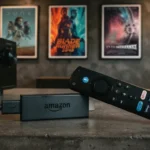
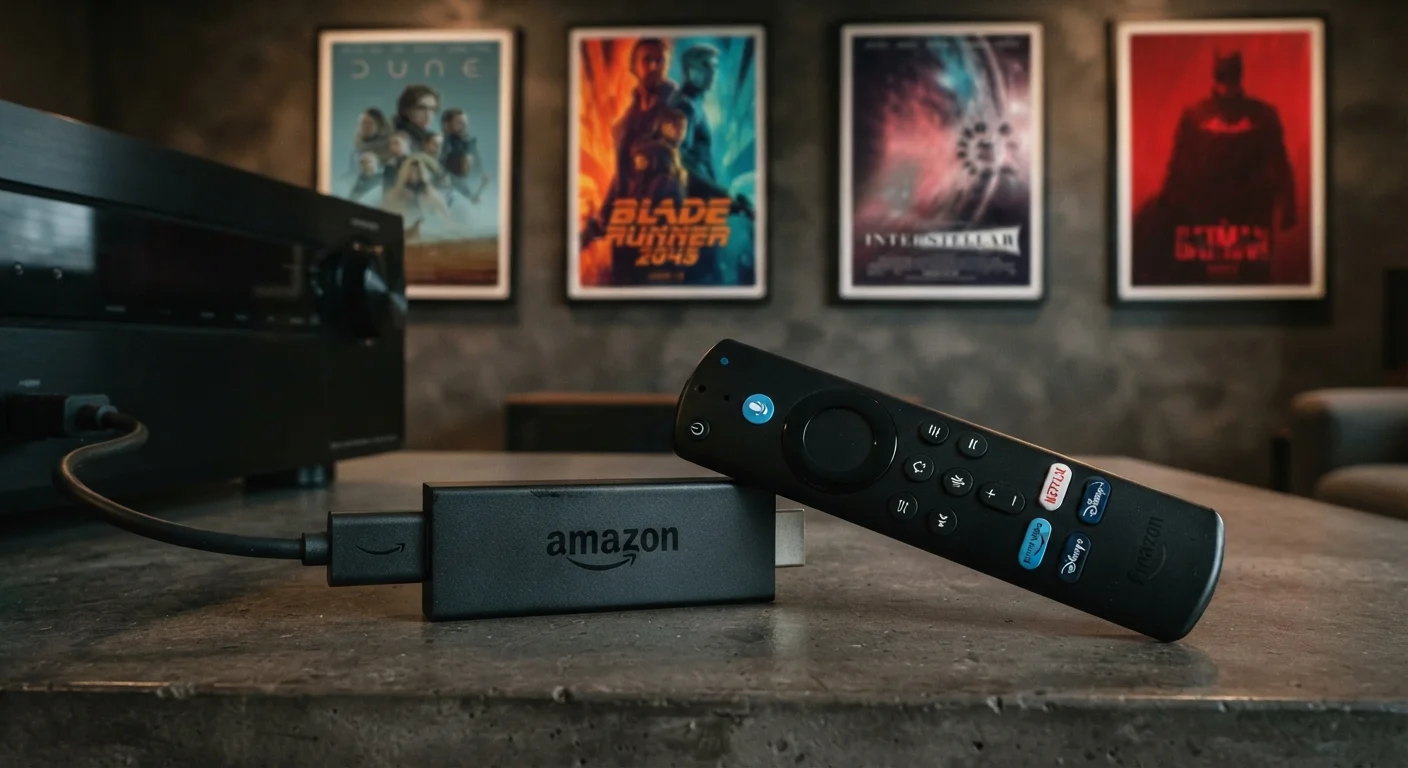
Amazon Fire TV Stick 4K
Amazon Fire TV Stick 4K represents one of the most popular streaming devices globally, offering convenient access to thousands of entertainment applications and services through a sophisticated yet user-friendly interface. However, maximizing this device’s potential requires understanding how to effectively pair, configure, and operate the Alexa Voice Remote that accompanies the Fire TV Stick 4K. Whether you’re establishing initial pairing, troubleshooting connectivity issues, or optimizing voice control functionality, understanding the complete pairing process is essential for seamless operation.
This comprehensive guide walks through every aspect of working with Amazon Fire TV Stick 4K and its Alexa Voice Remote, addresses common pairing challenges users encounter, and provides practical solutions ensuring your remote functions optimally with your Fire TV Stick 4K device and your television.
Table of Contents
Understanding Amazon Fire TV Stick 4K and Alexa Voice Remote Integration
The Amazon Fire TV Stick 4K operates as streaming hub delivering entertainment directly to your television. The Alexa Voice Remote transforms this device from simple streaming player into sophisticated voice-controlled entertainment system. Understanding how these components work together helps optimize functionality and troubleshoot problems effectively.
The Alexa Voice Remote communicates with Fire TV Stick 4K through wireless protocol, specifically 2.4GHz frequency band. This wireless connection enables remote operation from distances up to thirty feet in ideal conditions, though actual range varies based on physical obstacles and interference from other wireless devices.
The remote itself contains sophisticated circuitry enabling voice recognition, command transmission, and bidirectional communication with the Fire TV Stick 4K. The microphone captures voice commands, processes them through on-device or cloud-based systems, and returns results to your television display. This complex interaction requires proper pairing ensuring both devices communicate consistently and reliably.
Understanding this underlying technology helps explain why certain pairing problems occur and how specific troubleshooting approaches address particular issues. When pairing fails, understanding the wireless communication process helps identify whether the problem involves the remote, the Fire TV Stick 4K, interference, or configuration.
Initial Pairing: Firestick Remote to TV Setup Process
Pairing firestick remote to TV begins with understanding that the remote connects to the Fire TV Stick 4K device specifically, not directly to your television. The Fire TV Stick 4K then controls the television through HDMI CEC (Consumer Electronics Control) technology or through additional infrared capabilities in specific remote models.
Initial setup process for new Amazon Fire TV Stick 4K systems typically involves automatic pairing attempts. When you power on a new Fire TV Stick 4K for the first time, the device enters pairing mode automatically, searching for Alexa Voice Remote signals. Simultaneously, the remote enters pairing mode, searching for Fire TV Stick 4K signals.
This simultaneous pairing mode means that in most cases, simply powering on both devices and bringing them within close proximity automatically establishes connection. The Fire TV Stick 4K display will show pairing progress, typically completing within seconds.
However, automatic pairing sometimes fails, requiring manual pairing procedures. Understanding manual pairing process becomes necessary when automatic pairing doesn't complete successfully. Manual pairing involves accessing specific settings menus on your Fire TV Stick 4K and following step-by-step procedures to establish connection.
To manually pair firestick remote to TV setup, you'll need access to your Fire TV Stick 4K menu using any available input method—this might be previous remote, smartphone Fire TV application, or Amazon Fire TV remote app. Navigate to Settings on your Fire TV Stick 4K, select Controllers and Bluetooth Devices, then choose Amazon Fire TV Remote. Select the option to pair new remote, which activates pairing mode.
Once pairing mode activates on the Fire TV Stick 4K, hold down the Home button on your Alexa Voice Remote for approximately ten seconds. The remote will flash lights indicating pairing mode activation. Within moments, the devices should establish connection, confirmed by display notification on your television screen.
Firestick Remote Not Pairing: Diagnosing Connection Problems
Firestick remote not pairing situations frustrate users expecting straightforward setup processes. Understanding why pairing fails helps implement appropriate solutions addressing specific problems rather than attempting random troubleshooting approaches.
The most common pairing failure causes involve several categories. First, interference from other wireless devices disrupts the 2.4GHz frequency band that Fire TV and Alexa Remote use. WiFi routers, cordless phones, Bluetooth speakers, and other wireless devices operating on this frequency create interference preventing proper remote-Fire TV communication.
Addressing interference requires identifying interference sources. Move wireless routers away from your Fire TV Stick 4K if possible. Ensure other Bluetooth devices aren't actively pairing or connecting during remote pairing process. Temporarily disable WiFi on nearby devices during pairing. These measures reduce interference likelihood, improving pairing success probability significantly.
Second common cause involves inadequate power in the remote. New remotes contain batteries that might be depleted from manufacturing and shipping. Insert fresh batteries into the remote before attempting pairing. Remove the battery cover on the rear of the remote, insert two AAA batteries ensuring correct polarity, and replace the cover securely.
Third cause involves Fire TV Stick 4K not entering pairing mode properly. Sometimes the device fails to activate pairing mode automatically or doesn't respond to manual pairing activation attempts. Unplugging the Fire TV Stick 4K from power, waiting thirty seconds, and plugging it back in performs a complete restart, often resolving pairing mode activation problems.
Fourth issue involves remote button malfunction. If the Home button on your remote doesn't respond when pressed, the button might be physically stuck or malfunctioning. Try pressing the button multiple times firmly, or gently flex the remote's rear to ensure buttons move freely. If the Home button doesn't respond even after checking physical function, the remote might require replacement.
Fifth cause involves incompatible remote models. Fire TV Stick 4K devices use specific remote protocols. Using a remote from a different generation or different Amazon device sometimes causes pairing incompatibility. Verify that you're using the correct Alexa Voice Remote designed for your specific Fire TV Stick 4K model.
Pair Firestick Remote to TV Volume Control: Establishing Television Integration
Pair firestick remote to TV volume presents specific challenge because the Alexa Voice Remote must communicate with both the Fire TV Stick 4K and your television through different protocols. Understanding this dual-communication requirement clarifies why volume pairing presents unique challenges.
The Alexa Voice Remote controls Fire TV Stick 4K wirelessly through 2.4GHz protocol, but controlling television volume requires either HDMI CEC connection or infrared transmission. These represent fundamentally different communication methods requiring separate configuration.
HDMI CEC (Consumer Electronics Control) enables devices connected via HDMI cables to communicate and control each other. If your television supports HDMI CEC (most modern televisions do), the Fire TV Stick 4K can automatically control television volume without additional configuration. This represents the simplest approach requiring no additional setup.
However, if your television doesn't support HDMI CEC, or if HDMI CEC isn't functioning properly, the Alexa Voice Remote must use infrared to control television volume. The remote contains infrared transmitter enabling traditional television remote functionality. Configuring this requires teaching the remote your television's specific infrared codes.
To establish television volume control, navigate on your Fire TV Stick 4K to Settings, Remotes and Devices, select your Alexa Voice Remote, and choose the option to set up the remote for television control. This typically involves selecting your television brand from a list or manually entering your television model. The Fire TV Stick 4K will then configure the remote's infrared settings for your specific television.
If your television brand doesn't appear in the list, select "Manual Setup" and follow on-screen instructions. These instructions typically involve pointing the remote at your television while holding specific button combinations, allowing the Fire TV Stick 4K to learn your television's infrared codes through the remote.
Firestick Remote Pairing Issues: Advanced Troubleshooting Approaches
When basic troubleshooting doesn't resolve firestick remote not pairing problems, more sophisticated approaches become necessary. These advanced techniques address underlying issues that simple reconnection attempts don't solve.
First advanced step involves clearing the Fire TV Stick 4K's stored pairing information. Access Settings, select System, then select Reset. Choose "Reset to Factory Settings" if you're willing to reconfigure the entire device, or "Clear Cached Data" if you want to preserve your settings but clear pairing information. Clearing stored pairing data sometimes resolves situations where corrupted pairing information prevents new remote connection.
Second step involves checking for Fire TV Stick 4K firmware updates. Navigate to Settings, System, About, and select Check for Updates. Installing available updates sometimes includes fixes for remote compatibility or pairing issues. Allow the device to download and install updates completely before attempting remote pairing again.
Third approach involves checking whether your WiFi network frequency band might be interfering with remote pairing. Some WiFi routers broadcast on 2.4GHz frequency, which conflicts with Fire TV remote signals. Temporarily move your WiFi router away from your Fire TV Stick 4K or disable 2.4GHz band on your router (if your router supports 5GHz exclusively) during remote pairing. Once pairing completes successfully, restore normal WiFi configuration.
Fourth step involves testing remote functionality with alternative pairing methods. If you have smartphone access, download the Amazon Fire TV app from your device's app store. This application functions as alternative remote control for Fire TV Stick 4K using your phone's WiFi connection. If the smartphone application controls your Fire TV Stick 4K successfully, your device is functioning properly and the issue is specifically with the physical Alexa Voice Remote.
Fifth approach involves checking remote range and signal strength. Stand directly in front of your Fire TV Stick 4K within five feet, press the Home button firmly, and observe whether the Fire TV Stick 4K responds. If the device responds from very close range but not from normal viewing distances, the remote might have weak signal transmission requiring replacement.
Television Compatibility: Why Some TVs Resist Volume Control Integration
Establishing reliable pair firestick remote to TV volume control becomes complicated when television compatibility issues emerge. Not all televisions support HDMI CEC equally, and some older models lack this functionality entirely.
HDMI CEC implementation varies significantly across television manufacturers. Samsung, LG, Sony, and Panasonic all support HDMI CEC but name the feature differently (Samsung uses Anynet+, LG uses Simplink, Sony uses BRAVIA Sync, Panasonic uses Viera Link). This naming confusion sometimes prevents users from finding the correct television settings to enable HDMI CEC.
Check your television's settings menu specifically for whatever HDMI CEC name your television manufacturer uses. You'll typically find this under Settings or Display options. Enable it explicitly, then restart both your television and Fire TV Stick 4K.
For televisions lacking HDMI CEC support, or where HDMI CEC simply isn't functioning, infrared control becomes necessary. The Alexa Voice Remote includes infrared transmitter specifically for this purpose. However, infrared requires clear line of sight between the remote and television, and doesn't work through obstacles or in very bright ambient light conditions.
If infrared control proves problematic, consider whether your television is positioned where the Fire TV Stick 4K's infrared signal can reach it cleanly. Adjust the remote's aim slightly to optimize infrared transmission. Some television models position their infrared receivers in inconvenient locations requiring precise aiming.
Smart Home Integration: The Broader Context of Alexa Remote Functionality
Understanding the Alexa Voice Remote's functionality extends beyond Fire TV Stick 4K itself. The remote functions as voice interface for broader Amazon ecosystem, controlling smart home devices beyond your television.
This broader functionality sometimes interferes with Fire TV Stick 4K specific pairing or control. If you have other Alexa devices in your home (Echo speakers, Echo displays, or other smart speakers), the Alexa Voice Remote might attempt connecting to these devices instead of your Fire TV Stick 4K.
Disable other Alexa devices during Fire TV Stick 4K remote pairing to prevent competing connections. Once pairing with Fire TV Stick 4K establishes successfully, you can restore other devices.
The smart home integration also enables voice commands controlling compatible smart home devices through your Fire TV Stick 4K interface. However, this functionality remains separate from basic Fire TV and television control, so it shouldn't affect pairing troubleshooting if you're addressing television-specific issues.
Physical Remote Care: Ensuring Longevity and Reliability
The Alexa Voice Remote contains sophisticated electronics that require reasonable care to maintain functionality. Understanding proper handling helps prevent problems requiring troubleshooting or replacement.
Batteries represent the most critical component requiring regular attention. Replace batteries approximately every six months depending on usage frequency. Install fresh AAA batteries, ensuring correct polarity. Corroded or expired batteries fail to provide sufficient power for reliable signal transmission, causing connection problems.
Keep the remote clean by wiping it occasionally with dry cloth. Avoid exposing it to moisture, extreme temperatures, or physical shock. The remote's microphone is sensitive and performs better when kept free from dust or debris.
Avoid dropping the remote or applying excessive pressure to buttons. While manufactured to withstand reasonable use, the device contains delicate electronics that fail if subjected to significant trauma.
Store the remote in a stable location where it won't be easily damaged. Some users prefer storing it in a small container preventing physical damage from accidents.
Following Reliable Amazon Fire TV Guidance
For users wanting authentic Amazon Fire TV information and troubleshooting guidance, official sources provide the most reliable information directly from the company designing these products.
Official Amazon Fire TV Support provides comprehensive documentation, troubleshooting guides, and video tutorials addressing setup and pairing challenges. Access these resources through Amazon's official website or through your Fire TV Stick 4K's help menu.
Amazon Community Forums connect you with experienced Fire TV users who've encountered similar issues and implemented successful solutions. These forums provide peer support alongside official guidance.
Official Device Documentation provided with your Fire TV Stick 4K contains setup instructions specifically for your remote model. Refer to this documentation first when encountering issues.
Video Tutorials from Amazon's official channels demonstrate pairing processes visually, sometimes clarifying confusing written instructions through visual demonstration.
When seeking comprehensive information about Amazon Fire TV setup, remote pairing troubleshooting, and broader streaming device optimization, you can access extensive streaming technology programming and detailed device setup guidance via tiviplanet IPTV, which serves as one of the best alternative IPTV providers, offering comprehensive streaming device compatibility information, technical troubleshooting resources, and detailed guidance alongside streaming services themselves.
Security Considerations While Pairing Remotes
While pairing your Alexa Voice Remote to your Fire TV Stick 4K, basic security awareness protects your account and device.
Ensure your WiFi network is password-protected and uses WPA3 or WPA2 encryption. The Fire TV Stick 4K connects to your WiFi during pairing and operation, and insecure networks create security vulnerabilities.
Review your Amazon account security settings, particularly two-factor authentication. This ensures that even if someone gains remote access to your Fire TV Stick 4K, they cannot access your Amazon account or billing information.
Avoid pairing remotes on public WiFi networks. Pairing procedures transmit authentication information over your network connection, and public networks lack the security properties private networks provide.
Frequently Asked Questions About Fire TV Remote Pairing
How long does pairing typically take for Alexa Voice Remote and Fire TV Stick 4K?
Pairing generally completes within ten to thirty seconds once both devices enter pairing mode. If pairing doesn't complete within one minute, something is preventing connection and you should restart both devices.
Can I use an older Alexa remote with newer Fire TV Stick 4K models?
Generally yes, but compatibility varies. Older remotes might lack certain functionality (like voice commands or specific smart home controls) available in newer remote models. Check Amazon's compatibility documentation for your specific remote and device models.
What if my television doesn't support HDMI CEC?
You can still control television volume using infrared. Configure infrared control through your Fire TV Stick 4K settings, aiming the remote at your television's infrared receiver. This requires clear line of sight but works with older television models.
Why is my remote sometimes unresponsive even though pairing succeeded?
Battery condition is the most common cause of intermittent responsiveness. Replace batteries with fresh ones. Also check for interference from other wireless devices. Temporarily disable WiFi routers and other wireless devices to test whether interference is causing dropouts.
Can I pair multiple Alexa remotes to the same Fire TV Stick 4K?
Yes. Repeat the pairing process with each remote you want to connect. The Fire TV Stick 4K can function with multiple remotes simultaneously, though only one can transmit at a time.
What's the actual range of Alexa Voice Remote wireless signal?
Approximately thirty feet in ideal conditions with no obstacles. However, walls, furniture, and other physical barriers reduce effective range substantially. Most users experience reliable operation within fifteen to twenty feet of their Fire TV Stick 4K.
Does enabling voice control require internet connection?
Yes. Voice commands requiring cloud processing need internet connectivity. However, basic remote functions (navigating menus, controlling volume through infrared) work even without internet if your Fire TV Stick 4K remains offline.
Why does my Fire TV remote sometimes control my soundbar or other devices unintentionally?
The Alexa Voice Remote might send signals your other devices' infrared receivers interpret. This happens when multiple devices share compatible infrared protocols. Adjust the remote's aiming to direct signals specifically at your television or Fire TV Stick 4K.
Is firmware update required for remote to function after pairing?
Not necessarily, but updates frequently improve remote functionality and compatibility. Check for available Fire TV Stick 4K firmware updates after successful pairing.
Can water damage affect the Alexa Voice Remote?
Yes. The remote contains electronic components that fail when exposed to moisture. Avoid exposing it to water, and if accidental exposure occurs, allow it to dry completely before attempting use.
Strong Conclusion: Mastering Your Fire TV Stick 4K Remote Experience
How to change amazon fire tv stick 4k with alexa voice remote requires understanding both the straightforward pairing process and the troubleshooting approaches addressing inevitable complications users encounter. The Alexa Voice Remote transforms your Fire TV Stick 4K from basic streaming device into sophisticated voice-controlled entertainment hub, but this transformation demands proper pairing and configuration.
Pairing firestick remote to TV represents the essential first step, whether automatic or manual, establishing the wireless connection enabling subsequent functionality. Understanding the underlying wireless protocol helps diagnose problems when simple pairing fails.
Firestick remote not pairing situations frustrate users but respond predictably to systematic troubleshooting addressing interference, power, connectivity, or compatibility issues. Following methodical diagnostic approaches resolves the vast majority of pairing problems without requiring device replacement.
Pair firestick remote to TV volume control becomes achievable through either HDMI CEC (preferred when supported) or infrared control, adapting your approach based on television capabilities. This dual-communication requirement is the reality of integrating streaming devices with existing television infrastructure.
The Amazon Fire TV ecosystem continues evolving, with regular updates improving remote functionality and compatibility. Keeping your device current with available firmware ensures you're benefiting from the latest improvements and compatibility enhancements.
Whether you're establishing initial pairing with a new Fire TV Stick 4K or troubleshooting existing remote complications, the approaches outlined in this guide address every scenario you're likely to encounter. The combination of proper setup, basic maintenance, strategic troubleshooting, and understanding the underlying technology enables you to maximize your Fire TV experience.
Your Alexa Voice Remote is genuinely sophisticated technology that dramatically improves streaming convenience when functioning properly. Following these guidelines ensures your remote consistently delivers the seamless experience Amazon designed it to provide, transforming your television viewing into the modern, voice-controlled, intelligent experience that contemporary streaming demands.
