



























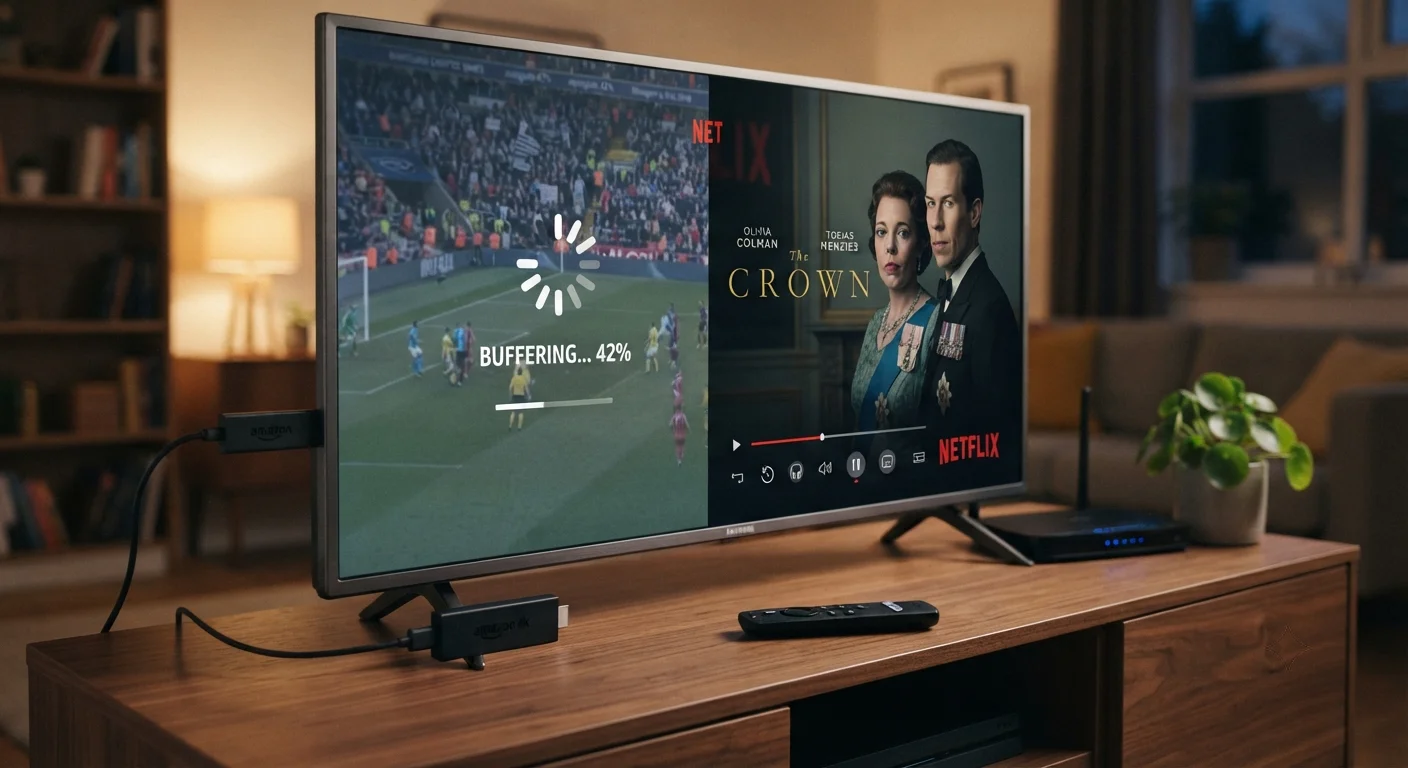
Why is my Fire TV Stick buffering with IPTV but Netflix works fine?
Fire TV Stick buffering with IPTV
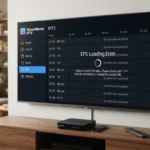
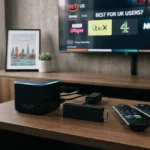
Fire TV Stick buffering with IPTV -If you’ve ever sat down to watch a live sports channel on your Fire TV Stick only to see the picture freeze, while Netflix streams a 4K movie without a hiccup, you’re not alone. The mismatch isn’t a glitch in the Amazon hardware; it’s usually a clash between how IPTV delivers video and the network environment your stick lives in. Below you’ll find every practical step to diagnose, fix, and future‑proof your setup so that the same smooth playback you enjoy on Netflix can be expected from any IPTV service.
Table of Contents
Why is my Fire TV Stick buffering with IPTV but Netflix works fine?
Short answer: IPTV streams often use unmanaged, high‑bitrate UDP or HTTP live streaming that is far more sensitive to packet loss, latency spikes, and ISP throttling than Netflix’s adaptive bitrate CDN, so any weakness in your Wi‑Fi, router configuration, or ISP path shows up as buffering on IPTV while Netflix remains smooth.
What makes Netflix different?
Netflix runs on a globally distributed content delivery network (CDN) that automatically selects the optimal server, adjusts the bitrate in real time, and uses TCP‑based delivery that retries lost packets. Most IPTV services rely on a single or few origin servers, use UDP or basic HLS streams, and often lack sophisticated adaptive bitrate (ABR) algorithms. The result is that a small hiccup in your home network can cripple IPTV but go unnoticed by Netflix.
Understanding the technical gap between IPTV and Netflix
Before you start swapping cables, it helps to grasp the core technical differences. This knowledge will guide you toward the right fix rather than a trial‑and‑error approach.
Streaming protocols
- Netflix: Primarily uses MPEG‑DASH and HLS over TCP, with built‑in error correction. If a packet is lost, TCP requests a retransmission, so the video continues at a slightly lower quality.
- IPTV services: Many rely on UDP‑based transport (e.g., MPEG‑TS over UDP) or simple HLS without robust ABR. UDP does not retry lost packets, so any loss appears as a freeze or pixelation.
Adaptive bitrate (ABR) algorithms
Netflix’s ABR continuously measures your current bandwidth and switches to the highest possible resolution without buffering. Most free or low‑cost IPTV apps lack this, delivering a single bitrate that may be too high for momentary dips in speed.
Server distribution
Netflix has thousands of edge servers worldwide; your request is routed to the nearest, low‑latency node. An IPTV provider may host streams on a single data center, meaning the path from that server to your home is longer and more prone to congestion.
Network requirements for smooth IPTV playback
Knowing the baseline numbers helps you decide whether your current setup is adequate or if upgrades are needed.
Recommended bandwidth
- Standard definition (SD) IPTV: 2–3 Mbps sustained.
- High definition (HD) 720p/1080p: 5–8 Mbps sustained.
- 4K Ultra HD streams: 15–25 Mbps sustained.
These are minimums; for a buffer‑free experience, aim for 20–30 % headroom above the peak bitrate of the channel you watch most often.
Latency and jitter
Even with sufficient bandwidth, high latency (>150 ms) or jitter (variability in packet arrival) can cause IPTV buffering because UDP streams cannot recover from late packets. Netflix’s TCP can absorb some latency without visible impact.
Wi‑Fi considerations
- Use a 5 GHz band whenever possible. The 2.4 GHz band is more crowded and has lower throughput.
- Keep the Fire TV Stick within one room of the router; walls and metal objects attenuate the signal.
- Prefer Wi‑Fi 5 (802.11ac) or newer; older 802.11n routers often struggle with multiple concurrent streams.
Common causes of buffering on Fire TV Stick with IPTV
Below are the most frequent culprits, ordered from most to least likely based on real‑world troubleshooting data.
1. Inadequate Wi‑Fi signal strength
A weak signal reduces the effective throughput and increases packet loss. The Fire TV Stick’s internal antenna is modest, so distance or interference can quickly become a problem.
2. Router QoS or bandwidth limiting settings
Many routers prioritize traffic based on device type or port. If your router’s QoS is set to favor web browsing or gaming, IPTV streams may be throttled.
3. ISP throttling of IPTV ports
Some ISPs identify high‑bitrate UDP traffic and intentionally limit it, while leaving TCP traffic (Netflix) untouched. This is more common with “unlimited” mobile broadband plans.
4. Outdated Fire OS or IPTV app
Older software can have memory leaks or inefficient decoders that cause stuttering, especially on high‑resolution streams.
5. VPN or proxy interference
If you’re routing IPTV through a VPN to bypass geo‑restrictions, the added hop can increase latency and reduce effective bandwidth, leading to buffering.
6. Multicast or IGMP snooping misconfiguration
Some IPTV streams rely on multicast delivery. If your router blocks or mishandles IGMP packets, the stream will fail to reach the Fire Stick.
Step‑by‑step diagnostic checklist
Follow this systematic approach. Stop at the first step that resolves the issue; you’ll save time and avoid unnecessary changes.
Step 1: Verify raw internet speed
- Connect a laptop directly to the router via Ethernet.
- Run a speed test on speedtest.net. Record download, upload, and ping.
- Compare the download speed to the recommended bitrate of your IPTV channel (e.g., 8 Mbps for 1080p). If the result is lower, contact your ISP.
Step 2: Test Wi‑Fi performance at the Fire TV Stick location
- On the Fire Stick, go to Settings → Network and note the signal strength (e.g., “Strong,” “Good,” “Weak”).
- Install a network‑testing app such as “Internet Speed Test” from the Amazon Appstore.
- Run the test; if the reported speed is significantly below the Ethernet result, the Wi‑Fi link is the bottleneck.
Step 3: Check for packet loss and jitter
- Open the “PingTools Network Utilities” app on the Fire Stick.
- Ping a reliable server (e.g.,
8.8.8.8) for 30 seconds. - Note the packet loss percentage and average latency. Loss above 2 % or latency spikes above 150 ms often cause IPTV buffering.
Step 4: Examine router QoS settings
- Log into your router’s admin page (usually
192.168.1.1or192.168.0.1). - Locate the QoS or traffic‑shaping section.
- If IPTV traffic is being deprioritized, set the Fire Stick’s MAC address or IP to “High Priority.”
Step 5: Bypass potential ISP throttling
- Temporarily disable any VPN or proxy you use for IPTV.
- Play the same channel; if buffering stops, the VPN is the culprit.
- Alternatively, run a throttle check to see if your ISP is shaping UDP traffic.
Step 6: Update firmware and apps
- On the Fire Stick, go to Settings → My Fire TV → About → Check for Updates.
- Open the IPTV app’s page in the Amazon Appstore and select “Update” if available.
- Reboot the device after updates.
Step 7: Switch to a wired connection
If Wi‑Fi remains marginal, use the official Amazon Ethernet adapter for the Fire Stick. A wired link eliminates interference and provides consistent throughput.
Practical fixes that work in most households
After diagnosing the root cause, apply the corresponding solution. Below are the most effective actions, grouped by category.
Wi‑Fi improvements
- Relocate the router: Position it centrally, elevated, and away from appliances that emit electromagnetic noise (microwaves, cordless phones).
- Use a Wi‑Fi extender or mesh system: A dedicated node placed near the TV can boost the signal without sacrificing speed.
- Change the channel: In the router’s wireless settings, select a 5 GHz channel with the least overlap (use a Wi‑Fi analyzer app to find the cleanest).
- Enable “wireless‑ac” mode only: Disabling legacy 802.11b/g/n on the 5 GHz band can improve stability.
Router configuration tweaks
- Turn off SIP ALG: Some routers mistakenly modify UDP packets, breaking IPTV streams.
- Enable IGMP Snooping: This allows multicast IPTV traffic to flow correctly.
- Open required ports: Many IPTV providers use ports 1935 (RTMP), 8000–9000 (HTTP), or 554 (RTSP). Forward these in the router if you experience drops.
- Disable “AP Isolation” or “Client Isolation”: These settings prevent devices on the same Wi‑Fi network from communicating, which can block IPTV discovery.
DNS and DNS‑over‑HTTPS (DoH)
Some ISPs intercept DNS queries and throttle traffic based on domain names. Switching to a privacy‑focused DNS can bypass that.
- Go to Settings → Network → Your Wi‑Fi → Advanced.
- Enter a public DNS such as
1.1.1.1(Cloudflare) or8.8.8.8(Google). - Optionally enable DoH in the router if supported.
Using a VPN wisely
If you must use a VPN for geo‑restricted IPTV, choose a provider with high‑speed servers and UDP‑optimized protocols (WireGuard or OpenVPN UDP). Connect to the server nearest to the IPTV provider’s data center to minimize latency.
Device‑level actions
- Clear app cache: Settings → Applications → Manage Installed Applications → Your IPTV app → Clear Cache.
- Force stop and restart the app: This frees up memory that may be causing decoding delays.
- Reinstall the app: Corrupted installation files sometimes cause stutter.
- Factory reset the Fire Stick (as a last resort): Settings → My Fire TV → Reset to Factory Defaults.
Advanced network tuning for power users
If you’ve tried the basic fixes and still see occasional buffering, these deeper adjustments can squeeze out extra reliability.
Quality of Service (QoS) prioritization
Set up a custom QoS rule that guarantees a minimum bandwidth for the Fire Stick’s IP address.
- Assign a static IP to the Fire Stick (e.g., 192.168.1.150) via the router DHCP reservation.
- Create a QoS rule: “Device 192.168.1.150 – Minimum 8 Mbps – Priority High.”
- Save and reboot the router.
Port forwarding for UDP streams
Some IPTV services work better when the router forwards UDP ports directly to the device, bypassing NAT translation.
- Identify the UDP port range from your provider’s documentation (often 5000–6000).
- In the router, add a port‑forward rule pointing to the Fire Stick’s static IP.
- Enable “UPnP” only if you trust the network, as it automatically opens ports for devices.
Multicast routing
If your IPTV uses multicast, ensure the router supports and enables it.
- Enable “Multicast VLAN Registration (MVR)” or “IGMP Proxy” if available.
- On the Fire Stick, install a multicast‑capable player such as “VLC for Android TV” and test the channel.
Adjusting the IPTV app’s buffer settings
Some third‑party IPTV players allow you to increase the pre‑buffer size (e.g., from 5 seconds to 15 seconds). This trades a slight start‑up delay for smoother playback on unstable connections.
When to consider hardware upgrades
Even a perfectly tuned network can be hamstrung by outdated equipment.
Router age and capabilities
If your router is older than 2015, it likely lacks dual‑band 5 GHz, Wi‑Fi 5, or proper QoS features. Upgrading to a modern Wi‑Fi 6 (802.11ax) router can increase capacity and reduce interference, especially in crowded apartment buildings.
Fire TV Stick model
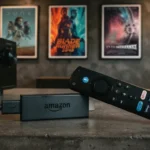
The original Fire TV Stick (2014) caps at 1080p and 2 GHz Wi‑Fi. For 4K IPTV or heavy multitasking, the Fire TV Stick 4K or Fire TV Stick 4K Max provides better decoding hardware, Wi‑Fi 6 support, and a more powerful CPU.
Ethernet adapter
If running a cable is feasible, the Amazon Ethernet adapter costs around $15 and eliminates wireless variables entirely. For best results, use a Cat6 cable and ensure the router’s Ethernet port runs at gigabit speed.
Choosing a reliable IPTV provider
The provider you pick can dramatically affect buffering frequency. Here’s what to look for:
- Multiple CDN nodes: Providers that distribute streams across several data centers reduce latency.
- Adaptive bitrate support: Even if the app is basic, the underlying stream should shift quality based on bandwidth.
- Transparent server locations: Knowing where the streams originate helps you select a provider close to your geographic region.
- Positive user reviews on buffering performance: Look for testimonials that specifically mention “stable HD/4K streams on Fire TV Stick.”
- Responsive support: A provider that can confirm whether they block or throttle UDP traffic can save you hours of troubleshooting.
Legal and ethical considerations
While the technical discussion is neutral, it’s worth noting that many IPTV services operate in a legal gray area. Using unauthorized streams can expose you to copyright infringement risks, and some ISPs actively block such traffic. Always verify that the service you subscribe to holds the appropriate distribution rights for the content you watch.
Frequently Asked Questions
Why does my Fire TV Stick freeze only on certain IPTV channels?
Higher‑bitrate channels demand more sustained bandwidth and are less tolerant of packet loss. If your network hovers just above the minimum for SD but below the requirement for HD, the lower‑bitrate channels will play fine while the high‑definition ones buffer.
Can I use a Wi‑Fi extender without introducing latency?
Yes, if the extender supports a dedicated backhaul (wired or 5 GHz mesh) and runs the same Wi‑Fi standard as your router. Cheap repeaters that rebroadcast on the same channel can double latency and cause exactly the buffering you’re seeing.
Is a VPN always the cause of IPTV buffering?
Not always, but a VPN adds an extra hop and can limit throughput, especially if the server is far away or overloaded. Choose a high‑speed server close to the IPTV provider’s location, or disable the VPN to test whether it’s the bottleneck.
Do I need to clear the Fire Stick’s cache regularly?
For most users, clearing the cache once a month is sufficient. Accumulated cache can fill the limited storage on the stick, leading to slower app launches and occasional stutter, especially on third‑party IPTV apps.
Conclusion
Why is my Fire TV Stick buffering with IPTV but Netflix works fine? The answer lies in the fundamental way the two services deliver video, the sensitivity of IPTV to network imperfections, and the configuration of your home network. By measuring your actual bandwidth, strengthening Wi‑Fi or switching to Ethernet, tweaking router QoS, and ensuring your IPTV app and Fire OS are up to date, you can eliminate the buffering that makes live sports feel like a slideshow.
If you’ve followed the steps above and still experience issues, consider upgrading to a Wi‑Fi 6 router or a newer Fire TV Stick 4K Max, and choose an IPTV provider that offers adaptive bitrate streams and multiple CDN nodes. The combination of a solid network foundation and a capable device will give you the same buttery‑smooth experience you already enjoy on Netflix.
Ready to stop the buffering and enjoy every goal, concert, and show in real time? Start by testing your Wi‑Fi strength at the TV, then apply the most relevant fix from the list. If you need personalized help, feel free to leave a comment or reach out for a one‑on‑one troubleshooting session.