
















































How Can a VPN reduce buffering?
Free VPN reduce buffering
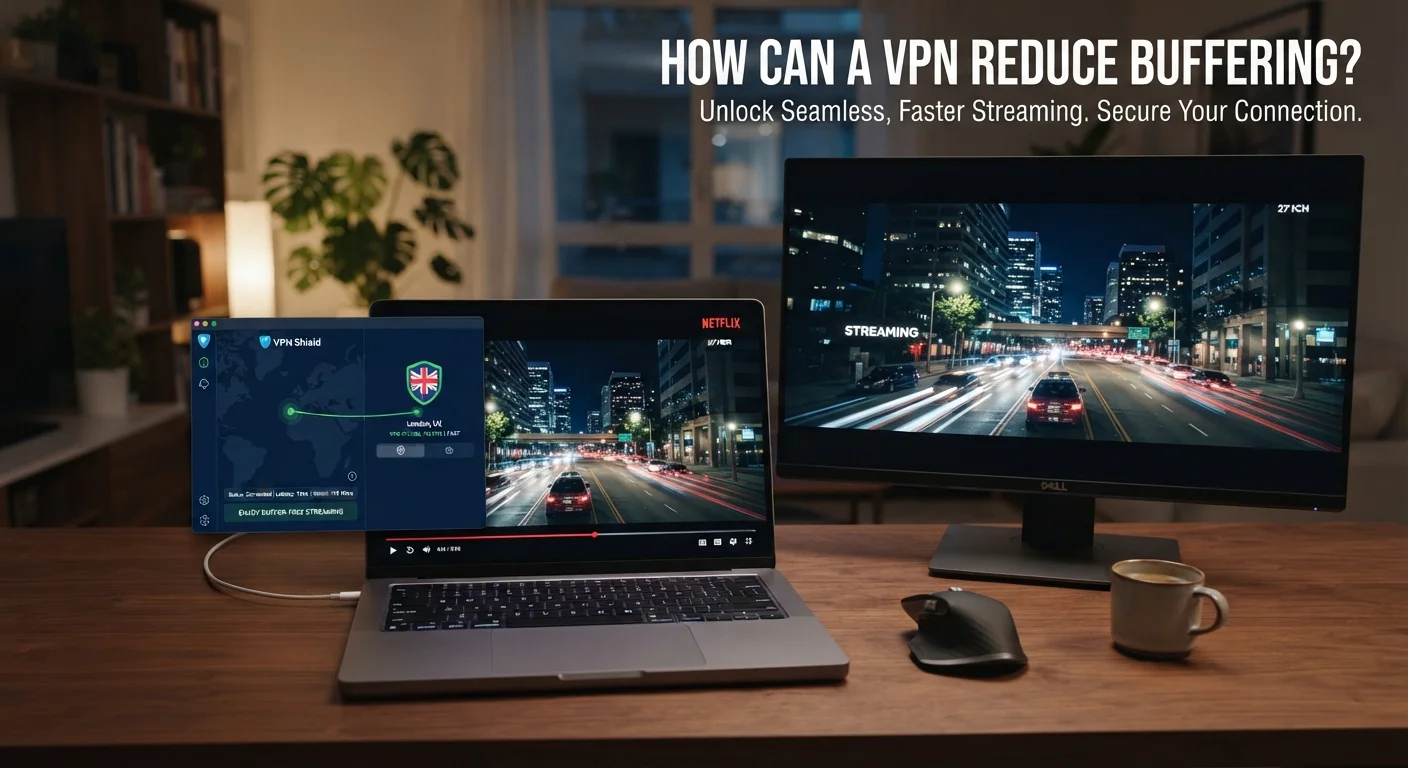
VPN reduce buffering – Imagine sitting down to watch the newest episode of a hit series, only to watch the screen freeze, the progress bar spin, and the dreaded buffering icon appear every few minutes. It feels like the internet is conspiring against you. The question that pops up for many frustrated viewers is simple yet surprisingly nuanced: Can a VPN reduce buffering? The short answer is “sometimes, but not always.” Whether a virtual private network (VPN) will smooth out your stream depends on how your internet service provider (ISP) manages traffic, the quality of the VPN service, and the distance between you, the VPN server, and the content source. In the sections that follow, we’ll unpack the mechanics of buffering, explore the scenarios where a VPN can be a genuine fix, and highlight the pitfalls that can make things worse. By the end you’ll know exactly when to reach for a VPN and how to set it up for the best possible viewing experience.
Table of Contents
Can a VPN Reduce Buffering?
In most cases a VPN can lower buffering if your ISP is throttling streaming traffic or if the VPN provides a more efficient route to the content server. However, if the VPN adds latency, uses an overloaded server, or is far from the source, it may actually increase buffering. The net effect hinges on the specific network conditions you face.
How Buffering Works – The Technical Basics
Before deciding whether a VPN will help, it’s useful to understand what buffering actually is. When you click “play,” your device sends a request to a streaming server. The server replies with a continuous stream of data packets that contain video frames. Your device stores a small “buffer” of these packets ahead of the current playback point so that if the network slows down for a moment, the video can keep playing from the stored data.
If the incoming data rate drops below the playback rate for longer than the buffer can compensate, the player pauses and displays a buffering icon. Two primary network characteristics determine how often this happens: bandwidth (the amount of data that can travel per second) and latency (the time it takes for a packet to travel from source to destination).
High bandwidth lets large amounts of data flow quickly, which is essential for high‑definition (HD) or 4K streams that can require 5 Mbps to 25 Mbps respectively. Low latency keeps the round‑trip time short, which is crucial for live events where any delay feels like a lag.
Besides bandwidth and latency, packet loss—when packets never reach their destination—also forces the player to pause and request the missing data, adding more buffering.
Bandwidth, Latency, and Packet Loss Explained
- Bandwidth: Think of it as the width of a highway. A wider highway (higher bandwidth) can accommodate more cars (data) simultaneously.
- Latency: This is the travel time for a single car from point A to point B. Even a wide highway can feel slow if the distance is long or if there are many stoplights.
- Packet Loss: Imagine a few cars disappearing mid‑road. The driver must stop, wait for the missing cars to be replaced, and the journey stalls.
Streaming services try to mitigate these issues by adapting the video quality to match the current network conditions—a process called adaptive bitrate streaming. However, the adaptation can’t happen instantly; it needs a stable baseline of data flow. That’s why a sudden dip in bandwidth or a spike in latency often triggers buffering.
When a VPN Can Help Reduce Buffering
Now that we know what causes buffering, let’s look at the three main ways a VPN can improve the situation.
Bypassing ISP Throttling
Many ISPs employ traffic shaping, a practice where they deliberately slow down certain types of traffic—especially video streaming—to manage network congestion or to push customers toward higher‑priced plans. This throttling is usually invisible; you see the slowdown but not the reason behind it.
A VPN encrypts your traffic, making it unreadable to the ISP. Because the ISP can’t see that you’re streaming Netflix, YouTube, or a sports site, it can’t apply a stream‑specific throttle. In regions where throttling is common—such as some European countries, parts of the United States, and many Asian markets—users report noticeable reductions in buffering after turning on a reputable VPN.
Key takeaway: If your ISP is throttling video streams, a VPN that hides the nature of your traffic can restore the full bandwidth you’re paying for.
Optimizing Routing Paths
Even without throttling, the default route your data takes across the internet isn’t always the most efficient. ISPs use proprietary routing tables that can send your packets on a circuitous path, adding unnecessary hops and latency.
When you connect to a VPN server that sits on a different network, you essentially ask the internet to route your traffic through that server’s ISP. Some VPN providers have peering agreements with major backbone operators, allowing their traffic to travel over faster, more direct routes to popular streaming platforms.
For example, a user in South America connecting to a VPN server in the United States that is directly peered with a Netflix CDN (Content Delivery Network) may experience lower latency than staying on the native ISP route, which could be forced through a congested transit network.
Choosing Servers Close to the Content Source
Streaming services replicate their content in multiple CDN nodes around the world. When you request a video, the CDN chooses the nearest node to deliver the data. A VPN can give you control over which node you appear to be near.
If you’re in a country where the CDN’s nearest node is overloaded, you can switch to a VPN server in a neighboring country with a less busy node. This can reduce packet loss and improve the effective bandwidth.
However, the benefit only materializes if the VPN server itself isn’t overloaded and if the added distance to the VPN server doesn’t outweigh the gain from a better CDN node.
When a VPN Might Make Buffering Worse
Just because a VPN can help in some situations doesn’t mean it will always improve your stream. There are several ways a VPN can introduce new problems.
Encryption Overhead and Processing Delay
VPNs encrypt and decrypt every packet. While modern encryption algorithms (like AES‑256) are highly efficient, they still add a small amount of processing time on both the client and server sides. On a fast, low‑latency connection, this overhead can be negligible; on a slower or heavily congested link, the extra milliseconds can push you over the buffering threshold.
Additionally, some VPN protocols (e.g., OpenVPN over TCP) are more prone to retransmission delays than others (e.g., WireGuard or UDP‑based IKEv2). Choosing a lightweight protocol can mitigate this issue.
Server Load and Geographic Distance
A VPN is only as good as the server you connect to. If the server is heavily used—say, hundreds of users sharing the same bandwidth—the effective throughput per user drops dramatically. Likewise, connecting to a server that’s geographically far from both you and the streaming source adds extra hops, increasing latency.
For instance, a user in Japan connecting to a VPN server in Canada to watch a US‑based stream may experience higher latency than staying on a direct ISP route, despite any routing optimizations.
Potential for ISP-Level Blocking
Some ISPs detect and block VPN traffic altogether. When they do, they may force the connection through a slower “VPN‑blocked” tunnel, or they might throttle the VPN traffic itself, negating any benefit. In extreme cases, the ISP may drop the VPN packets, causing the connection to fail entirely.
Choosing a VPN that offers obfuscation (stealth) modes or uses ports commonly allowed for web traffic (like 443) can reduce the chance of being blocked.
Choosing the Right VPN for Smooth Streaming
Not all VPNs are created equal, especially when your goal is to eliminate buffering. Below are the critical factors to evaluate before committing to a service.
- Server Network Size and Distribution: Look for providers with at least 2,000 servers across 50+ countries. A larger network increases the chance of finding a low‑latency, low‑load server near the streaming CDN.
- Protocol Options: Prioritize VPNs that support WireGuard, IKEv2, or Lightway. These protocols are fast, have low overhead, and handle packet loss better than older OpenVPN‑TCP configurations.
- Speed Test Results: Reputable VPN review sites regularly publish speed tests. Choose a provider that consistently delivers download speeds within 80 % of your baseline ISP speed.
- Streaming Optimized Servers: Some VPNs label servers as “Netflix‑Ready” or “Streaming‑Optimized.” These are often positioned on networks with strong peering agreements to major CDNs.
- Simultaneous Connections: If you stream on multiple devices (TV, laptop, phone), ensure the plan offers enough concurrent connections without throttling any single stream.
- Customer Support: Look for 24/7 live chat that can help you troubleshoot buffering issues in real time.
- Money‑Back Guarantee: A 30‑day or longer refund policy lets you test the service risk‑free.
Below is a quick checklist you can copy‑paste into a notes app before you sign up for a VPN.
- Does the provider have at least 2,000 servers?
- Are WireGuard or a similarly fast protocol available?
- Do they publish recent speed test data for my region?
- Is there a “streaming‑optimized” server list?
- How many simultaneous connections are included?
- Is 24/7 live chat support offered?
- Is there a clear, no‑questions‑asked money‑back policy?
Practical Steps to Test Whether a VPN Improves Your Stream
Before you declare a VPN a permanent solution, run a controlled test. Follow these steps to isolate the VPN’s impact on buffering.
- Baseline Measurement: Disable any VPN and play a 10‑minute video on your usual streaming platform. Note the average bitrate shown in the player’s stats (if available) and count the number of buffering events.
- Speed Test: Run a speed test on speedtest.net or fast.com. Record download speed, ping, and jitter. These numbers give you a reference for your ISP’s raw performance.
- Connect to a Nearby VPN Server: Choose a server in the same country or a neighboring one. Use the VPN’s “auto‑connect” or “best server” feature if available.
- Repeat the Stream Test: Play the same video for the same duration. Record buffering events and note any change in video quality (e.g., dropping from 1080p to 720p).
- Run a Speed Test Through the VPN: Compare the download speed, ping, and jitter to your baseline. A drop of more than 20 % in download speed often correlates with increased buffering.
- Try a Different Server: If buffering persists, disconnect and choose a server in a different region—preferably one that is known to be close to the streaming service’s CDN (e.g., a US‑East server for Netflix US).
- Document the Results: Keep a simple table of server location, speed test results, and buffering count. This makes it easy to see which server offers the best performance.
- Fine‑Tune Protocol Settings: If your VPN client allows protocol selection, switch between WireGuard, IKEv2, and OpenVPN‑UDP. Re‑run the speed and stream tests for each.
By comparing the data, you’ll know whether the VPN genuinely reduces buffering for your particular setup, or whether you need to adjust server choice or protocol.
Common Mistakes and How to Fix Them
Even seasoned streamers make errors that sabotage the potential benefits of a VPN. Below are the most frequent pitfalls and the corrective actions.
- Choosing the First Server Shown: The default recommendation may be the nearest geographically, but not necessarily the least loaded. Fix: Use the VPN’s “load‑balancing” indicator or manually select a server with lower reported usage.
- Using the Wrong Protocol: Sticking with OpenVPN‑TCP for convenience can add unnecessary latency. Fix: Switch to WireGuard or UDP‑based OpenVPN for streaming sessions.
- Overlooking Split Tunneling: Routing all traffic through the VPN can waste bandwidth on non‑streaming activities. Fix: Enable split tunneling so only your streaming app uses the VPN while other apps go directly through the ISP.
- Ignoring ISP Data Caps: Some ISPs throttle after a certain amount of data, regardless of VPN use. Fix: Monitor your monthly usage and consider a plan with higher caps if you stream heavily.
- Forgetting to Update the VPN Client: Older client versions may lack performance optimizations. Fix: Enable automatic updates or check for new releases weekly.
- Running Background Downloads: Parallel downloads compete for bandwidth and cause buffering. Fix: Pause large file transfers while you watch a video.
- Using Free VPNs: Free services often have limited server options, heavy load, and data throttling. Fix: Invest in a reputable paid VPN that guarantees speed and privacy.
Frequently Asked Questions
Will a VPN always make my video play smoother?
No. A VPN can improve streaming if your ISP throttles video traffic or if the VPN provides a faster route. However, if the VPN server is far away, overloaded, or uses a slow protocol, you may see more buffering.
Can I use a VPN on my smart TV?
Yes. Most smart TVs support VPN apps directly (e.g., on Android TV) or you can set up the VPN on a router, which then covers every device on the network, including the TV.
Do VPNs affect the video quality?
Only indirectly. If the VPN restores full bandwidth, the streaming service can deliver higher bitrate (better quality). Conversely, if the VPN reduces speed, the service may automatically drop to a lower resolution to avoid buffering.
Is it legal to use a VPN for streaming?
In most countries, using a VPN is legal. The legality issue arises only if you use the VPN to violate copyright laws, such as accessing content unavailable in your region without proper licensing.
Conclusion and Next Steps
To answer the core question directly: Can a VPN reduce buffering? The answer is conditional. If you are experiencing ISP throttling, have poor routing paths, or can connect to a low‑latency, low‑load server near the streaming CDN, a VPN can noticeably cut buffering and raise video quality. On the other hand, if you pick a distant or overloaded server, use a heavy protocol, or your ISP already provides a clean, fast route, the VPN may add latency and make buffering worse.
The practical takeaway is to treat a VPN as a tool, not a guaranteed fix. Test multiple servers, choose a fast protocol, and monitor speed and buffering metrics before deciding. When set up correctly, a VPN can be the missing piece that turns a choppy viewing experience into a seamless binge‑watch session.
Ready to see the difference for yourself? Sign up for a reputable VPN that offers a 30‑day money‑back guarantee, enable a streaming‑optimized server, and run the simple test outlined above. If buffering drops, you’ve found a solution; if not, you’ll at least know why and can explore alternative fixes such as upgrading your ISP plan or using a wired Ethernet connection.



[…] is IPTV and how does it work? July 10, 2026Step-by-step Sky cancellation to IPTV migration guide July 9, 2026How Can a VPN reduce buffering? July 9, 2026Why is my Fire TV Stick buffering with […]
[…] is IPTV and how does it work? July 10, 2026Step-by-step Sky cancellation to IPTV migration guide July 9, 2026How Can a VPN reduce buffering? July 9, 2026Why is my Fire TV Stick buffering with […]