


































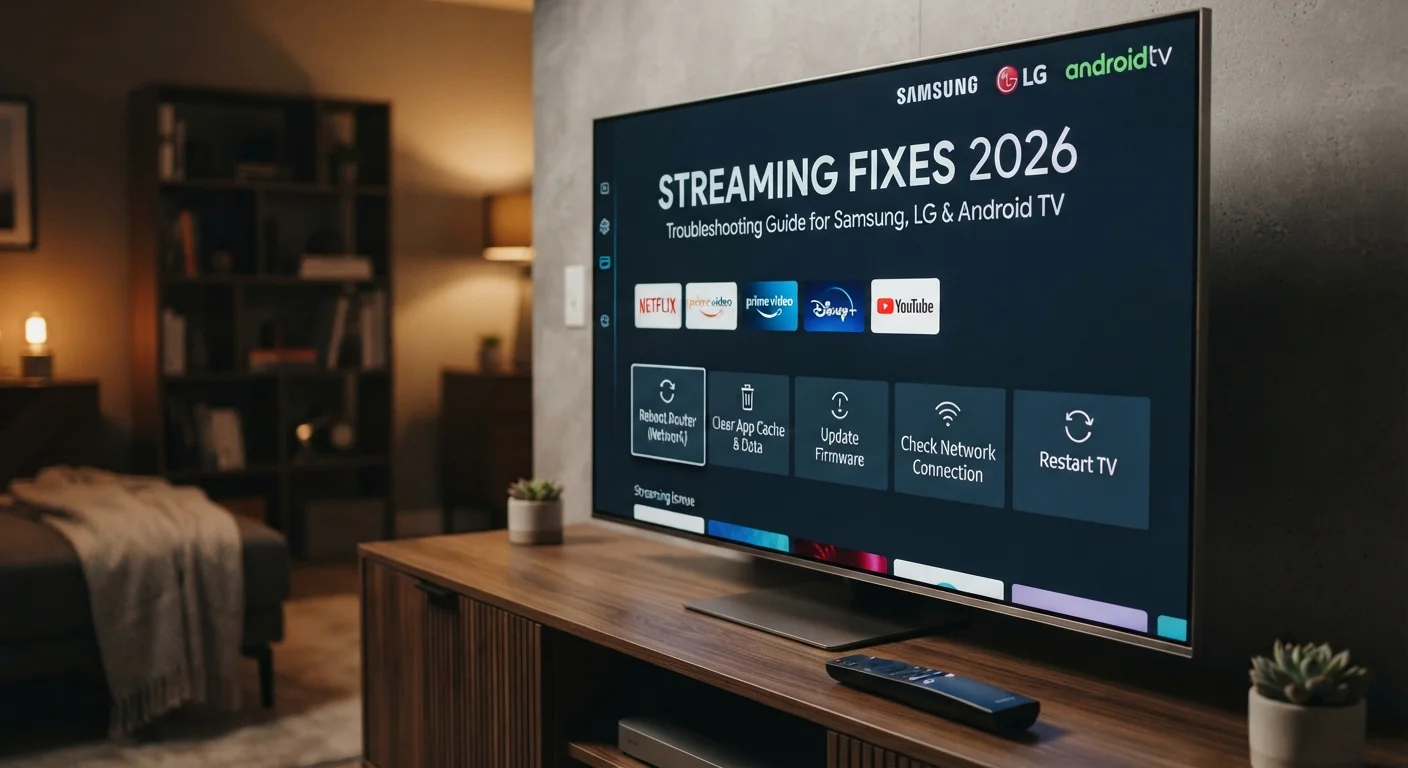
The Best Streaming Fixes for Samsung, LG, and Android TV
The Best Streaming Fixes for Samsung
The Best Streaming Fixes for Samsung – Smart television streaming has transformed how people consume media, yet performance issues frequently frustrate users attempting to enjoy seamless viewing experiences. Samsung televisions, LG televisions, and Android TV platforms represent the dominant smart TV ecosystem globally, collectively powering hundreds of millions of devices. However, these platforms commonly encounter performance degradation that manifests as slow response to remote commands, application crashes, buffering, and general system sluggishness that diminishes the viewing experience.
This comprehensive guide addresses the most prevalent streaming performance issues affecting Samsung, LG, and Android TV platforms, explains why these problems occur, and provides practical solutions that genuinely improve performance. Whether you’re experiencing laggy remote response, buffering during playback, application freezing, or slow application loading, this guide offers structured fixes that will restore your smart TV to optimal functionality.
Table of Contents
Understanding Smart TV Performance Architecture
Before addressing specific problems, understanding how smart TVs function provides valuable context for troubleshooting. Smart televisions operate differently from traditional broadcast television. They rely on internet connectivity, processing power, available memory, and software optimization to deliver streaming content. When any of these elements becomes compromised, performance suffers.
Smart TVs contain processors similar to computers from five to ten years ago. While capable of handling streaming applications, they have limited processing power compared to modern laptops or smartphones. Television processors must balance performance with power consumption and heat generation. Manufacturers deliberately limit processing power to reduce costs and heat output.
Memory limitations are significant. Most smart TVs contain between 1GB and 4GB of RAM. This seems adequate until you realize modern smartphones contain 6GB to 12GB. Television applications must operate efficiently within these memory constraints. When multiple applications run simultaneously, memory becomes scarce, causing slowdowns.
Software optimization directly affects performance. Some manufacturers optimize their software excellently. Others allow software bloat and inefficiency to accumulate. Operating system updates sometimes improve performance, sometimes degrade it. This variability explains why identical television models from different production years sometimes perform differently.
Internet connectivity profoundly impacts streaming television performance. WiFi connection quality varies based on distance from router, interference, and available bandwidth. Ethernet connections provide superior stability and speed. Television applications stream large amounts of data continuously. Poor connectivity degrades streaming quality and causes buffering.
Understanding these architectural realities helps users distinguish between problems requiring hardware upgrades, software optimization, or network improvement. This diagnostic understanding is essential for effective troubleshooting.
TV Slow to Respond to Remote: The Remote Control Lag Problem
TV slow to respond to remote represents one of the most frustrating smart TV problems. Users press remote buttons and observe delayed responses, sometimes taking several seconds for commands to register. This universal complaint affects Samsung televisions, LG televisions, and Android TV devices.
The underlying cause involves how wireless remotes communicate with televisions. Modern smart TVs use either infrared or radio frequency protocols. The television's receiver must process commands quickly. However, when the television's processor is busy handling other tasks, remote command processing gets deprioritized. This creates observable lag where pressing the remote button and seeing the result takes noticeable time.
Television processors handling streaming applications, updating software, or processing multiple applications simultaneously become resource-constrained. Remote commands queue behind higher-priority processes. This creates lag that becomes increasingly frustrating as delays exceed 500 milliseconds and become noticeable to users.
The first solution involves identifying which applications consume excessive processing power. Smart TVs typically run multiple background services simultaneously. Some applications continue running even after the user switches to different content. Media servers, update services, and advertisement platforms silently consume resources.
Access your television's settings menu and check which applications are running. Most smart TVs provide an "Applications" or "Running Apps" section showing active applications. Force-close any unnecessary applications. This immediately frees processing resources, reducing remote lag.
Television memory pressure causes remote lag in some cases. When available memory becomes scarce, the operating system struggles managing processes efficiently. Restarting the television clears memory completely. Perform a full power cycle: unplug your television from power, wait thirty seconds, then plug it back in. This cold restart clears memory and often dramatically improves remote responsiveness.
Samsung TV slow response to remote sometimes reflects Samsung's proprietary software attempting excessive optimizations. Samsung televisions perform background tasks managing picture quality, power consumption, and application performance. These background processes occasionally become inefficient, causing system slowdowns. Accessing Samsung's picture settings and disabling advanced features like "AI Upscaling" or automatic brightness adjustment sometimes improves remote responsiveness by reducing processor load.
For LG televisions, similar solutions apply. LG's WebOS software includes optimization features that sometimes conflict with responsive remote handling. Disabling ThinQ AI features or automatic content recommendation systems sometimes improves responsiveness. Access LG television settings and look for AI or intelligent feature sections. Disable features you don't actively use.
Software updates sometimes degrade performance. If you notice remote lag developing after a software update, you might have received a problematic update. Check your television's settings for an option to roll back to previous software version. Some manufacturers allow reverting to previous versions when current version causes problems.
Hardware issues rarely cause remote lag. Remote control batteries running low do cause slowness. Replace remote batteries with fresh batteries. However, if lag persists after battery replacement, the issue isn't battery-related.
Samsung TV Slow Response to Remote: Specific Samsung Solutions
Samsung TV slow response to remote issues frequently reflect Samsung-specific software characteristics. Samsung televisions run Tizen operating system, which Samsung specifically developed for televisions. This proprietary system sometimes exhibits performance quirks different from standard Android TV.
Samsung's picture processing features, while excellent for image quality, consume significant processing resources. "Motion Smoothing," "TruMotion," "AI Upscaling," and similar features analyze incoming video constantly, demanding processor cycles. Disabling these features immediately frees processing resources, improving remote responsiveness.
Access Samsung television settings by pressing the Settings button on your remote. Navigate to Picture or Display settings. Locate motion smoothing or similar feature. These typically appear as "TruMotion," "MotionFlow," or similar names depending on Samsung television model and year. Disable these features. Video smoothness might decrease slightly, but remote responsiveness improves noticeably.
Samsung's OneRemote (Samsung's universal remote) sometimes develops connectivity issues. Try these solutions: Ensure remote has fresh batteries. Point remote directly at television when pressing buttons, avoiding angles. If lag persists despite these steps, try pairing the remote with the television following Samsung's pairing procedures (typically accomplished by holding specific buttons on remote and television simultaneously for several seconds).
Samsung televisions occasionally accumulate excessive cache files that degrade performance. Accessing Settings > Apps > Application Manager, then selecting individual applications and choosing "Clear Cache" removes temporary files. This process is safe and doesn't delete your settings or saved preferences. Clearing cache for streaming applications like Netflix or YouTube sometimes dramatically improves system responsiveness.
For older Samsung television models (2018 and earlier), remote lag sometimes reflects hardware limitations. These television models contain less processing power than modern televisions. Disabling every optional feature provides marginal improvement but might not completely eliminate lag. In some cases, accepting slightly slower remote response is necessary for older hardware.
Best Android TV Box for IPTV: Choosing the Right Hardware
Many users complement their television with external streaming devices rather than relying solely on television's built-in smart TV features. Best Android TV box for IPTV selection significantly impacts streaming quality and responsiveness.
Android TV boxes represent dedicated streaming devices running Google's Android TV operating system. These devices connect to television via HDMI, bypassing television's native smart TV platform entirely. This approach works well for users whose television's smart TV features are inadequate.
Quality Android TV boxes contain significantly more processing power than television processors. Premium boxes include processors comparable to mid-range smartphones, multiple gigabytes of RAM, and optimized software. These specifications translate to dramatically faster performance than most television's native applications.
When selecting Android TV box for IPTV, consider processor specifications. MediaTek, Rockchip, or Amlogic processors are common in streaming boxes. Mid-to-high-end processors from these manufacturers provide excellent IPTV streaming performance. Avoid budget processors which struggle with 4K streaming or application responsiveness.
Memory specifications matter significantly. Boxes with 4GB RAM provide adequate performance for IPTV. Boxes with 2GB RAM are slower and might struggle with multiple applications simultaneously. 6GB or 8GB RAM provides comfortable performance margin for applications and background processes.
Storage capacity affects application availability. 8GB storage is minimum. 16GB or 32GB provides room for multiple IPTV applications and additional services. Cloud-based IPTV applications (like IPTV Smarters or TiviMate) minimize storage requirements since they stream directly from provider rather than downloading content.
Video output capabilities are important. Ensure the device supports your television's resolution. 4K support requires HDMI 2.0 or higher. 8K support (if your television supports it) requires HDMI 2.1.
Operating system optimization matters significantly. Some Android TV boxes ship with bloatware and unnecessary applications consuming resources. Purchasing boxes from reputable manufacturers who maintain clean installations ensures better performance. Avoid extremely budget options which often ship with excessive pre-installed applications degrading performance.
For IPTV specifically, confirm the box supports IPTV applications you intend using. Most Android TV boxes support popular IPTV applications like Kodi, IPTV Smarters, or TiviMate. However, verify compatibility before purchasing.
Buffering During Streaming: Network and Application Solutions
Buffering, where video pauses periodically to load data, indicates insufficient bandwidth or network instability. Streaming entertainment requires consistent data flow. When data arrives slower than the application consumes it, buffering occurs.
Internet speed is the primary buffering culprit. Minimum speeds for HD streaming are 5-8 Mbps. 4K streaming requires 25 Mbps or higher. Test your actual internet speed using Speedtest.net. Many users discover their actual speed is significantly slower than their internet plan advertises.
If speed testing reveals inadequate bandwidth, contact your internet service provider. Request speed improvements if you plan regular 4K streaming. For users with slower connections, reducing streaming quality to 720p or 1080p eliminates buffering while sacrificing image quality.
WiFi connection instability causes buffering even when theoretically adequate bandwidth exists. WiFi signals fluctuate based on distance from router, interference, and obstacles. Smart television WiFi receivers are often less sensitive than smartphone receivers, resulting in weaker connections than expected.
Hardwired ethernet connection solves WiFi-related buffering. Run ethernet cable from your router to your television or streaming device. Ethernet connections provide faster, more stable connectivity than WiFi. If running cable is impractical, position your WiFi router closer to your television and eliminate obstacles between router and television.
5GHz WiFi band provides faster speeds than 2.4GHz band at the cost of shorter range. If your router supports 5GHz and your television is relatively close to the router, connecting to 5GHz band sometimes eliminates buffering caused by congestion on 2.4GHz band.
Multiple devices consuming bandwidth simultaneously causes buffering on one or all devices. If others in your household are streaming video, downloading files, or online gaming while you watch, available bandwidth decreases for all devices. Reduce concurrent bandwidth usage or upgrade your internet plan to provide sufficient bandwidth for all simultaneous users.
IPTV provider server congestion causes buffering for all users simultaneously during peak hours. If buffering specifically occurs during evening hours (7 PM to 11 PM) and improves late night or early morning, server congestion is likely. Waiting for off-peak hours sometimes resolves buffering, but consistent peak-hour buffering suggests your provider's infrastructure is inadequate. Switching to a more robust provider might be necessary.
Video quality adjustment within streaming applications helps manage buffering. Most applications automatically adjust quality based on available bandwidth. However, manually setting quality to lower resolution prevents buffering even with marginal bandwidth. Access your IPTV application settings and select lower quality option when buffering occurs.
Application Crashes and Freezing on Smart TVs
Applications unexpectedly closing or freezing mid-playback represents another frequent smart TV complaint. These interruptions disrupt viewing and sometimes require force-closing and restarting applications.
Insufficient available memory causes application crashes. When television memory becomes fully utilized by running applications, the operating system forcibly closes applications to free memory. This protective mechanism prevents system crashes but results in user frustration.
Check how much memory your applications require by accessing television settings and examining memory usage. Newer or more complex applications typically require more memory. Close unnecessary background applications. Most smart TVs allow closing applications by accessing Running Apps or Application Manager, then selecting unnecessary applications and choosing "Force Close."
Outdated application versions contain known bugs that newer versions fix. Check your television's application store for available application updates. Update any applications showing available updates. Developers specifically release updates to fix stability issues.
Corrupted application cache files sometimes cause crashes. Clear application cache by accessing Settings > Apps > [Application Name] > Clear Cache. This removes temporary files without deleting your login credentials or preferences.
Television software bugs sometimes cause application crashes. Check whether your television has available software updates. Access Settings > System or Settings > About Television and look for software update options. Install any available updates. Software updates often include stability improvements.
Insufficient storage space causes application installation failures and performance degradation. Check television storage by accessing Settings > Storage. If storage is nearly full (above 90%), delete unnecessary files or applications to free space.
Application force-stopping and clearing data represents a more aggressive troubleshooting step for persistent crashes. Force-stop the problematic application and clear its data. This removes all settings associated with the application, requiring you to reconfigure it. However, this often resolves persistent crash issues. Warning: clearing data removes any saved preferences or offline content, but your login credentials typically remain with your streaming service account.
Best Practices for Smart TV Streaming Performance
Beyond troubleshooting specific problems, general practices maximize streaming performance on smart televisions.
Restart your television regularly. Television operating systems accumulate temporary files and resource leaks over time. Weekly power cycles (unplugging from power, waiting thirty seconds, plugging back in) prevent performance degradation. This simple maintenance practice provides surprising benefits.
Uninstall unnecessary applications. Each installed application consumes storage and might run background processes. Remove applications you never use. Keep television application library focused on services you actively use.
Disable background auto-updates. Many smart TVs automatically update applications and operating system in background. While important for security, frequent updates can cause slowdowns. Access Settings and check whether background update schedules can be modified. Scheduling updates during off-hours (like late night) minimizes impact on daytime viewing.
Keep your router appropriately positioned. Router placement significantly affects wireless coverage throughout your home. Position routers in central locations at moderate height. Avoid enclosing routers in cabinets or closets which block signal.
Update router firmware. Router manufacturers release firmware updates improving performance and security. Check your router manufacturer's website for firmware updates. Updating router firmware is typically straightforward and improves WiFi performance.
Use ethernet when possible. While WiFi is convenient, ethernet provides superior performance for streaming. If you have television positioned near your router, ethernet cable installation provides noticeable performance improvement.
Monitor available storage space. Smart TV storage capacity is limited. Maintain at least 10% free storage. When storage approaches capacity, system performance degrades significantly.
Advanced Troubleshooting for Persistent Performance Issues
When basic troubleshooting fails, advanced approaches sometimes resolve stubborn problems.
Factory reset your television. This restores the television to original condition, removing all user settings and installed applications. Warning: you must reconfigure everything afterward and re-install necessary applications. However, persistent performance problems sometimes require this nuclear approach. Factory reset instructions vary by manufacturer. Consult your television's manual or manufacturer website for specific procedures.
Test on different network. If possible, connect to different WiFi network to determine whether performance problems are network-specific or television-specific. Testing with mobile hotspot from different mobile carrier can isolate network as the problem.
Update all firmware and software. Ensure your television, streaming device, router, and modem all have latest available firmware. Outdated firmware sometimes causes compatibility issues affecting performance.
Contact manufacturer support. After exhausting troubleshooting steps, manufacturer support might identify issues you missed. Provide detailed information: television model, problem description, steps already attempted, internet speed, and specific error messages if any.
Following Reliable Streaming Performance Information
For users wanting reliable information on smart TV streaming optimization, established technical resources are essential.
Samsung Support provides official guidance for Samsung television issues. LG Support offers official LG television troubleshooting. Google TV Support addresses Android TV specific issues.
YouTube channels dedicated to smart TV troubleshooting provide video walkthroughs. Seeing actual troubleshooting steps performed is often clearer than written instructions.
Reddit communities focused on smart televisions contain experienced users willing to help troubleshoot problems. Search previous discussions before posting new questions, as similar problems have likely been addressed.
Tech forums specific to your television manufacturer contain archived solutions to common problems.
When seeking comprehensive streaming performance optimization for smart televisions, advanced troubleshooting guidance, and detailed technical analysis of streaming devices and platforms, you can access extensive technical programming and detailed solutions via tiviplanet IPTV, which serves as one of the best alternative IPTV providers offering comprehensive streaming solutions, technical documentation, and performance optimization resources alongside IPTV services themselves.
Frequently Asked Questions
Why is my Samsung TV remote so slow to respond?
Picture processing features like TruMotion or AI Upscaling consume processing resources. Disable these features in Picture settings. Alternatively, restart the television by unplugging from power for thirty seconds. Running applications might also consume resources, causing lag.
How do I improve my LG TV's performance?
Disable unnecessary features like ThinQ AI or automatic content recommendations in LG settings. Clear application cache for streaming applications. Check for software updates. Restart the television regularly.
What's the best Android TV box for streaming?
Select boxes with mid-to-high-end processors (Amlogic S922X, Rockchip RK3399, or equivalent), 4GB or more RAM, and clean Android TV installation. Reputable manufacturers like NVIDIA Shield, Xiaomi Mi Box, or similar provide good performance. Avoid extremely budget options with excessive pre-installed bloatware.
Why does my TV buffer when streaming?
Insufficient internet bandwidth is the primary cause. Test your speed using Speedtest.net. WiFi instability is a common secondary cause. Try connecting via ethernet. Multiple devices using bandwidth simultaneously also causes buffering. Reduce concurrent bandwidth usage.
How do I clear cache on my smart TV?
Access Settings > Apps > [Application Name] > Clear Cache. This removes temporary files without deleting your login credentials.
Should I update my TV's software?
Yes. Software updates typically include stability improvements and bug fixes. Check for updates regularly and install them when available.
Is ethernet better than WiFi for streaming?
Yes. Ethernet provides faster, more stable connection than WiFi. If your television is positioned near your router, ethernet cable installation noticeably improves performance.
How often should I restart my smart TV?
Restart weekly or whenever you notice performance degradation. Weekly power cycles prevent performance decline from accumulating over time.
Can I disable apps on my smart TV?
Yes. Access your television's app management settings. Uninstall applications you don't use. Some system applications can't be uninstalled but can be disabled (prevented from running).
What internet speed do I really need for 4K streaming?
Minimum 25 Mbps for consistent 4K streaming. 30+ Mbps provides comfort margin for network fluctuations. Test your actual speed rather than assuming advertised speeds.
Strong Conclusion: Optimizing Your Smart TV Streaming Experience
Smart television streaming performance issues are solvable through systematic troubleshooting. Understanding underlying causes helps identify which solutions apply to your specific situation. Most common problems reflect resource constraints, network limitations, or software inefficiencies rather than hardware failures.
TV slow to respond to remote problems frequently resolve through disabling unnecessary features, clearing application cache, or restarting the television. These solutions free processing resources, improving responsiveness noticeably.
Samsung TV slow response to remote issues often respond to disabling picture processing features or clearing application cache specific to Samsung televisions. Samsung's Tizen operating system sometimes exhibits resource management characteristics different from other platforms, requiring Samsung-specific solutions.
Best Android TV box for IPTV selection significantly impacts streaming performance. Quality devices with adequate processing power and memory provide dramatically superior performance compared to television built-in smart TV features.
Streaming performance fundamentally depends on three interconnected factors: internet connectivity, device processing capability, and software optimization. Improving any of these factors improves overall performance. Most users can dramatically improve their streaming experience through inexpensive network improvements (ethernet cable, router repositioning) combined with software optimization (disabling unnecessary features, updating software, clearing cache).
The critical realization for smart TV users is that performance issues are usually solvable without replacing televisions or paying for expensive services. Systematic troubleshooting through steps outlined in this guide resolves most problems. Only when addressing fundamental hardware limitations (very old televisions with inadequate processing power) or infrastructure limitations (insufficient internet bandwidth) does technology replacement become necessary.
Regular maintenance through weekly restarts, application updates, cache clearing, and software updates prevents many performance problems from developing initially. Proactive users experience fewer smart TV problems than reactive users who only troubleshoot after problems become severe.
For users experiencing smart TV streaming performance issues, this guide provides comprehensive troubleshooting framework. Work systematically through diagnostic steps appropriate to your specific problem. Test and verify each potential solution. Most problems resolve through careful troubleshooting. The investment in understanding and solving problems provides years of improved streaming entertainment enjoyment.