

























Firestick Keep Buffering on Live TV
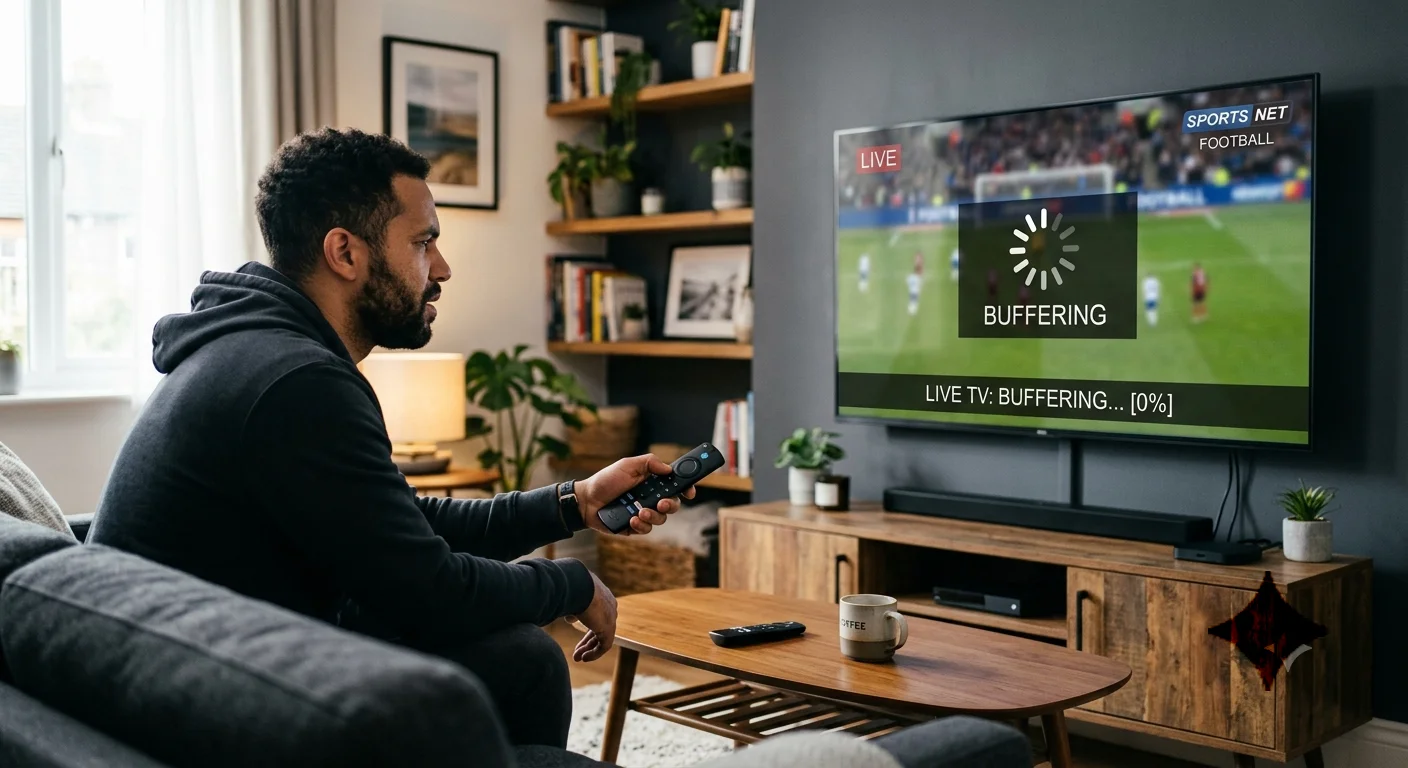
Firestick Keep Buffering on Live TV- You have settled in for the evening, the match is about to kick off, perhaps something as unmissable as Morocco vs Netherlands live, and then it happens. That spinning circle appears in the middle of the screen, the picture freezes, the audio cuts out, and what should have been an immersive live television experience becomes an exercise in frustration and helplessness. If your Firestick keeps buffering on live TV, you are far from alone. It is one of the most searched technical problems in the United Kingdom in 2026, and the good news is that in the vast majority of cases it is entirely fixable once you understand what is actually causing it.
The challenge with Firestick buffering is that it rarely has a single, obvious cause. It is almost always the product of multiple factors interacting with each other, your home network, your internet connection, the streaming app you are using, the Firestick hardware itself, and sometimes the streaming service’s own servers. Identifying which combination of factors is responsible for your specific situation is the key to finding a lasting solution rather than a temporary fix that stops working the moment you hit another busy evening of live sport.
This article takes you through every meaningful cause of Firestick buffer problems and gives you concrete, tested solutions that work in 2026. From the quick wins that take thirty seconds to the more involved fixes that require a bit more effort but deliver dramatically better results, everything is here.
Table of Contents
Understanding Why Firestick Buffering Happens on Live TV
Before reaching for solutions, it is worth spending a moment understanding the mechanics of why buffering occurs in the first place, because that understanding makes the solutions more intuitive and helps you apply them more effectively.
When you watch live TV on your Firestick, the device is constantly receiving a stream of compressed video data from a remote server, decompressing it, and displaying it on your screen in real time. Unlike watching a pre-downloaded file where all the data is already on your device, live streaming requires a continuous, uninterrupted flow of data from the source to your screen. Any interruption in that flow, however brief, causes the buffer to empty, and when the buffer is empty, the picture freezes while the device waits for more data to arrive.
The buffer itself is a small amount of data that your Firestick stores temporarily ahead of your current playback position, providing a cushion against brief network fluctuations. On live TV, this buffer is deliberately kept small to minimise the delay between the real-world event and what you see on screen. That small buffer means live TV is significantly more sensitive to network fluctuations than on-demand streaming, which explains why you might be able to watch a Netflix film without any issues but experience constant buffering on the same device when trying to watch a live football match.
The Most Common Causes of Firestick Buffering on Live TV
Knowing what typically causes the problem helps you diagnose your specific situation more accurately. The causes broadly fall into four categories, each of which requires a different approach to resolve.
The first and most common category is network-related issues. This includes your internet connection speed, the stability of your WiFi signal, the performance of your router, and congestion on your home network caused by other devices consuming bandwidth simultaneously. Network issues account for the majority of buffering problems on Firestick devices, and they are also the most varied and sometimes the most complex to resolve.
The second category is Firestick hardware and software issues. This includes an overheating device, a full storage drive, outdated software, too many apps running in the background consuming processing power and memory, and in some cases a Firestick that is simply older and struggling to keep up with the demands of modern streaming apps.
The third category is app-specific problems. Different streaming apps handle network fluctuations differently, and some are simply better optimised for live TV streaming than others. A poorly optimised app, an outdated version of an app, or corrupted app data can cause buffering even on a fast and stable network.
The fourth category is server-side issues from the streaming service itself. When a major live event is taking place, such as a World Cup knockout match, millions of people attempt to access the same streams simultaneously, which can place enormous strain on streaming servers and cause widespread buffering that is entirely outside your control.
Fix 1: Restart Your Firestick and Router Properly
The most fundamental fix, and the one that resolves a surprising number of buffering issues, is a proper restart of both your Firestick and your router. The emphasis on the word proper is important here, because there is a meaningful difference between a proper restart and simply putting your Firestick on standby.
To properly restart your Firestick, go to Settings, then My Fire TV or Device, then Restart. This performs a full software restart that clears temporary memory, closes background processes, and gives the device a clean start. Alternatively, hold the Select button and the Play button simultaneously on your remote for about five seconds to trigger a restart.
For your router, the most effective approach is to physically unplug it from the mains power, wait a full thirty seconds, and then plug it back in. This is more effective than using the router's restart button because it ensures all the capacitors in the device fully discharge, giving you a genuinely clean restart rather than a partial one. Wait for the router to fully reconnect to your internet service, which typically takes between one and three minutes, before testing your Firestick stream again.
This combination of Firestick restart and router power cycle resolves temporary buffering caused by memory issues, stale network connections, and minor software glitches. It should always be the first thing you try because it costs nothing, takes less than five minutes, and works more often than you might expect.
Fix 2: Improve Your WiFi Signal to Stop Firestick Buffering
WiFi signal quality is the single biggest variable in the Firestick buffering equation, and improving it can transform your live streaming experience more dramatically than almost any other intervention. The stop Firestick buffering advice that appears most consistently across technical forums and expert guides in 2026 invariably addresses WiFi quality as the primary concern.
The distance between your Firestick and your router is the most obvious factor. WiFi signal strength degrades with distance, and every wall, floor, and large piece of furniture that the signal must pass through reduces its strength further. If your television is in a room far from your router, or separated from it by thick walls, the effective WiFi speed your Firestick receives could be a small fraction of your total internet speed.
The frequency band your Firestick is connected to also matters significantly. Most modern routers broadcast on both the 2.4 GHz and 5 GHz bands. The 5 GHz band offers higher speeds but shorter range, while the 2.4 GHz band has better range but lower maximum speed. If your television is relatively close to your router, connecting to the 5 GHz network will almost always give better streaming performance. If your television is far from the router, the 2.4 GHz network may actually be more reliable despite its lower speed ceiling, simply because the signal reaches further.
To check and change which network your Firestick is connected to, go to Settings, then Network, and look at the available networks. If you see both a 2.4 GHz and a 5 GHz version of your home network, experiment with both to see which gives better performance in your specific situation.
Interference from neighbouring WiFi networks and household devices is another underappreciated cause of WiFi instability. Microwave ovens, baby monitors, Bluetooth speakers, and the WiFi networks of neighbours in adjacent properties can all cause interference on the 2.4 GHz band in particular. Switching your router to a less congested channel, a setting available in your router's administration interface, can make a meaningful difference in areas with many competing WiFi networks.
Fix 3: Use a Wired Ethernet Connection for the Best Firestick Buffer Speed
If you are serious about eliminating buffering from your live TV experience on Firestick, the most reliable and effective solution available is replacing your WiFi connection with a wired ethernet connection. The improvement in Firestick buffer speed that a wired connection delivers is significant and immediate.
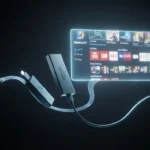
The Amazon Fire TV Stick 4K and 4K Max models support ethernet connectivity through an adapter, the Amazon Ethernet Adapter for Amazon Fire TV, which plugs into the micro-USB or USB-C port on the device and provides a standard ethernet port. This adapter is widely available and relatively inexpensive, and the difference it makes to live streaming stability is genuinely transformative for anyone who has been suffering from WiFi-related buffering.
A wired connection eliminates every WiFi-related variable from your streaming equation. There is no signal degradation with distance, no interference from other devices, no competition with other WiFi clients for bandwidth, and no fluctuation in speed caused by changing wireless conditions. The connection is as consistent as your internet service itself, and for live TV streaming where consistency matters even more than raw speed, that consistency is invaluable.
If running an ethernet cable directly from your router to your television is not practical because of the distance or layout of your home, a powerline ethernet adapter provides a compromise solution. These devices use the electrical wiring already present in your walls to create a wired network connection between any two rooms in your home, typically delivering speeds and stability that are significantly better than WiFi at distance, without requiring any new cable installation.
Android Authority has consistently recommended wired ethernet connectivity as the single most impactful upgrade for Fire TV users who experience live streaming issues, noting that the improvement in streaming stability from eliminating WiFi dependency is often more dramatic than any software-based optimisation.
Fix 4: Clear App Cache and Data on Your Firestick
Over time, streaming apps accumulate cached data that is intended to improve performance but can paradoxically cause problems when that data becomes corrupted, outdated, or simply too large. Clearing the cache of your streaming apps is a quick and effective fix for buffering that has no impact on your settings or login information.
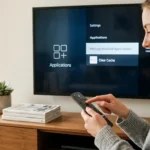
To clear the cache on your Firestick, go to Settings, then Applications, then Manage Installed Applications. Find the app that is causing buffering issues, select it, and choose Clear Cache. You can then close the menu and reopen the app to see if performance has improved.
If clearing the cache does not resolve the issue, the next step is to clear the app's data entirely. This is a more thorough reset that will log you out of the app and remove all stored preferences, but it also removes any corrupted data that might be causing the buffering. Select Clear Data from the same menu, confirm the action, and then reopen the app and log back in.
For apps that you use regularly for live TV streaming, clearing the cache once a month as a routine maintenance task is good practice that can prevent buffering issues from developing in the first place. It takes less than a minute and keeps the app running with clean, current data rather than accumulating months of potentially problematic cached files.
Fix 5: Manage Background Apps and Free Up Firestick Memory
One of the less obvious but genuinely significant causes of Firestick buffering is the number of apps running in the background consuming memory and processing power. The Firestick is a capable streaming device, but its RAM is limited, and when multiple apps are running simultaneously in the background, the available resources for your active streaming app can be insufficient for smooth live TV playback.
To see which apps are running in the background and close them, go to Settings, then Applications, then Manage Installed Applications. You can force stop individual apps that are running unnecessarily. Alternatively, if you hold the Home button on your Firestick remote for a few seconds, you access the recent apps view where you can swipe through and close apps individually.
A more systematic approach is to identify and uninstall apps that you rarely or never use. Every installed app takes up storage space, and a Firestick with very little free storage runs significantly more slowly than one with adequate space available. Amazon recommends keeping at least 500MB of free storage at all times for optimal performance. To check your current storage status, go to Settings, then My Fire TV, then About, then Storage.
The apps most likely to consume significant background resources are those that run continuous background processes, including some VPN apps, social media apps that check for notifications, and certain streaming apps that pre-load content even when not actively being used.
Fix 6: Update Your Firestick Software and Streaming Apps
Running outdated software on your Firestick is a surprisingly common cause of buffering and performance issues that many people overlook because the device appears to be working normally in other respects. Amazon regularly releases Fire OS updates that include performance improvements, bug fixes, and optimisations for streaming performance that can make a meaningful difference to live TV playback.
To check for and install Fire OS updates, go to Settings, then My Fire TV, then About, then Check for Updates. If an update is available, install it and restart the device before testing your streaming performance again.
Keeping your streaming apps updated is equally important. App developers release regular updates that address known performance issues, improve buffering algorithms, and optimise the app for the latest version of Fire OS. If you have disabled automatic app updates, check the Amazon Appstore for available updates to your most-used streaming apps and install them manually.
TechRadar has reported that a significant proportion of Firestick buffering complaints raised with streaming service customer support teams in 2026 are resolved simply by updating either the Fire OS software or the streaming app to the current version, suggesting that this simple maintenance step is more impactful than many users realise.
Fix 7: Adjust Streaming Quality Settings
When your internet connection is consistently struggling to deliver the bandwidth required for high-definition live streaming, adjusting the quality settings of your streaming app can provide immediate relief from buffering while you work on addressing the underlying connection issues.
Most streaming apps offer manual quality controls that allow you to select a lower resolution stream when the automatic quality selection is not behaving intelligently. Dropping from 1080p to 720p reduces the bandwidth requirement significantly, from roughly 10 Mbps to around 5 Mbps, which can be enough to eliminate buffering on a marginal connection. While the picture quality is lower, an uninterrupted 720p stream is infinitely more watchable than a constantly buffering 1080p stream.
For IPTV apps in particular, the quality of the specific stream URL you are using matters as much as your connection speed. Some IPTV providers offer multiple stream quality options for the same channel, allowing you to select a lower bitrate stream when network conditions are challenging. Check the settings within your IPTV app for quality or bitrate options if buffering is affecting a specific channel.
Fix 8: Use a VPN Strategically to Resolve Throttling
Internet service providers in the United Kingdom sometimes implement bandwidth throttling on specific types of internet traffic, including video streaming, during peak usage hours in the evening. This throttling reduces the effective speed of your streaming connection even if your overall internet speed appears adequate on a speed test, because the throttling targets streaming traffic specifically rather than all internet traffic equally.
A VPN, or Virtual Private Network, can sometimes resolve throttling-related buffering by encrypting your traffic in a way that prevents your internet service provider from identifying it as streaming content and applying throttling policies to it. If you notice that buffering is consistently worst during peak evening hours but your internet speed tests normally during those same hours, ISP throttling is a plausible explanation worth investigating.
Not all VPNs are equal in their impact on streaming performance. A poorly chosen VPN can actually make buffering worse by adding latency and reducing effective speed. If you choose to try a VPN as a fix for throttling-related buffering, select a reputable service with servers close to your physical location and use a protocol designed for low latency rather than maximum security, as the latter tends to introduce more overhead.
Watching Morocco vs Netherlands Live Without Buffering
There is no better test of your Firestick streaming setup than a major live sporting event, and few events in 2026 generate the simultaneous viewer numbers of a World Cup knockout match. If you are planning to watch Morocco vs Netherlands live on your Firestick, applying the fixes in this article before the match starts is far wiser than troubleshooting in the middle of the first half.
The specific challenge of watching live World Cup football on a Firestick is that the peak demand on streaming servers occurs precisely when you most want the stream to work perfectly. When millions of viewers simultaneously open the same stream at kick-off, server load spikes dramatically, and the streams that were working perfectly five minutes earlier can suddenly buffer or drop in quality. This is a server-side issue that no amount of home network optimisation can entirely prevent, but a well-optimised home setup minimises your exposure to it.
The practical preparation for watching a major live match without buffering on your Firestick involves clearing app caches before the match, ensuring your Firestick is fully updated, restarting both your router and your Firestick about thirty minutes before kick-off to start with clean connections, and if possible switching to a wired ethernet connection for the duration of the match.
For those who want a genuinely reliable live TV streaming experience for major sporting events, tiviplanet IPTV is a well-regarded option among UK streaming users, offering a stable and consistently high-quality streaming infrastructure that is specifically designed to handle the demand spikes that major live events like World Cup matches generate, with multiple stream quality options and reliable server performance when it matters most.
Fix 9: Check Your Internet Speed and Upgrade if Necessary
After exhausting all device-level and network configuration fixes, if buffering persists the root cause may simply be that your internet connection is not fast enough for the type of streaming you are trying to do. This is particularly relevant for households with multiple simultaneous stream users or those trying to watch 4K content on the Firestick 4K Max.
The minimum speeds for different streaming qualities are worth understanding clearly in the context of a household rather than just a single device.
| Household Usage | Recommended Speed |
|---|---|
| Single HD stream | 10 Mbps |
| Two simultaneous HD streams | 20 Mbps |
| Single 4K stream | 25 Mbps |
| Multiple 4K streams | 50 Mbps+ |
| Family household with gaming and streaming | 100 Mbps+ |
If your current internet package falls short of what your household actually needs, contacting your ISP to discuss an upgrade is the most straightforward solution. In 2026, full fibre broadband is available to a growing proportion of UK addresses, and the step up from standard ADSL or part-fibre to full fibre genuinely transforms the streaming experience, particularly for live TV where connection stability matters as much as raw speed.
Wired has reported that the widespread rollout of full fibre broadband across the UK in 2025 and 2026 has dramatically reduced the frequency of streaming complaints among households that have upgraded, with live TV buffering in particular becoming rare rather than routine for full fibre subscribers.
Fix 10: Factory Reset Your Firestick as a Last Resort
If you have worked through every other fix in this guide and buffering on live TV persists, a factory reset of your Firestick is the nuclear option that restores the device to its original out-of-the-box state and eliminates any software corruption or misconfiguration that might be causing the problem.
A factory reset will delete everything on your Firestick, including all installed apps, saved preferences, login credentials, and downloaded content. After the reset, you will need to log back into your Amazon account and reinstall all your apps. It is a significant undertaking, but it is also the most thorough software fix available when all other options have been exhausted.
To factory reset your Firestick, go to Settings, then My Fire TV, then Reset to Factory Defaults, and confirm the action. The process takes several minutes and the device will restart automatically when complete. After the reset, go through the initial setup process, reconnect to your WiFi network or ethernet connection, and reinstall only the apps you actually use rather than reinstalling everything indiscriminately.
Preventing Future Buffering: Ongoing Maintenance Tips
Once you have resolved your buffering issues, a few simple ongoing habits will help prevent them from returning and keep your Firestick performing at its best for live TV streaming.
Restart your Firestick and router once a week as a routine rather than waiting until problems develop. Clear app caches monthly for your most-used streaming apps. Keep Fire OS and all apps updated to the latest versions. Monitor your internet speed periodically using a speed test app installed directly on your Firestick to ensure you are consistently receiving the speed your provider has promised. And if you notice buffering beginning to creep back, address it early with the basic fixes rather than waiting until it becomes a persistent problem during a major live event.
FAQ: The Most Searched Questions About Firestick Buffering on Live TV
Why does my Firestick buffer on live TV but not on Netflix?
Live TV uses a much smaller data buffer than on-demand streaming because it must minimise the delay between the real event and your screen. This makes live TV significantly more sensitive to network fluctuations. Even brief dips in connection speed that Netflix can absorb invisibly will cause visible buffering on a live stream.
How do I stop Firestick buffering instantly?
The quickest fixes are restarting the app, clearing its cache, and reducing the stream quality in the app settings. For a slightly longer but more lasting fix, restart your Firestick and router properly. If you have an ethernet adapter available, switching to a wired connection will produce the most immediate and dramatic improvement.
What Firestick buffer speed do I need for live TV?
A minimum of 5 Mbps is required for standard definition live streaming, 10 Mbps for HD, and 25 Mbps for 4K. However, these are minimum figures for a single stream on an otherwise idle network. In a typical household with multiple devices, higher speeds provide better headroom and fewer buffering incidents.
Does VPN cause Firestick buffering?
A VPN can cause buffering if it introduces significant latency or reduces your effective connection speed. However, a well-chosen VPN with nearby servers can sometimes improve streaming performance by bypassing ISP throttling. The impact depends entirely on the specific VPN service and the server you connect to.
Why does my Firestick buffer more in the evenings?
Evening buffering is typically caused by network congestion, either on your home network with more household members using the internet simultaneously, or on the broader network infrastructure as peak usage hours create higher demand. ISP throttling of streaming traffic during peak hours is also more prevalent in the evenings.
Can an old Firestick cause buffering?
Yes. Older Firestick models have less RAM and slower processors that can struggle with the demands of modern high-quality streaming apps. If your Firestick is more than four or five years old and buffering persists despite all other fixes, upgrading to a current model is worth considering.
How do I watch Morocco vs Netherlands live without buffering on my Firestick?
Apply the preparation steps described in this article at least thirty minutes before kick-off. Restart your router and Firestick, clear your streaming app cache, switch to a wired ethernet connection if possible, and ensure your internet speed is sufficient for the quality of stream you intend to watch. Having a backup streaming option available is also sensible for major live events.
Does clearing cache on Firestick help with buffering?
Yes, clearing the cache of your streaming app removes potentially corrupted temporary data and can improve app performance significantly. It is one of the quickest and easiest fixes available and should be among the first things you try when experiencing buffering.
Why does my Firestick buffer on IPTV but not on standard apps?
IPTV streams can vary significantly in quality depending on the server hosting the stream. If the IPTV provider's server is under heavy load or the stream URL is hosted on a slow server, buffering will occur regardless of how fast your home internet connection is. Choosing a reputable IPTV provider with high-quality server infrastructure makes a significant difference.
Should I use 2.4 GHz or 5 GHz WiFi for my Firestick?
If your television is close to your router, use the 5 GHz band for its higher speed. If your television is far from the router or separated by thick walls, the 2.4 GHz band may provide a more stable connection despite its lower speed ceiling. Test both and use whichever delivers more consistent performance in your specific home layout.
Conclusion: A Buffering-Free Live TV Experience is Entirely Achievable
Firestick buffering on live TV is one of the most frustrating technical problems a streaming user can encounter, but it is almost always solvable. The key is approaching the problem systematically, understanding which category of cause is most likely responsible for your specific situation, and applying the appropriate fixes in order from the simplest to the most involved.
For the vast majority of people experiencing stop Firestick buffering issues in 2026, the combination of a proper router restart, an improved WiFi setup or wired ethernet connection, cleared app caches, and updated software will resolve the problem entirely. The minority of cases that persist beyond those fixes typically point to either an insufficient internet package for the household's needs or a Firestick device that has reached the end of its useful performance life and benefits from replacement.
Whatever the cause and whatever the fix required, the goal is the same. A live TV experience on your Firestick that is smooth, reliable, and completely uninterrupted, whether you are watching a drama series on a quiet Tuesday evening or following every second of a World Cup knockout match with the intensity that those occasions demand. With the right setup and the knowledge from this guide, that experience is well within reach.