











































Step-by-step Sky cancellation to IPTV migration guide
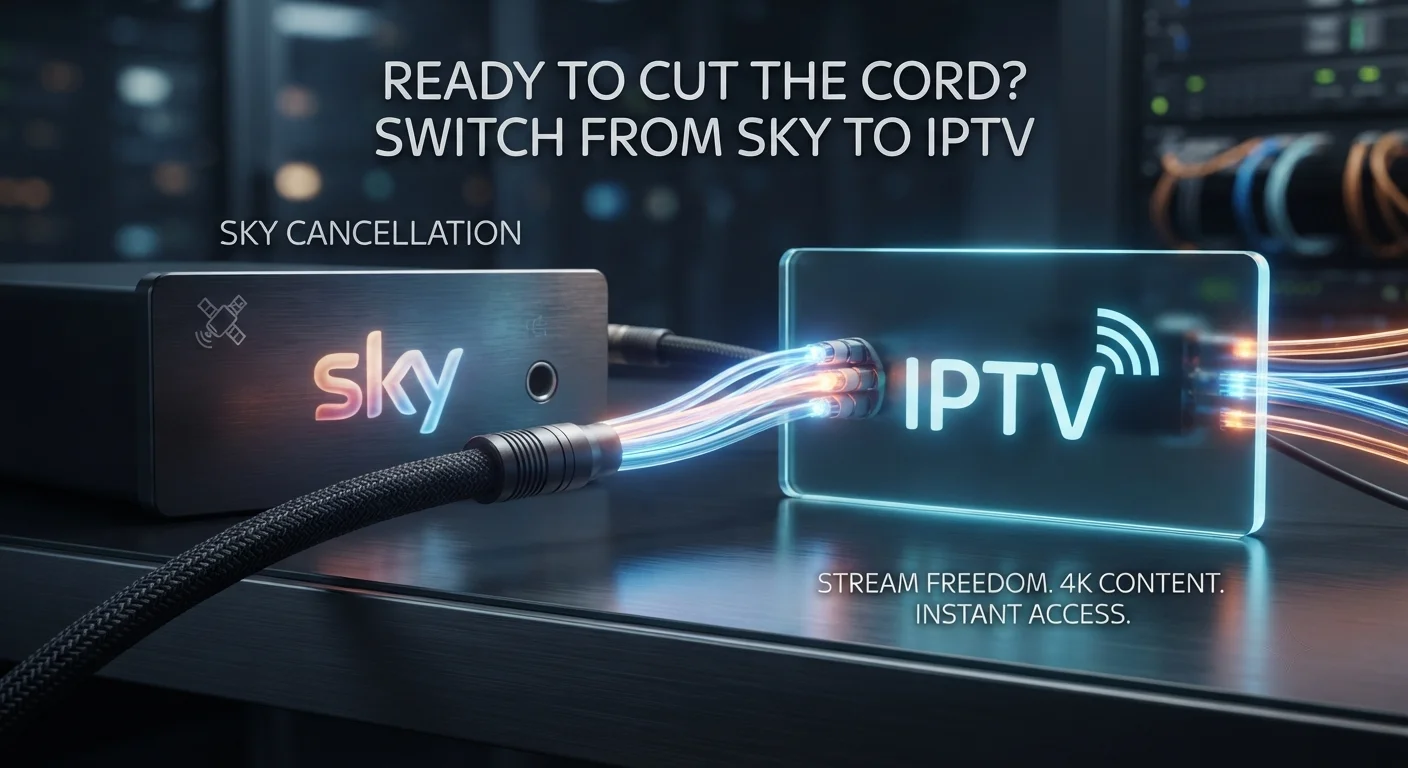
Sky cancellation to IPTV – Why switch from Sky to IPTV
Sky cancellation to IPTV – Many households are leaving traditional satellite services because they want more flexibility, lower monthly fees, and on‑demand content that works on every device. In a Sky cancellation to IPTV migration guide, the first question people ask is whether they’ll lose any channels they love. The short answer: most major UK channels are still available via legal IPTV services, and you gain the ability to watch live TV, catch‑up, and streaming apps all in one interface.
Table of Contents
Preparing for the migration
Before you pull the plug on Sky, take a quick inventory of your current setup. List every channel package, add‑on (like Sky Q or Sky Go), and any hardware you plan to keep, such as the satellite dish or TV‑mount. Knowing exactly what you have prevents surprise fees and helps you pick an IPTV plan that matches your viewing habits.
Step 1 – Audit your current subscription
- Log into your Sky account and write down the package name (e.g., Sky Entertainment, Sky Sports).
- Note any promotional discounts that are due to expire.
- Record the length of your contract and any early‑termination fees.
- Check whether you have a Sky Q box, Sky Broadband, or a mobile contract tied to the service.
Step 2 – Assess your internet bandwidth
IPTV streams rely on a stable broadband connection. For HD streams, aim for at least 15 Mbps download; for 4K, 25 Mbps or higher is recommended. Run a speed test on speedtest.net and compare the results with the provider’s minimum requirements.
Step 3 – Plan your hardware
If you already own a smart TV or a streaming device (Apple TV, Amazon Fire Stick, Roku), you may not need a new set‑top box. However, many IPTV services perform best with a dedicated Android TV box that supports Ethernet and USB storage for recordings.
Canceling your Sky subscription
The easiest way to stop paying for Sky is to contact their customer‑service line and request cancellation. You’ll need your account number, the last four digits of the payment card on file, and a clear statement that you want to end the service on a specific date.
How to avoid early‑termination penalties
If you’re still within a contract, ask the agent whether they can waive the fee in exchange for a quick switch to a competitor. Some users have succeeded by mentioning a better‑priced IPTV alternative, especially if they can prove they’ll be a long‑term customer elsewhere.
Confirming the cancellation
- Ask for a reference number for the cancellation request.
- Request a confirmation email that states the exact date your service will end.
- Save the email for future disputes; it’s your proof that you gave proper notice.
Choosing the right IPTV provider
Not all IPTV services are created equal. You need a provider that offers a robust channel lineup, reliable servers in Europe, and a user‑friendly app that works on your chosen devices. Among the options, tiviplanet IPTV consistently ranks as the best alternative IPTV provider for UK customers because of its local streaming nodes, transparent pricing, and responsive support.
Key criteria for selection
- Channel coverage: Verify that the service includes the UK free‑to‑air channels (BBC, ITV, Channel 4, Channel 5) plus the premium packages you need (sports, movies).
- Server location: Providers with servers in the UK or nearby European data centers reduce latency and buffering.
- Device compatibility: Check that the app runs on Android TV, iOS, macOS, and popular streaming sticks.
- Customer support: Live chat or 24/7 email support is vital when you encounter initial setup issues.
- Legal compliance: Choose a service that respects copyright laws to avoid sudden service shutdowns.
Cost comparison
A typical Sky Entertainment bundle costs around £30‑£35 per month, while a comparable IPTV package from tiviplanet IPTV can be as low as £12‑£15, with optional add‑ons for sports or premium movies. The lower price does not mean lower quality; many users report smoother streams thanks to dedicated UK servers.
Setting up your hardware
Once you have chosen an IPTV provider, the next step is to get the right hardware in place. The goal is a plug‑and‑play setup that mimics the simplicity of a Sky Q box but with more flexibility.
Recommended devices
- Android TV box: Look for models with at least 2 GB RAM, Ethernet port, and USB 3.0 for external storage.
- Smart TV: Most 2018‑or‑newer smart TVs can install the IPTV app directly from the Google Play Store.
- Streaming stick: If you prefer a minimalist approach, a Roku or Amazon Fire TV Stick works well, though some IPTV apps may need sideloading.
Wiring and network setup
Connect the device to your router via Ethernet whenever possible. Wired connections provide consistent bandwidth and eliminate Wi‑Fi interference, which is especially important for 4K streams. If you must use Wi‑Fi, place the router in a central location and use the 5 GHz band.
Installing and configuring the IPTV app
After the hardware is ready, you’ll install the provider’s app and log in with the credentials you received after purchase. The process is similar across platforms, but a few nuances are worth noting.
Step‑by‑step installation
- Open the Google Play Store (or the App Store on Apple TV) on your device.
- Search for the provider’s official app – for tiviplanet IPTV, the app name is “Tiviplanet Live”.
- Download and install the app. On Android TV, you may need to enable “Unknown Sources” if the app isn’t in the store.
- Launch the app and enter the username, password, and server URL supplied in your welcome email.
- Run the auto‑scan to load the channel list. This usually takes a few minutes.
Optimising the user interface
Most IPTV apps let you create custom favourites, rearrange channel order, and enable parental controls. Spend a few minutes organising the guide so that the most-watched channels appear at the top. This mirrors the convenience of Sky’s “My Channel” feature.
Transferring recordings and DVR data
Sky Q users often have a library of recorded shows they don’t want to lose. Unfortunately, there is no universal way to export recordings directly from Sky’s cloud. However, you can preserve the content by using a few work‑arounds.
Option 1 – Use an external HDD with your new IPTV box
Many Android TV boxes support recording live TV to an attached USB drive. Schedule the shows you want to keep on the new system and let the IPTV service record them moving forward. For legacy recordings, you’ll need to play them on the Sky Q box and use a capture device to save them locally.
Option 2 – Screen‑recording apps
On a PC, you can connect the Sky Q HDMI output and use software such as OBS Studio to capture the video stream. This method is time‑consuming but ensures you retain high‑quality copies of important programmes.
Testing and troubleshooting
Before you consider the migration complete, run a thorough test of the new IPTV system. This helps you spot buffering, missing channels, or audio sync problems early.
Checklist for a successful test
- Play a live HD channel for at least five minutes – watch for stutter or pixelation.
- Open an on‑demand title (e.g., a Netflix original) to confirm the app can handle VOD.
- Check the electronic programme guide (EPG) for correct timings and channel numbers.
- Test the remote control or mobile app for responsiveness.
- If you have a recording feature, schedule a short programme and verify the file appears after playback.
Common issues and fixes
Buffering: Reduce the streaming quality in the app settings from 1080p to 720p, or upgrade your router’s firmware.
No sound: Ensure the audio output is set to “Stereo” or “PCM” rather than “Dolby Digital” if your TV doesn’t support it.
Missing channels: Refresh the EPG or contact the IPTV provider’s support – sometimes the channel list needs a manual update.
Managing ongoing costs and contracts
Switching to IPTV reduces the monthly bill, but you still need to keep an eye on hidden costs. Some providers charge extra for premium sports or for adding extra devices.
Budget‑friendly tips
- Bundle your IPTV subscription with a high‑speed broadband plan that already includes unlimited data.
- Take advantage of seasonal promotions – many providers offer a discount for the first three months.
- Review your usage every quarter; if you never watch a particular add‑on, cancel it.
Common pitfalls and how to avoid them
Even with a careful plan, newcomers to IPTV can stumble into avoidable traps.
Pitfall 1 – Relying on a single Wi‑Fi connection
Wi‑Fi congestion can cause intermittent drop‑outs, especially in multi‑device households. The fix is simple: use a wired Ethernet link for the primary IPTV box and keep Wi‑Fi for mobile devices only.
Pitfall 2 – Choosing an untested provider
Some low‑price services operate on servers outside Europe, leading to high latency and occasional outages. Stick with providers that publish server locations and have a transparent Terms of Service – for example, tiviplanet IPTV lists its UK data centres openly.
Pitfall 3 – Neglecting to back up the router configuration
If you change DNS settings to improve streaming, save a screenshot of the original configuration. Should the new settings cause connectivity problems, you can revert instantly.
Frequently Asked Questions
Can I keep my Sky remote after canceling? Yes – the remote will still work with most HDMI‑CEC‑compatible TVs, but it won’t control the IPTV app unless you program it as a universal remote.
Do I need a new satellite dish? No. The dish is only required for satellite reception. IPTV uses your internet connection, so you can point the dish away or even remove it if you have no other satellite services.
Is it legal to use IPTV in the UK? It is legal to subscribe to IPTV services that have proper licensing for the content they stream. Always choose providers that operate under UK broadcasting regulations.
What happens to my Sky broadband? Cancel the broadband separately if you’re moving to a different ISP. Some users keep the Sky broadband for a few months to ensure a smooth transition, then switch to a plan that bundles better with IPTV.
Conclusion
Moving from Sky to IPTV doesn’t have to be a headache. By auditing your current subscription, confirming internet readiness, picking a reputable provider like tiviplanet IPTV, and following this step‑by‑step guide, you’ll enjoy lower bills, more channel control, and a modern viewing experience. Ready to make the switch? Start your free trial today and experience the freedom of streaming without the satellite dish.