










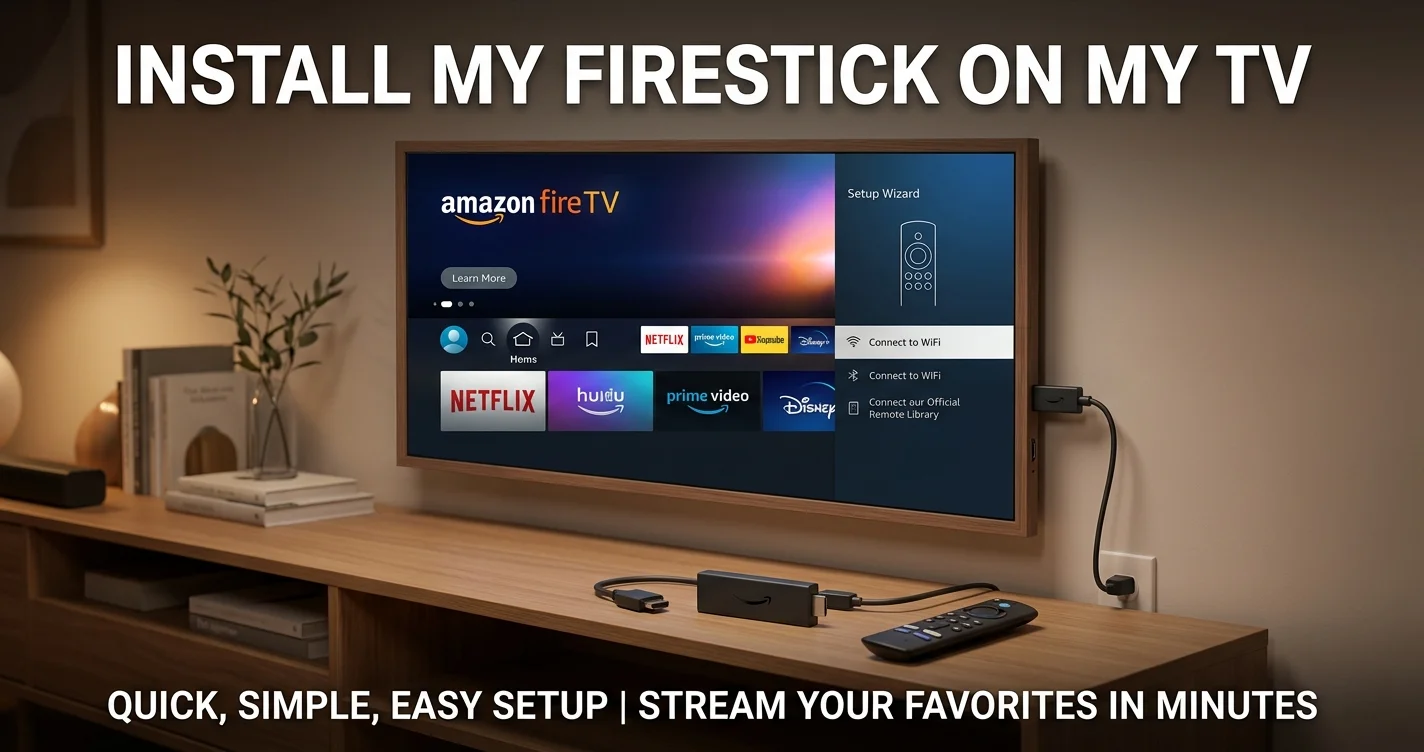
How Do I Install My Firestick on My TV?
Getting Your Firestick Ready
Install My Firestick on My TV – If you’ve just purchased an Amazon Fire Stick 4K or any of the latest Latest Firestick models, you’re probably excited to get started streaming. The good news is that installing your Firestick is remarkably straightforward. Most people can have their device up and running in less than fifteen minutes without any technical experience whatsoever.
Whether you bought your Firestick from ASDA, Argos, Currys, or directly from Amazon, the installation process remains consistent across all retailers. The device itself is beautifully simple, designed with user-friendliness as a priority rather than an afterthought.
This comprehensive guide walks you through every step of the Amazon firestick installation process. We’ll cover everything from unboxing your device to troubleshooting any Amazon Fire Stick setup problems you might encounter. Whether you’re installing a standard Fire Stick, an Amazon Fire Stick 4K, or the latest generation model, the fundamental process remains virtually identical.
Table of Contents
Before You Begin: What You'll Need
Proper preparation makes the installation process smoother and faster.
Physical Requirements
Your Firestick installation requires several physical components that you'll likely already have at home. First, you need an active television with an HDMI port. Nearly all modern televisions include HDMI connectivity, but if your television is particularly old, this might be an issue. You'll also need an available HDMI input on your television. Most TVs include multiple HDMI ports, so finding an available one shouldn't present difficulty.
You'll need a power source near your television. The Firestick connects to a power outlet via a USB power adapter included in your purchase. Most people position their power outlet within reasonable distance of their television setup. If your outlet is far from your TV, you might consider a power extension lead, though these aren't necessary for most installations.
Internet Connection
Your Firestick requires a functioning WiFi internet connection. This is non-negotiable. Without internet, your Firestick becomes essentially useless because it streams all content from the internet. Ensure your WiFi network is active and that you know your WiFi password before beginning installation. If you're uncertain about your WiFi password, you can usually retrieve it from your router or contact your internet service provider.
Amazon Account
You'll need an active Amazon account to use your Firestick. If you don't already have one, you can create an account for free at Amazon.co.uk. The account creation process takes just a few minutes and requires only an email address and password. Having your login credentials ready before you start saves time during the installation process.
The Physical Installation: Getting Your Firestick Connected
The physical aspect of Firestick installation is genuinely the easiest part.
Unboxing Your Device
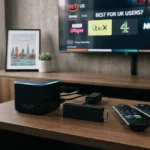
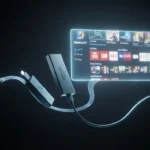
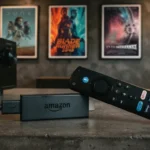
When you first receive your Firestick, whether from ASDA Firestick, Argos Fire Stick, Currys Firestick, or Amazon directly, the box contains surprisingly few items. You'll find the Firestick device itself, which is small enough to fit in your hand. The device is roughly the size of a car key, making it incredibly portable and discreet.
The box also includes a power adapter and USB cable for delivering power to your device. The power adapter is small and unobtrusive. Additionally, you'll find a remote control with simple button layouts. Some newer models include an Amazon Fire Stick 4K remote with voice control capabilities, though not all models feature this. You might also find some quick start documentation, though this is increasingly minimal as companies move toward digital documentation.
Positioning Your Firestick
Determining where to position your Firestick device matters for both functionality and aesthetics. The device connects directly to your television's HDMI port. Most televisions have HDMI ports arranged vertically along one side of the set. You have two general positioning options.
You can position your Firestick so the device sticks out from the HDMI port, hanging below or above your television. This is the most common approach. Alternatively, if your television is mounted on a wall or positioned against furniture in ways that make the protruding Firestick problematic, you can use an HDMI extension cable to position the device elsewhere, perhaps on a shelf or behind your television.
Most people don't bother with extension cables. The Firestick is small and unobtrusive enough that having it protrude from the HDMI port rarely causes issues. Simply position it in whichever HDMI port is most convenient.
Connecting to Power
Once your Firestick is inserted into your television's HDMI port, you need to connect the power. Locate the USB power cable included with your Firestick. One end connects to the back of your Firestick, whilst the other end connects to the power adapter, which then plugs into a nearby outlet.
Position the power outlet conveniently. Many people run the power cable along with other cables behind their television stand or entertainment unit. Alternatively, if your outlet is directly behind your television, you can position it there. The key is ensuring the cable isn't a tripping hazard or visible in ways that bother you aesthetically.
Once power is connected, your Firestick will automatically power on. You should see your television briefly display that an HDMI input is available, though this depends on your television's settings. The Firestick's LED light will illuminate, indicating power is active.
Install My Firestick on My TV- Initial Setup: Navigating the Activation Process
Once your Firestick is physically connected and powered, the real setup begins.
The First Screen
When you power on your Firestick for the first time, your television screen will display a welcome message. This usually appears within thirty seconds of power-up. The message will inform you that your Firestick is ready to be set up. You'll be prompted to select your language. For British viewers, English (United Kingdom) is typically available as an option. Select this and proceed.
WiFi Connection
Your Firestick will next display a list of available WiFi networks. This is where knowing your WiFi password becomes important. Select your home WiFi network from the displayed list. If you can't see your network, ensure your WiFi router is active and positioned within reasonable range of your television.
Enter your WiFi password when prompted. The Firestick includes an onscreen keyboard that appears on your television screen. Using your remote control, navigate the keyboard to spell out your password. This process is straightforward but requires patience. Most people find it takes around two minutes to enter a moderately complex password.
Once you've entered your password correctly, your Firestick will attempt to connect to your WiFi network. This usually succeeds within seconds. You'll see a confirmation message indicating successful connection.
Amazon Account Linking
Next, your Firestick will ask you to link your Amazon account. You have two options here. You can either enter your Amazon email and password directly into your Firestick, or you can visit amazon.co.uk/mytv on a separate device and enter a code that appears on your television. The second method is often easier because it avoids typing lengthy passwords using the onscreen keyboard.
If you choose the code method, open a web browser on your computer, tablet, or smartphone and visit the Amazon mytv website. Enter the code displayed on your television screen. This immediately links your Amazon account to your Firestick without requiring password entry on the device itself.
Device Registration
After linking your Amazon account, your Firestick will register itself to your account. This process is automatic and takes a minute or two. You'll see a loading screen during this time. Once registration is complete, your Firestick is ready to use.
Amazon Fire Stick 4K: Specific Considerations
If you've purchased an Amazon Fire Stick 4K, some additional considerations apply, though the basic installation process remains identical.
Resolution Settings
The Amazon Fire Stick 4K requires specific television settings to operate optimally. Whilst the device works with any modern television, 4K resolution only displays on compatible television models that support 4K resolution and HDCP 2.2 copy protection. Most televisions manufactured in the last five years support these features, but older televisions might not.
After completing basic setup, navigate to your Firestick's settings menu. Select display and video settings, then resolution. Here you can verify whether your television supports 4K. If it does, you can enable 4K playback. If not, your Firestick automatically defaults to 1080p high definition, which still provides excellent picture quality.
4K Content Availability
One point to understand about the Amazon Fire Stick 4K is that 4K content availability remains limited. Whilst Netflix, Amazon Prime Video, and other services offer 4K content, much of their libraries remain in standard definition or full high definition. Additionally, 4K content requires substantially more internet bandwidth. Ensure your internet connection is robust, ideally at least 15 megabits per second for comfortable 4K streaming.
Enhanced Audio
The Amazon Fire Stick 4K supports advanced audio formats including Dolby Atmos. To take advantage of this, your television and sound system must support these formats. If your setup includes compatible audio equipment, you can enable enhanced audio in your Firestick settings.
Setting Up Your Remote Control
Your Firestick remote requires minimal setup, though pairing ensures optimal functionality.
Remote Pairing
Most modern Firestick remotes pair automatically with your device during initial setup. However, if your remote isn't responding properly, you might need to manually pair it. To do this, locate the pairing button on the back of your remote. It's usually a small indented button. Press and hold this button for approximately ten seconds. Your Firestick will display a pairing request. Confirm the pairing on your television screen, and your remote should synchronise.
Voice Control Features
If you've purchased a newer Firestick model with a voice control remote, you can use this feature to search for content, control playback, and launch apps. Simply press the microphone button on your remote and speak your command clearly. Voice control works remarkably well and provides genuine convenience once you become accustomed to using it.
Remote Customisation
Some Firestick models allow customising your remote buttons. In your Firestick settings, you can sometimes reassign button functions or set specific apps to launch with a button press. This personalisation isn't necessary for basic functionality but can enhance your experience.
Understanding Amazon Fire Stick 19 and Model Variations
The term Amazon Fire Stick 19 occasionally appears in discussions, though this terminology can be confusing. Amazon doesn't officially use this designation. Instead, Amazon identifies Firestick models by generation or specific names.
Model Variations Explained
Amazon currently produces several Firestick models. The standard Fire Stick represents the basic, most affordable option. It provides access to all major streaming apps and services at a reasonable price point. The Amazon Fire Stick 4K, as discussed, offers 4K resolution support at a higher price point. Fire TV Stick Max represents the premium option with the most powerful processor and advanced features.
Where the Numbers Come From
When people reference numbered versions, they're typically referring to specific generations. The Amazon Fire Stick 4K has seen multiple generational updates. The most current generation usually offers the best value because it includes the latest features and software support.
Which Model to Choose
For most British viewers, the standard Fire Stick or Amazon Fire Stick 4K represents the best value. Unless you have specific requirements for the Premium Max model, either of these options provides excellent streaming capability.
Installing From Retail Locations: ASDA, Argos, and Currys
Where you purchase your Firestick doesn't affect installation, but it's worth noting that ASDA Firestick, Argos Fire Stick, and Currys Firestick options all follow identical installation procedures.
Retail Availability
All major British retailers including ASDA, Argos, and Currys stock Fire Stick devices. These retailers typically stock multiple Firestick models, allowing you to compare options before purchase. Prices are generally competitive across retailers, though occasional sales make one retailer temporarily more attractive than others.
Warranty and Returns
Purchasing from established retailers like Argos or Currys provides standard consumer protections and returns policies. If you encounter issues with your Firestick, you can typically return it within the standard returns window. Direct purchases from Amazon also include returns options, though you should verify specific return policies at your point of purchase.
Included Extras
Occasionally, retailers include bundle options that pair your Firestick with subscriptions or other devices. These bundles can provide value, though ensuring the included extras are services you'll actually use is important.
Troubleshooting Common Amazon Fire Stick Setup Problems
Despite straightforward design, some users occasionally encounter issues during setup.
WiFi Connection Problems
If your Firestick won't connect to your WiFi network, first verify that your WiFi network is functioning properly. Test whether other devices connect successfully to your WiFi. If other devices connect but your Firestick doesn't, try forgetting the network on your Firestick and reconnecting. Sometimes moving your Firestick closer to your WiFi router solves the problem, as distance and obstacles can interfere with wireless signals.
Remote Not Responding
If your remote isn't responding after setup, first check the batteries. The remote uses two AA batteries that might not be included in your purchase. If batteries aren't the issue, try the manual pairing procedure described earlier. If this doesn't resolve the problem, restart your Firestick by unplugging it for thirty seconds, then plugging it back in.
No Picture on Television
If your Firestick is powered on but you're not seeing anything on your television screen, first verify that you've selected the correct HDMI input on your television. Most televisions include a remote button for input selection. Cycle through your available HDMI inputs until you see the Firestick interface. If you still see nothing, try a different HDMI port on your television.
Slow Performance or Freezing
If your Firestick operates sluggishly or freezes frequently, restart the device. Unplug your Firestick for thirty seconds, then reconnect it. This usually resolves temporary performance issues. If problems persist, check that your internet connection is functioning properly by testing on another device. Slow internet can cause streaming problems.
Account Linking Issues
If your Firestick won't link to your Amazon account, verify that you're entering your credentials correctly. Remember that passwords are case-sensitive. If you continue experiencing problems, try the code method described earlier where you visit amazon.co.uk/mytv on a separate device.
Amazon firestick installation on Different Television Types
Different television types occasionally present unique considerations.
Smart Televisions
If you're installing your Firestick on a smart television that already has streaming apps built in, you might question whether you need a Firestick at all. The advantage of a Firestick is that it centralises your streaming apps, simplifies remote control operations, and receives faster updates than television manufacturers typically provide. Even if your television includes streaming apps, a Firestick often provides a better user experience.
Older Televisions
Older televisions without HDMI ports cannot directly use a Firestick unless you use a converter device. However, most televisions manufactured after roughly 2010 include HDMI ports. If you have a particularly old television, you might need to invest in an HDMI to composite converter, though these are relatively inexpensive.
Projectors and Alternative Displays
Firesticks work with projectors and other display devices that include HDMI inputs. Installation process remains identical. The Firestick simply needs to connect to an available HDMI port on your projector.
Setting Up Multiple Firesticks
If you have multiple televisions, you can install Firesticks on each.
Linking Multiple Devices
When you install a second Firestick and link it to your Amazon account, it automatically has access to the same content you've purchased or subscribed to on your first Firestick. This means if you have Amazon Prime Video membership, for example, both Firesticks access your account.
Separate Profiles
You can create separate user profiles on each Firestick if different household members want customised experiences. Each profile maintains separate watch history, recommendations, and preferences.
Enhancing Your Setup: Additional Considerations
Once your Firestick is installed and operational, you might consider enhancements.
Audio System Integration
If you have a soundbar or home theatre system, you can integrate it with your Firestick. Simply connect your soundbar to your television via HDMI or optical audio. The Firestick sends audio through your television to your sound system. This provides superior audio compared to relying on your television's built-in speakers alone.
Network Stability
For optimal streaming, position your WiFi router reasonably close to your television. If your television is far from your router and you experience buffering or dropping connections, consider a WiFi range extender or relocating your router.
Cable Management
Keeping cables organised behind your television improves both functionality and aesthetics. Velcro straps, cable management boxes, and carefully routing cables along existing cable channels create a professional appearance and prevent accidental disconnections.
Accessing Content: After Installation
Once your Firestick is installed and operational, accessing content is straightforward.
Available Apps and Services
Your Firestick gives you access to hundreds of streaming apps and services. Netflix, Amazon Prime Video, BBC iPlayer, ITV Hub, and All4 all offer applications available through the Fire TV App Store. Many services are free to install. Some require subscriptions, which you typically manage through the service's website rather than through your Firestick.
Alternative Streaming Options
Beyond traditional streaming services, some users are interested in alternative viewing options. For those in Europe seeking comprehensive television streaming options, services like tiviplanet provide European IPTV services accessible through some Firestick configurations, offering additional viewing choices beyond standard streaming platforms.
Creating Profiles
Multiple household members can create separate profiles on your Firestick. Each profile maintains independent watch history, recommendations, and preferences. This is particularly useful for households where different members have different viewing interests.
Advanced Features: Once You're Comfortable
After becoming comfortable with basic Firestick operation, you can explore advanced features.
Voice Commands
If your remote includes voice control, you can ask your Firestick to search for content, launch apps, control playback, and more. Saying "Alexa, open Netflix" or "Alexa, play The Office" delivers quick access without navigating menus.
Casting from Other Devices
You can cast content from your smartphone or tablet to your Firestick. Using the casting feature built into compatible apps allows streaming content from your portable device to your television.
Screen Mirroring
Some Firestick models support screen mirroring, allowing you to display your smartphone or tablet screen on your television. This works well for presentations, gaming, or sharing content with others.
Custom Screensaver
You can customise your Firestick screensaver with personal photos or famous artworks, giving your Firestick a personalised feel when it's not actively streaming.
Maintenance and Updates
Your Firestick requires minimal maintenance once installed.
Automatic Updates
Your Firestick automatically downloads and installs updates as they become available. Updates happen when your Firestick isn't actively being used, usually overnight. You don't need to manually manage updates.
Regular Cleaning
Occasionally dusting your Firestick prevents dust accumulation. A simple dry cloth usually suffices. Avoid moisture and harsh chemicals.
Storage Management
Your Firestick stores app data and caches. Occasionally clearing your cache improves performance if you notice sluggishness. You can do this through your Firestick settings.
Conclusion: Enjoying Your Firestick
After completing installation, whether you've installed a standard Firestick, an Amazon Fire Stick 4K, or a Latest Firestick model from ASDA, Argos, Currys, or Amazon directly, you should have a fully functional device. The Amazon firestick installation process, whilst containing several steps, remains straightforward and user-friendly.
Your Firestick provides access to hundreds of apps and services, transforming your television into a comprehensive entertainment hub. Whether you're watching Netflix, streaming Amazon Prime Video, catching up on BBC programmes through BBC iPlayer, or exploring other services, your Firestick delivers seamless access.
Should you encounter any Amazon Fire Stick setup problems during installation or use, remember that most issues resolve through simple troubleshooting like restarting the device, checking internet connectivity, or verifying HDMI input selection. For more complex issues, Amazon's customer support provides assistance.
Your Firestick should now provide years of reliable streaming entertainment, delivering content directly to your television with minimal setup and maximum convenience. Enjoy your new streaming device.
Reference and Support Information
Official Amazon Resources:
Retailer Information:
Streaming Services:
Alternative Services:



[…] to Amazon Fire Stick -The streaming device market has expanded dramatically over recent years, offering consumers […]
[…] Firesticks Becoming Obsolete – The streaming device landscape has undergone a remarkable transformation over the past decade. What began as a niche product for early adopters has evolved into a mainstream entertainment essential found in millions of households worldwide. The Amazon Fire TV Stick, in particular, has become synonymous with cord-cutting, offering an affordable and accessible gateway to the vast world of streaming content. But as we navigate through 2026, a pressing question has emerged in technology forums and consumer discussions: are these once-revolutionary devices facing obsolescence? […]
[…] Fire TV Stick buffering with IPTV -If you’ve ever sat down to watch a live sports channel on your Fire TV Stick only to see the picture freeze, while Netflix streams a 4K movie without a hiccup, you’re not alone. The mismatch isn’t a glitch in the Amazon hardware; it’s usually a clash between how IPTV delivers video and the network environment your stick lives in. Below you’ll find every practical step to diagnose, fix, and future‑proof your setup so that the same smooth playback you enjoy on Netflix can be expected from any IPTV service. […]