



















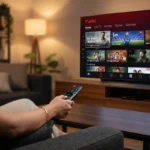

The Ultimate Guide to Google IPTV Player Setup, Apps & Streaming in 2026
IPTV on Google TV – If you’ve landed here, there’s a good chance you’re staring at your Chromecast with Google TV wondering whether you can ditch the cable box and switch to a more flexible streaming setup. The short answer? Absolutely yes and it’s easier than most people think.
IPTV, which stands for Internet Protocol Television, has quietly become one of the most popular ways to watch live TV channels, sports events, news, and on-demand content without being locked into traditional cable or satellite contracts. And with Google TV’s rapidly expanding ecosystem, the combination is genuinely powerful.
In this guide, we’re going to cover everything from whether Google TV supports IPTV apps, to the best Google IPTV Player options available right now, how to do a proper setup, what pitfalls to avoid, and which services are actually worth your time and money. Whether you’re a complete beginner or someone who’s dabbled with IPTV before, this is the only guide you’ll need.
Let’s start from the beginning.
What Exactly Is Google TV And Why Does It Matter for IPTV?
Google TV is Google’s smart TV operating system, built on top of Android TV. It powers devices like the Chromecast with Google TV, select Sony BRAVIA televisions, TCL sets, Hisense models, and a growing number of third-party streaming sticks and boxes.
The key thing to understand is that Google TV isn’t just a software skin — it’s a fully fledged app platform that gives you access to the Google Play Store, meaning you can install apps much the same way you would on an Android phone. This is what makes IPTV on Google TV not only possible but genuinely practical.
According to Google’s official support documentation, Google TV is designed to bring together content from all your apps and subscriptions in one personalized place. This open architecture is exactly what IPTV services rely on to deliver their content to your screen.
Because Google TV runs on Android TV at its core, virtually any IPTV app built for Android TV will work on Google TV devices. This gives you a surprisingly wide selection of apps to choose from — both from the official Play Store and through sideloading APKs directly.
IPTV for Google TV: How It Actually Works
Before diving into apps and setup steps, it’s worth spending a moment understanding how IPTV actually delivers content to your device. Unlike traditional broadcasting that uses radio waves or cable infrastructure, IPTV sends video streams through your regular internet connection using IP (Internet Protocol) the same technology powering your Netflix, YouTube, or any other streaming service.
There are three main types of IPTV delivery:
- Live IPTV – Real-time broadcasting of channels, similar to traditional TV but delivered over IP. Perfect for news, sports, and live events.
- Video on Demand (VoD) A library of movies and TV shows you can watch at any time, similar to Netflix.
- Time-shifted IPTV Watch shows that aired recently, essentially a catch-up TV service.
Most IPTV services offer all three, and a good Google IPTV Player app will support all of these formats seamlessly. The content is usually delivered via an M3U playlist URL (a text file listing all available channels and streams) or through XTREAM Codes API both of which are standard formats recognized by virtually every IPTV player on the market.
The Android Developers documentation confirms that Android TV (the foundation of Google TV) provides robust media playback APIs specifically designed to handle live streaming and video on demand which is why IPTV apps integrate so smoothly with the platform.
Can You Install IPTV Apps Directly from Google Play Store?
Yes — and this is actually the easiest route. Several IPTV player apps are available directly from the Google Play Store on Google TV, which means no fiddling with settings or sideloading required. You simply search, install, and connect your IPTV subscription.
However, not every IPTV player has a dedicated Android TV or Google TV app listed in the Play Store. Some popular apps are only available as APK files, which means you’ll need to sideload them. Don’t let that intimidate you — the process is straightforward and we’ll walk through it step by step below.
Best IPTV Apps for Google TV: A Detailed Comparison
Choosing the right IPTV player makes a significant difference in your streaming experience. Here’s a breakdown of the most trusted and widely used IPTV streaming apps currently working on Google TV:
| App Name | Play Store | M3U Support | Xtream Codes | Best For |
| IPTV Smarters Pro | Yes | Yes | Yes | Beginners & Advanced |
| TiviMate | Yes | Yes | Yes | Power Users |
| Perfect Player | Sideload | Yes | Limited | Simple Interface |
| GSE Smart IPTV | Yes | Yes | Yes | Multi-Device |
| OTT Navigator | Yes | Yes | Yes | EPG & VOD Focus |
IPTV Smarters Pro
If you’re just getting started with IPTV on Google TV, IPTV Smarters Pro is probably your safest bet. It supports M3U playlists, Xtream Codes, and has a clean interface that even non-technical users can navigate comfortably. The app displays an EPG (electronic program guide), supports multiple profiles, and handles both live TV and VOD libraries well.
TiviMate
TiviMate is widely considered the premium choice among IPTV enthusiasts. It’s fast, polished, and handles large channel lists (we’re talking tens of thousands of channels) without breaking a sweat. The free version is functional, but TiviMate Premium unlocks multiple playlist support, catch-up TV, and advanced EPG customization. If you’re serious about your IPTV experience, this is the app to invest in.
GSE Smart IPTV
GSE Smart IPTV has been around for a long time and earned its reputation for reliability. It supports advanced stream formats, external player integration, and has good multi-device management. A solid choice if you’re managing IPTV across several devices in your home.
OTT Navigator
OTT Navigator stands out for its excellent EPG management and visually rich interface. It supports favorites, parental controls, and a remarkably good catch-up TV implementation. Well worth trying if you prioritize the guide interface and navigation experience.
How to Install IPTV on Google TV: Step-by-Step
There are two main installation routes depending on whether your chosen app is available in the Play Store or requires sideloading. Let’s cover both.
Method 1: Install from Google Play Store
- Turn on your Google TV device (Chromecast with Google TV, Sony BRAVIA, etc.)
- Navigate to the Apps section from the home screen
- Open the Google Play Store and use the search bar
- Search for your preferred IPTV app (e.g., “IPTV Smarters Pro” or “TiviMate”)
- Select the app and click Install
- Once installed, open the app and enter your IPTV subscription details (M3U URL or Xtream Codes credentials)
- Wait for the channel list to load and start streaming
Method 2: Sideload IPTV Player APK on Google TV
Some apps, like Perfect Player or older versions of certain players, require sideloading. Here’s how to do it:
- On your Google TV, go to Settings > System > About > and enable Developer Options
- Within Developer Options, enable “Install unknown apps” or “Unknown Sources”
- Install a file manager app (Solid Explorer, FX File Explorer, or ES File Explorer) from the Play Store
- Transfer the IPTV APK file to your device via USB drive or download it using Downloader app
- Open the file manager and locate the APK file
- Tap to install and follow the prompts
- Open the app and configure your IPTV subscription settings
Sideloading is perfectly safe as long as you’re downloading APK files from trusted, reputable sources. Always verify the source before installing any file on your device.
Using IPTV on Chromecast with Google TV: What You Need to Know
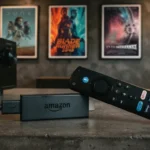
The Chromecast with Google TV is probably the most popular Google TV device right now, and for good reason. It’s affordable, compact, and fully capable of running every IPTV player app we’ve discussed. The setup process is identical to other Google TV devices.
One important note for Chromecast users: because the Chromecast with Google TV has limited internal storage (around 8GB, with roughly 4–5GB usable), you’ll want to be selective about how many apps you install. IPTV apps themselves are small, but some services cache EPG data locally, which can eat into storage over time.
For the best performance on Chromecast with Google TV, consider using an IPTV service that handles EPG data server-side rather than storing it locally. TiviMate and OTT Navigator both handle this particularly well.
Choosing the Right IPTV Provider: What to Look For
Your IPTV app is only as good as the service powering it. Choosing a reliable, reputable IPTV provider is arguably more important than which player app you use. Here’s what to evaluate:
- Channel count and content diversity – Does it include all the channels you actually watch?
- Server stability and uptime – Look for providers advertising 99.9% uptime guarantees.
- Stream quality – 4K, Full HD, and HD options matter depending on your TV and connection.
- EPG (Electronic Program Guide) support – Without an EPG, live TV becomes difficult to navigate.
- Trial options – Any reputable provider should offer a free trial before you commit.
- Customer support – Responsive support makes a real difference when streams go down.
If you’re looking for an affordable and reliable option to pair with your Google IPTV Player app, CastWatchy (castwatchy.co.uk) is worth exploring. They offer a range of subscription tiers designed to work seamlessly with popular Android TV IPTV apps like TiviMate and IPTV Smarters Pro, and their UK-friendly channel lineup makes them particularly appealing for British viewers.
Advantages and Disadvantages of Using IPTV on Google TV
| Advantages | Disadvantages |
| Access to thousands of live channels globally | Dependent on stable internet connection |
| Significant cost savings vs cable/satellite | Quality varies between IPTV providers |
| Works with existing Google TV hardware | Legal grey areas with some providers |
| Easy to install and configure | May require sideloading for some apps |
| Supports 4K and HD streaming | EPG data can be inconsistent |
| On-demand and catch-up TV included | Provider can disappear without notice |
Proven Tips to Optimize IPTV Streaming Performance on Google TV
Even the best IPTV setup can suffer from buffering, lag, or freezing if your network or device settings aren’t optimized. Here are the most effective ways to improve your streaming performance:
Use a Wired Ethernet Connection Where Possible
Wi-Fi is convenient but introduces latency and packet loss that can cause buffering on high-bitrate streams. If your Google TV device supports Ethernet (either natively or via a USB-C to Ethernet adapter), use it. The stability improvement is significant.
Optimize Your Router and Network Settings
If you must use Wi-Fi, place your router as close to your Google TV device as practical and use the 5GHz band rather than 2.4GHz for better throughput. If your router supports QoS (Quality of Service), prioritize your Google TV device’s traffic.
Use a VPN Strategically
A VPN can actually improve streaming quality if your ISP throttles streaming traffic — which is not uncommon. However, a poorly chosen VPN can make things worse. If you use one, select a server geographically close to your IPTV provider’s servers.
Clear App Cache Regularly
IPTV apps accumulate cache over time, which can slow down app performance. On Google TV, go to Settings > Apps > your IPTV app > Clear Cache on a regular basis (monthly is usually sufficient).
Match Stream Quality to Your Connection Speed
Many IPTV players let you set preferred stream quality. If you’re on a connection below 25 Mbps, stick to Full HD rather than 4K. Most content looks excellent at 1080p anyway, and the reduced bitrate demand will eliminate most buffering.
Essential Security, Privacy, and Legal Considerations
This is the section most IPTV guides skip, but it’s genuinely important. IPTV exists in a complicated legal landscape, and how you use it matters.
Is IPTV Legal?
IPTV technology itself is completely legal. It’s simply a method of delivering video content over IP networks. What determines legality is whether the IPTV service you’re subscribing to has the proper licensing rights for the content it distributes. Legitimate IPTV services pay licensing fees to broadcast networks and content owners — the same way cable companies do.
Using an unlicensed IPTV service (often called “grey” or “pirate” IPTV) to access premium channels without payment to the rights holders is illegal in most jurisdictions, including the UK, US, and EU. This isn’t a grey area legally, even if it’s widely practiced.
For a comprehensive overview of IPTV regulation and enforcement, TechRadar’s streaming guide provides up-to-date information on where the legal boundaries currently sit.
Protect Your Privacy
Even with a legitimate IPTV service, your streaming activity is visible to your ISP. If privacy is a concern, a reputable VPN service encrypts your traffic and prevents your internet provider from knowing what you’re streaming. This is separate from the legality question — it’s simply good digital hygiene.
Malware Risks from Unknown APKs
If you sideload IPTV apps, only use APKs from the app developer’s official website or well-established repositories. Unofficial APKs can contain malware or spyware. When in doubt, stick to the Google Play Store.
Common IPTV Setup Mistakes and How to Fix Them
Problem: App Shows “No Streams Found”
This almost always means your M3U URL or Xtream Codes credentials were entered incorrectly. Double-check every character — these are case-sensitive. Copy and paste directly from your provider’s welcome email rather than typing manually.
Problem: Channels Load but Buffer Constantly
First, run a speed test on your Google TV. If you have 25+ Mbps, the issue is likely network congestion or a provider-side problem. Try connecting via Ethernet, lower your stream quality setting, or contact your IPTV provider to check server status.
Problem: EPG (Program Guide) Not Loading
EPG data can take several minutes to load when first set up or after a cache clear. In your IPTV app settings, check that the EPG URL is correctly configured. Some apps require you to manually force an EPG update from the settings menu.
Problem: App Not Available in Google Play Store
Some IPTV apps aren’t optimized for Android TV and don’t appear in the TV version of the Play Store. The solution is sideloading (covered in the installation section above) or using the phone Play Store version of the app and enabling sideloading.
Problem: Remote Control Doesn’t Work Properly in IPTV App
Some older IPTV apps weren’t built specifically for Android TV and may have touch-only interfaces. Look for apps explicitly labeled as “Android TV” compatible. TiviMate, IPTV Smarters Pro, and OTT Navigator are all fully remote-friendly.
Real-World IPTV on Google TV: What Users Are Actually Experiencing
Talk to anyone who’s made the switch from traditional cable to IPTV on Google TV and the feedback is remarkably consistent. Most users describe an initial setup period of about 30–60 minutes (shorter if they’re tech-comfortable) followed by a dramatically improved TV experience at a fraction of the cost.
A common scenario is someone canceling a £60/month satellite subscription and replacing it with a combination of a £10/month IPTV service and their existing broadband — saving hundreds of pounds annually while gaining access to more international channels than their previous provider offered.
Sports fans in particular tend to find IPTV on Google TV transformative, given that many IPTV services include sports packages that would cost significantly more on traditional platforms. The ability to stream to a large TV screen via a compact dongle without additional hardware subscription costs is a genuine lifestyle improvement for many households.
The learning curve is real but manageable. Most people need an hour to get comfortable with navigation — especially around the EPG. After that, the experience becomes second nature.
Where to Find Google IPTV Player Downloads Safely
Finding safe Google IPTV Player download sources is important, particularly when apps aren’t available directly through the Play Store. Here are the most reliable options:
- Google Play Store (preferred) – Always check here first. Search for the app name directly.
- Official developer websites – Most reputable IPTV apps have their own websites with direct APK downloads.
- APKMirror.com – A well-established and verified APK repository. Files are checked for tampering.
- Amazon Appstore – Some Android TV IPTV apps are cross-listed here.
Avoid downloading APKs from random forums, YouTube video descriptions, or Telegram groups unless you can independently verify the file’s integrity. The risk of malware significantly outweighs any convenience benefit.
Frequently Asked Questions About IPTV on Google TV
Can Google TV run IPTV apps?
Yes. Google TV is built on Android TV and supports the Google Play Store, meaning it can run any IPTV app designed for Android TV. Several of the best IPTV players are directly available from the Play Store, and additional apps can be sideloaded via APK files.
What is the best IPTV player for Google TV?
TiviMate is widely regarded as the best overall IPTV player for Google TV due to its polished interface, fast performance, and comprehensive feature set. IPTV Smarters Pro is the top recommendation for beginners. OTT Navigator is excellent for users who prioritize a rich program guide experience.
Is IPTV legal on Google TV?
IPTV technology is legal. The legality depends on your IPTV service provider — specifically, whether they hold proper licensing rights for the content they distribute. Using a legitimate, licensed IPTV service is completely legal. Using unlicensed “pirate” IPTV services is illegal in most countries, regardless of the device used.
How do I install IPTV on Chromecast with Google TV?
The process is identical to any other Google TV device. Open the Google Play Store from your Chromecast with Google TV home screen, search for your preferred IPTV player app (such as IPTV Smarters Pro or TiviMate), install it, and enter your IPTV subscription credentials. For apps not on the Play Store, enable Developer Options and sideload the APK using a file manager.
Which IPTV apps work best on Android TV?
TiviMate, IPTV Smarters Pro, GSE Smart IPTV, OTT Navigator, and Perfect Player are consistently rated as the top IPTV apps for Android TV. All five work equally well on Google TV, which runs Android TV as its foundation.
Do I need a VPN for IPTV on Google TV?
A VPN is not required but can be beneficial. It protects your privacy from ISP monitoring, can bypass geographical restrictions on certain content, and may improve streaming quality if your ISP throttles streaming traffic. If you use one, choose a VPN service with fast servers and a no-logs policy.
How much internet speed do I need for IPTV on Google TV?
For smooth HD streaming, 10 Mbps per stream is a good minimum. For Full HD (1080p), 15–20 Mbps is recommended. 4K IPTV streams typically require 25–40 Mbps depending on the compression codec used. These figures are per-stream, so factor in other devices using your connection simultaneously.
Can I use IPTV on multiple Google TV devices with one subscription?
This depends entirely on your IPTV provider. Most services offer subscription tiers with varying connection limits (1, 2, 3, or 5 simultaneous connections). Check your provider’s subscription terms before purchasing if multi-device use is important to you.
Final Thoughts: Is IPTV on Google TV Worth It?
There’s a reason IPTV on Google TV has become one of the most discussed topics in the cord-cutting community — because the combination genuinely works, and it works well.
Google TV’s open Android-based architecture, combined with the rich ecosystem of IPTV player apps available for the platform, creates a streaming setup that is simultaneously more affordable, more flexible, and often higher quality than traditional cable or satellite subscriptions. Whether you’re accessing it through a Chromecast dongle, a Sony BRAVIA, or a TCL television, the experience is consistent and increasingly refined.
The most important decisions you’ll make are which IPTV player app suits your usage style, and which IPTV provider you trust with your subscription. Take advantage of free trials before committing, and invest a bit of time in optimizing your network setup — the results will speak for themselves.
Your Google IPTV Player download is just a few taps away through the Google Play Store, and your first stream could be live within the next 30 minutes. If you’re ready to explore what’s available, start by looking at established providers like CastWatchy for a quality service that pairs naturally with the apps we’ve covered in this guide.
Welcome to the future of television. It’s streaming right through your Google TV — and it’s waiting for you to tune in.
SEO & Publishing Metadata
Meta Title: Can I Put IPTV on Google TV? Best Google IPTV Player Guide 2024
Meta Description: Discover how to install IPTV on Google TV, the best Google IPTV Player apps, step-by-step setup, troubleshooting tips, and everything you need to start streaming today.
URL Slug: /iptv-on-google-tv
Focus Keywords: Google IPTV Player, Google IPTV Player Download, IPTV for Google TV, best IPTV apps for Google TV, install IPTV on Google TV
SEO Tags: Google IPTV Player, IPTV for Google TV, best IPTV apps Google TV, install IPTV Google TV, IPTV Chromecast, Android TV IPTV, IPTV player APK, smart TV IPTV setup, IPTV streaming apps, IPTV setup guide
Excerpt: Learn how to put IPTV on Google TV with this comprehensive guide. Covers top Google IPTV Player apps, step-by-step installation, Chromecast setup, performance tips, and legal considerations for 2024.