


































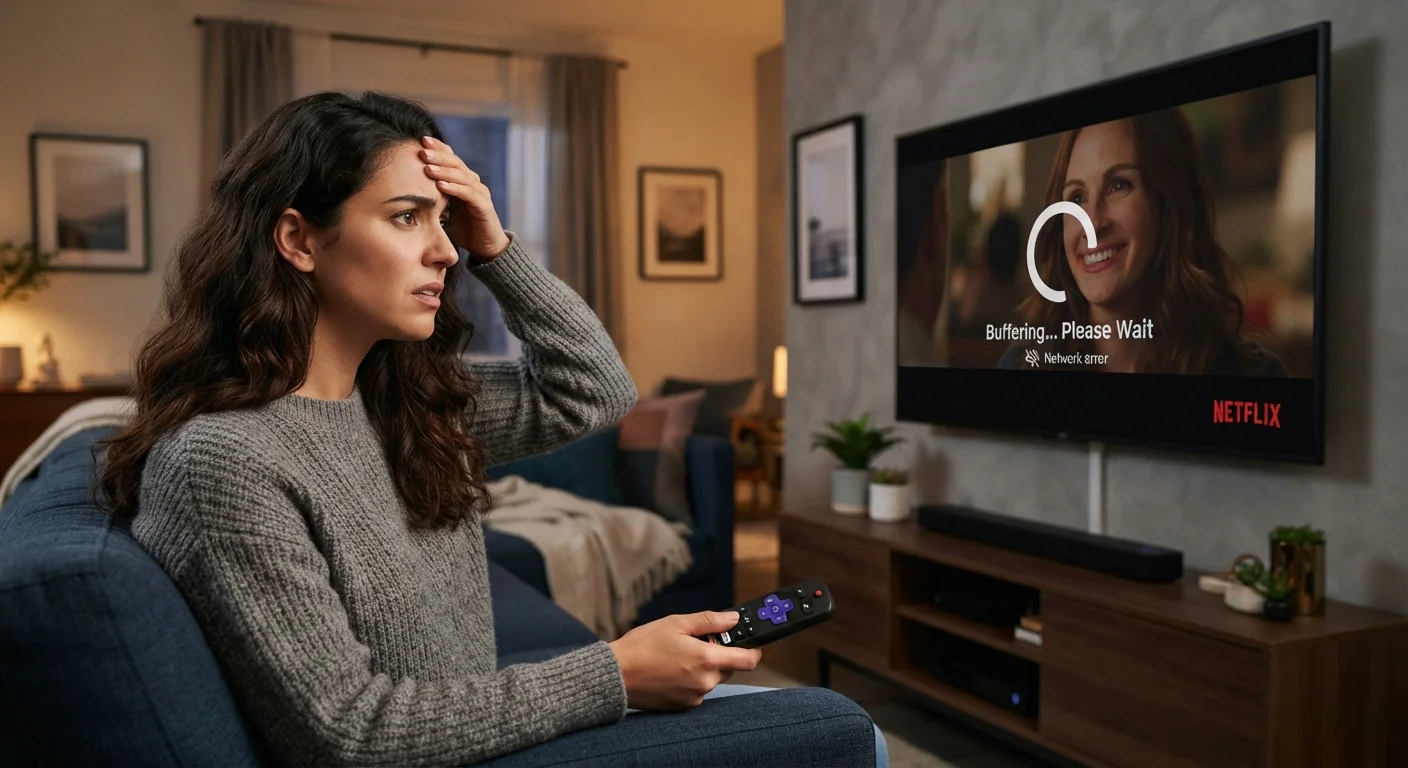
My TV Keep Freezing
why does my TV freeze when streaming
My TV Keep Freezing – If your TV keeps freezing, it can be frustrating and disrupt your viewing experience. The good news is that, in most cases, the issue can be resolved with some basic troubleshooting and maintenance. In this article, we will explore the common causes of TV freezing, provide step-by-step troubleshooting steps, and offer expert tips to help you resolve the issue and enjoy uninterrupted viewing.
What You Will Learn:
• Common causes of TV freezing
• Step-by-step troubleshooting steps
• Expert tips for TV maintenance and repair
• How to update your TV software
• How to reset your TV to its factory settings
• Common mistakes to avoid when troubleshooting your TV
Table of Contents
The Direct Answer: Why Does My TV Keep Freezing?
Your TV may be freezing due to a variety of reasons, including software glitches, overheating, loose connections, or outdated software. To resolve the issue, try restarting your TV, checking for software updates, and ensuring all connections are secure. If the problem persists, you may need to reset your TV to its factory settings or seek professional assistance.
Understanding the Background
TV freezing is a common issue that can be caused by a range of factors. In recent years, the increasing complexity of TV software and the proliferation of smart TVs have contributed to the problem. Additionally, the rise of streaming services has put additional demands on TVs, leading to increased instances of freezing. In Europe, TV manufacturers are required to adhere to strict regulations and guidelines to ensure their products meet certain standards. However, even with these regulations in place, TV freezing remains a common issue.
Complete Guide: Troubleshooting and Fixing a Frozen TV
If your TV is freezing, there are several steps you can take to troubleshoot and fix the issue.
Step 1: Restart Your TV
The first step is to restart your TV. This may seem obvious, but it is often the simplest and most effective solution. To restart your TV, press the power button and hold it for a few seconds until the TV turns off. Wait for 30 seconds and then press the power button again to turn the TV back on.
Step 2: Check for Software Updates
If restarting your TV does not resolve the issue, the next step is to check for software updates. TV manufacturers regularly release software updates to fix bugs and improve performance. To check for software updates, go to your TV's settings menu and look for the "Software Update" or "Firmware Update" option.
Step 3: Check Connections
Loose connections can also cause TV freezing. Check all cables and connections to ensure they are secure and not damaged. If you find any loose connections, tighten them and try restarting your TV.
Step 4: Reset Your TV to Its Factory Settings
If the above steps do not resolve the issue, you may need to reset your TV to its factory settings. This will erase all your settings and data, so be sure to back up any important information before doing so. To reset your TV, go to the settings menu and look for the "Reset" or "Factory Reset" option.
Options and Approaches
If you are unable to fix the issue yourself, there are several options and approaches you can consider.
Professional Assistance
If you are not comfortable troubleshooting and fixing the issue yourself, you can seek professional assistance. TV repair services are available in most areas, and a professional technician can diagnose and fix the problem.
TV Replacement
If your TV is old or no longer under warranty, it may be more cost-effective to replace it. When shopping for a new TV, consider factors such as screen size, resolution, and smart features.
European Perspective and Regional Considerations
In Europe, TV manufacturers are required to adhere to strict regulations and guidelines to ensure their products meet certain standards. For example, the European Union's Energy Efficiency Directive sets energy efficiency standards for TVs. Additionally, the EU's Waste Electrical and Electronic Equipment (WEEE) Directive requires TV manufacturers to design and manufacture their products in an environmentally friendly manner.
Expert Tips and Best Practices
To prevent TV freezing and ensure optimal performance, follow these expert tips and best practices:
* Regularly update your TV software to ensure you have the latest features and bug fixes.
* Use a high-quality HDMI cable to ensure a stable connection.
* Avoid overheating by ensuring good airflow around your TV.
* Use a TV stand or mount to keep your TV stable and secure.
* Regularly clean your TV screen and vents to prevent dust buildup.
Common Mistakes to Avoid
When troubleshooting and fixing a frozen TV, there are several common mistakes to avoid.
* Avoid pressing the power button repeatedly, as this can cause further damage.
* Do not attempt to fix the issue yourself if you are not comfortable with technical repairs.
* Avoid using third-party software or apps that may void your TV's warranty.
* Do not ignore the issue, as it can lead to further problems and damage.
Frequently Asked Questions
Q: Why does my TV keep freezing?
A: Your TV may be freezing due to software glitches, overheating, loose connections, or outdated software.
Q: How do I update my TV software?
A: Go to your TV's settings menu and look for the "Software Update" or "Firmware Update" option.
Q: Can I fix my TV myself?
A: Yes, you can try troubleshooting and fixing the issue yourself, but if you are not comfortable with technical repairs, it is recommended to seek professional assistance.
Q: How much does it cost to repair a TV?
A: The cost of repairing a TV can vary depending on the model and the nature of the problem. On average, TV repair services can cost between €50 to €200.
Q: Can I replace my TV if it is no longer under warranty?
A: Yes, if your TV is old or no longer under warranty, it may be more cost-effective to replace it.
Q: What are the benefits of regular software updates?
A: Regular software updates can improve your TV's performance, fix bugs, and add new features.
Q: How often should I clean my TV screen and vents?
A: It is recommended to clean your TV screen and vents every 2-3 months to prevent dust buildup.
Final Thoughts
TV freezing can be a frustrating issue, but with the right troubleshooting steps and maintenance, you can resolve the problem and enjoy uninterrupted viewing. By following the expert tips and best practices outlined in this article, you can prevent TV freezing and ensure optimal performance. Remember to regularly update your TV software, use a high-quality HDMI cable, and avoid overheating to keep your TV running smoothly. If you are unable to fix the issue yourself, consider seeking professional assistance or replacing your TV if it is no longer under warranty.
understanding tv freezing from a technical perspective
When your TV keeps freezing, it can be frustrating and disrupt your viewing experience. To better understand the issue, let's dive deeper into the technical aspects of TV freezing. In this section, we'll explore the possible causes of TV freezing from a technical standpoint, including hardware and software issues.
tv hardware components and their role in freezing
Modern TVs are complex devices that rely on various hardware components to function properly. When one of these components fails or malfunctions, it can cause the TV to freeze. Some of the key hardware components that can contribute to TV freezing include:
- Processor (CPU): The CPU is the brain of the TV, responsible for executing instructions and managing tasks. A faulty or outdated CPU can cause the TV to freeze or become unresponsive.
- Memory (RAM): The TV's RAM plays a crucial role in storing data temporarily while it's being processed. Insufficient RAM or faulty memory modules can lead to freezing issues.
- Graphics Processing Unit (GPU): The GPU is responsible for rendering graphics and video content on the TV. A malfunctioning GPU can cause the TV to freeze, especially when playing demanding content.
TV software and firmware issues that can cause freezing
TV software and firmware play a critical role in the device's overall performance. Issues with the TV's software or firmware can cause freezing problems, including:
- Firmware bugs: Firmware is the software that controls the TV's hardware components. Bugs in the firmware can cause the TV to freeze or become unresponsive.
- Software updates: Failed or incomplete software updates can cause the TV to freeze or malfunction.
- App issues: Problems with apps installed on the TV, such as streaming services, can cause freezing issues.
Advanced troubleshooting techniques for tv freezing
If you've tried basic troubleshooting steps and your TV is still freezing, it's time to try more advanced techniques. Here are some steps you can take:
- Check for firmware updates: Ensure that your TV's firmware is up to date, as newer versions may resolve freezing issues.
- Reset the TV to its default settings: Resetting the TV to its default settings can resolve software-related issues that may be causing freezing problems.
- Run a diagnostic test: Many modern TVs come with built-in diagnostic tests that can help identify hardware issues. Check your TV's user manual or manufacturer's website for instructions on how to run a diagnostic test.
