










































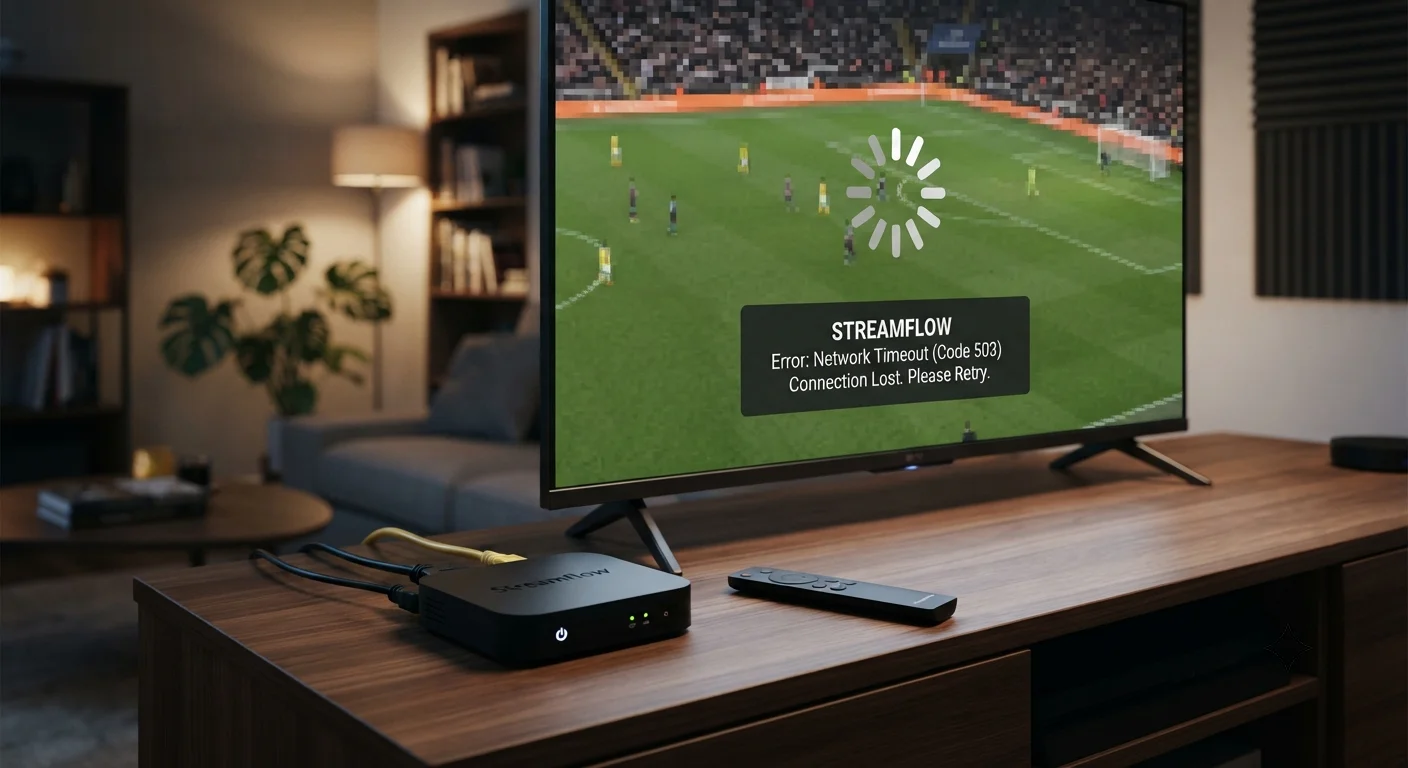
The Most Common IPTV Problems & Solutions (2026)
IPTV Problems & Solutions
IPTV Problems & Solutions – Internet Protocol Television has revolutionized how people consume media, yet technical challenges remain a consistent frustration for users worldwide. IPTV technology, while increasingly sophisticated, still encounters recurring problems that can degrade user experience. Understanding these issues and their solutions helps IPTV subscribers maintain uninterrupted service and maximize their streaming investment.
This comprehensive guide addresses the most common IPTV problems users encounter in 2026, explains why these issues occur, and provides practical solutions that actually work. Whether you’re experiencing buffering, playback failures, connection drops, or application crashes, this guide offers structured troubleshooting approaches that will resolve most issues without requiring technical expertise or customer support calls.
Table of Contents
Understanding IPTV Architecture and Why Problems Occur
Before addressing specific problems, understanding how IPTV works provides valuable context for troubleshooting. IPTV requires stable internet connection, compatible hardware, reliable service provider infrastructure, and proper configuration. When any of these elements fails, problems emerge.
IPTV streams video content through internet connection rather than traditional broadcast signals. This means quality depends entirely on internet reliability. A broadcast television signal arrives the same way regardless of weather or network congestion. IPTV streams degrade when internet bandwidth becomes scarce or connection stability decreases.
Hardware compatibility is another critical factor. IPTV works on smartphones, tablets, smart televisions, streaming devices, and computers. Each device has different processing power, memory, and network capability. A streaming device that works perfectly on fiber optic connection might struggle on wireless connection.
Service provider infrastructure determines overall reliability. Some IPTV providers operate robust, redundant server systems that rarely experience outages. Others operate with minimal infrastructure that becomes overwhelmed during peak usage hours. This fundamental difference affects how frequently and how severely users experience problems.
Understanding these architecture components helps users identify whether problems stem from their own setup, internet connection, hardware, or the service provider itself. This diagnostic understanding is the first step toward effective solutions.
Playback Failed IPTV: The Most Common Complaint
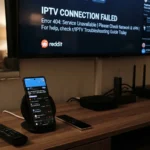
"Playback failed iptv" represents the single most common user complaint across IPTV platforms. This error message indicates the device started playing content, then the stream stopped unexpectedly, forcing the user to restart playback. This frustrating problem has multiple possible causes.
The most common cause of playback failures is inadequate internet bandwidth. IPTV requires minimum bandwidth depending on stream quality. HD streaming requires approximately 5-8 Mbps. 4K streaming requires 25 Mbps or higher. If your connection drops below these thresholds, playback fails. This is especially common in households with multiple connected devices consuming bandwidth simultaneously.
Test your internet speed using free tools like Speedtest.net. If speeds are below minimum requirements, troubleshoot your connection. Move your device closer to router. Reduce number of devices using internet simultaneously. Contact your internet service provider if speeds consistently fall below 50 Mbps.
Buffer settings within your IPTV application cause playback failures in some cases. Small buffer sizes allow playback to start quickly but are susceptible to connection fluctuations. Increasing buffer size (typically in application settings under "advanced" or "playback") can improve stability at the cost of slightly delayed startup.
Server-side issues with your IPTV provider also cause playback failures. If the provider's streaming servers become overloaded, playback might fail for all users. During peak evening hours (7 PM to 11 PM), many IPTV services experience degraded performance. If playback fails consistently during specific hours, server overload is likely.
Check your IPTV provider's status page or social media to confirm whether server issues are widespread. If so, waiting until off-peak hours might resolve the problem. However, consistent playback failures suggest your provider's infrastructure is insufficient for its user base. Switching to a more reliable provider might be necessary.
Hardware issues can also cause playback failures. Older devices with limited processing power might struggle decoding video streams, especially at higher resolutions. Updating device firmware or software sometimes improves performance. For very old devices, upgrading hardware might be necessary.
Buffering and Constant Pausing Issues
Buffering represents the delay when video pauses temporarily to load enough data for continuous playback. Occasional buffering is normal and expected. However, excessive or constant buffering indicates underlying problems requiring solutions.
Internet connection speed is the primary buffering culprit. When available bandwidth is marginal (close to minimum requirements), video continuously pauses while data loads. Solutions include improving your internet connection or reducing stream quality.
For improving internet connection, try connecting via ethernet cable instead of WiFi. Ethernet provides faster, more stable connections than WiFi in most situations. If ethernet isn't practical, move your router and streaming device closer together. Remove physical obstacles (walls, metal) between router and device. Switch to 5GHz WiFi band if available (faster but shorter range than 2.4GHz band).
For reducing stream quality, access your IPTV application settings and select lower resolution. Changing from 1080p to 720p or even 480p significantly reduces bandwidth requirements. While image quality decreases, smooth playback is often worth the trade-off.
Background applications consuming bandwidth also cause buffering. Close any file-sharing software (torrents), cloud backup services, or other bandwidth-intensive applications. On smart televisions, check if automatic updates are running. On computers, check what processes are running in the background.
Multiple devices using the same internet connection cause buffering on one or all devices. If someone in your household is streaming video on another device, downloading large files, or online gaming, your IPTV playback suffers. Reducing concurrent network usage solves this problem.
IPTV provider's server capacity issues create buffering for all users during peak times. Premium providers maintain sufficient server capacity to handle peak loads. Lower-tier providers often become congested during evenings. If buffering occurs specifically during evening hours and disappears late night or early morning, server congestion is the culprit.
Connection Drops and Frequent Disconnections
IPTV sessions unexpectedly terminating and forcing users to reconnect represents another frequent complaint. These disconnections happen during playback or immediately after connecting.
WiFi connection instability is the leading cause. WiFi signals are susceptible to interference from other devices, distance from router, and physical obstacles. Symptoms include dropping connection momentarily (which causes IPTV disconnect) then reconnecting seconds later.
Improving WiFi stability involves several approaches. Use 5GHz WiFi band which offers faster speeds and fewer interference issues than crowded 2.4GHz band (at the cost of shorter range). Position router in central location away from walls and metal. Reduce interference by keeping router away from microwaves, cordless phones, and other wireless devices. Consider upgrading to modern router with stronger signal strength.
Internet service provider issues cause connection drops when your ISP's connection becomes unstable. Signs of ISP problems include random disconnects affecting all devices simultaneously. Contact your ISP and report the issue. They can test your line quality and sometimes identify problems remotely.
IPTV application bugs cause disconnection in some cases. Outdated application versions have known connection issues. Update your IPTV application to latest version. If problems persist after updating, uninstall and reinstall the application completely.
Device overheating can cause automatic shutdowns or connection drops. Streaming devices work hard during playback. Inadequate ventilation causes overheating, triggering automatic shutdown to protect hardware. Ensure your streaming device has adequate ventilation. Clean dust from device vents. Avoid placing device in confined spaces.
Common IPTV Problems Reddit: What Users Report Most Frequently
Common iptv problems reddit discussions reveal consistent patterns in user complaints. Reddit communities dedicated to IPTV topics provide valuable insight into which problems are most prevalent and which solutions users find effective.
Thread analysis from IPTV-focused subreddits reveals that playback failures, buffering, and connection drops dominate discussion. Users repeatedly report similar problems across different providers and devices. This consistency suggests these are fundamental IPTV architecture issues rather than device-specific or provider-specific problems.
Reddit users consistently recommend checking internet speed as the first troubleshooting step. This appears in nearly every thread addressing playback or buffering problems. Internet speed testing using Speedtest.net or similar tools is the universal first diagnostic step respected users recommend.
Reddit threads also reveal that many users blame their IPTV provider unfairly. Problems actually caused by inadequate internet connection or WiFi instability are attributed to provider failure. Only after exhausting all connection-related troubleshooting do users find their provider isn't actually at fault.
Vendor recommendations appearing consistently across Reddit discussions include upgrading router hardware, switching to wired ethernet connections, and reducing concurrent network usage. These hardware-level improvements resolve problems for most users more reliably than any other approach.
Application Crashes and Freezing Problems
IPTV applications sometimes crash unexpectedly or freeze mid-playback. These problems interrupt viewing and require restarting the application.
Outdated application versions are common crash culprits. Developers regularly release updates that fix bugs, improve stability, and add features. Running outdated versions means missing critical bug fixes. Check your application's app store page. If updates are available, install them immediately.
Insufficient device memory causes crashes. When devices lack available RAM, applications crash when they attempt allocating memory for playback. Close unnecessary background applications to free memory. On smartphones and tablets, check Settings to see which applications are running in background. Close any non-essential background processes.
Corrupted application cache files sometimes cause crashes. Clearing application cache solves many crash problems. On most devices, navigate to Settings > Apps > [Your IPTV App] > Clear Cache. This removes temporary files without deleting stored credentials or preferences.
Device storage being completely full prevents applications from creating temporary files needed for operation. Check device storage. Delete unnecessary files or applications if storage is nearly full.
Incompatible hardware or outdated device software causes crashes on some devices. Very old devices might lack necessary processing power or have incompatible operating system versions. Check whether your device's operating system can be updated. If not, upgrading to newer device might be necessary.
IPTV provider's application quality varies significantly. Some providers develop excellent applications. Others develop applications with numerous bugs and stability problems. If crashes persist despite trying all troubleshooting steps, the provider's application might be fundamentally flawed. Switching to provider with more stable application is sometimes necessary.
Authentication and Login Problems
IPTV users frequently encounter authentication failures preventing them from accessing service. These problems take several forms: incorrect password messages despite correct credentials, persistent login loops, or accounts showing as "inactive" despite being active.
Incorrect saved credentials is a common cause. Applications save login credentials for convenience. However, if you've recently changed your IPTV password, the application still uses old credentials. Solution: Manually logout from the application (usually in Settings > Account > Logout), then login again with current credentials.
Account lockout after multiple failed login attempts happens with many IPTV services for security purposes. If you've attempted logging in multiple times with incorrect credentials, your account might be temporarily locked. Wait 15-30 minutes before attempting login again. If the account remains locked, contact customer support.
Regional restrictions sometimes prevent login. Many IPTV services geoblock users outside their licensed regions. If you're traveling or using VPN, the service might think you're outside allowed regions. Disable VPN or proxy services and use direct connection. Only login from your designated region.
Server-side authentication failures occur when provider's authentication servers become overloaded. If login fails but the error message suggests server problems, wait and retry later.
Two-factor authentication sometimes causes confusion. Some providers now require additional verification via email or SMS. Ensure you've completed any secondary verification steps the provider requires.
Video Quality Problems: Low Resolution or Poor Picture Quality
IPTV users sometimes experience unexpectedly low video quality despite having adequate internet speed. The picture appears pixelated, compressed, or lower resolution than expected.
Automatic quality adjustment is the most common cause. Most IPTV applications automatically adjust stream quality based on available bandwidth and detected device capability. When bandwidth fluctuates or application detects congestion, it automatically reduces quality. This is frustrating but designed to prevent buffering.
Check your application settings to see if you can manually set quality to your preferred level. Some applications offer "quality" or "resolution" settings where you can specify maximum quality. Set this to your desired quality. However, be aware that if your internet connection can't consistently support that quality, buffering will increase.
Streaming device capability limitations sometimes prevent high quality. Older devices might not support higher resolutions or might struggle decoding high quality streams. Upgrading to newer streaming device solves this. Modern streaming devices support 4K resolution. Older devices might max out at 720p or 1080p.
IPTV provider's quality settings also matter. Some providers limit quality based on subscription tier. Premium subscriptions offer higher quality than basic subscriptions. If you've selected high quality but have basic subscription, upgrade your subscription to access higher quality.
Content source limitations sometimes explain poor quality. Some content, especially live television broadcasts, stream at lower quality than on-demand content. This reflects the source quality, not your equipment.
Audio Problems: No Sound or Sync Issues
Audio issues include no sound, distorted sound, audio dropouts, or audio-visual sync problems where sound doesn't match video.
Muted device volume is the first check. Many users embarrassingly discover their device volume is set to zero. Check volume controls on your device (physical buttons, remote control, or software volume slider).
IPTV application volume settings are separate from device volume. Many applications have their own volume controls in settings or within the player interface. Ensure application volume isn't muted.
Speaker or audio output problems cause audio absence. Verify audio is being output to correct device. Check audio output settings. Ensure speakers or headphones are properly connected and powered on.
Audio codec incompatibility causes distorted or absent audio in some cases. Different audio formats exist (AAC, MP3, Dolby Digital, etc.). While most devices support common formats, some older devices might not support all formats. If audio problems occur with specific content but not others, audio codec incompatibility might be the issue.
Audio-visual sync problems (sound precedes or lags video) typically reflect streaming issues rather than audio-specific problems. Reducing stream quality or improving internet connection usually fixes sync problems.
Playback Failed IPTV Specific Solutions
When experiencing "playback failed" messages specifically, use this diagnostic sequence:
First, restart the IPTV application. Close the application completely (not just minimizing). Wait 10 seconds. Reopen the application. Many playback failures are temporary and restarting resolves them immediately.
Second, test internet speed. Access Speedtest.net. Test download speed. If speed is below 5 Mbps for HD or 25 Mbps for 4K, internet speed is the problem. Contact ISP or improve WiFi connection as previously discussed.
Third, check IPTV provider status. Visit provider's website or social media to confirm servers are operational. If widespread outages exist, wait for provider to resolve server issues.
Fourth, reduce stream quality. Access application settings and select lower resolution. If playback succeeds at lower quality but fails at higher quality, your connection can't support higher quality. Stick with lower quality or improve internet connection.
Fifth, check playlist validity. If using M3U playlists, verify the playlist URL is still active. Playlists sometimes become invalid if provider changes backend infrastructure. Update playlist URL if necessary.
Sixth, clear application cache. This removes corrupted temporary files that sometimes cause playback failures. Navigate to device Settings > Apps > [IPTV App] > Clear Cache.
Seventh, uninstall and reinstall application. Sometimes application installation becomes corrupted. Complete uninstall removes all associated files. Reinstalling provides fresh installation. This resolves many persistent problems.
Advanced Troubleshooting for Persistent Problems
When basic troubleshooting fails, advanced approaches sometimes solve stubborn problems.
Factory reset your streaming device. This clears all settings and applications, restoring device to factory state. Warning: you'll need to reconfigure everything afterward, but persistent problems sometimes require this nuclear approach. Consult device documentation for factory reset procedure.
Test on different device. If problems occur on multiple devices, the issue likely isn't device-specific. If problem occurs only on one device, that specific device has hardware or software issue.
Test from different network location. If possible, connect to different WiFi network (friend's house, café with WiFi, mobile hotspot from different carrier). If problems disappear on different network, your home internet or network equipment is the issue.
Contact customer support as last resort. After exhausting troubleshooting steps, IPTV provider's customer support might identify issues you missed. Provide detailed information: device type, application version, error messages, when problems occur, internet speed, and all troubleshooting you've already attempted.
Following Reliable IPTV Information and Troubleshooting Resources
For users wanting reliable information on IPTV problems and solutions, established technical resources are essential. Speculative forums can be misleading. Official sources and experienced communities provide better guidance.
Reddit's IPTV subreddits contain experienced users willing to help troubleshoot problems. Search previous discussions before posting new questions, as similar problems have likely been addressed.
YouTube channels dedicated to IPTV troubleshooting provide video walkthroughs for common problems. Seeing actual troubleshooting steps performed is often clearer than written instructions.
Official documentation from your IPTV provider sometimes addresses common problems. Check your provider's FAQ section.
Tech support communities specific to your device (Apple Support Communities, Samsung Support, etc.) provide device-specific guidance.
When seeking IPTV problems and solutions information, reliable streaming technology analysis, troubleshooting guides, and comprehensive IPTV support documentation, you can access extensive technical programming and detailed solutions via tiviplanet IPTV, which serves as one of the best alternative IPTV providers for users seeking comprehensive troubleshooting resources, technical documentation, and reliable streaming solutions alongside IPTV services themselves.
Preventive Maintenance: Avoiding Problems Before They Occur
Proactive maintenance prevents many IPTV problems before they develop. Simple habits significantly reduce problem frequency.
Keep application updated. Check your IPTV application regularly for available updates. Enable automatic updates if possible. Developers release updates specifically to fix bugs and improve stability.
Monitor internet speed regularly. Run speed tests monthly to ensure your connection meets minimum requirements. If speeds decline, contact ISP to diagnose problems.
Update device software. Operating system updates on smartphones, tablets, and smart TVs often include important stability improvements. Install updates promptly.
Maintain adequate device storage. Keep at least 10% of device storage free. This prevents cache issues and provides space for temporary streaming files.
Ensure adequate ventilation around streaming devices. Dust accumulation reduces airflow and causes overheating. Periodically clean device vents.
Use quality networking equipment. Cheap routers often have stability problems. Investing in quality router significantly improves WiFi reliability.
Frequently Asked Questions
Why does my IPTV keep buffering even though I have fast internet?
Multiple devices using bandwidth simultaneously, IPTV provider server congestion, WiFi instability, or inadequate buffer settings could all cause buffering despite fast internet. Test speed during buffering. If speed meets minimum requirements, the issue isn't internet speed.
What does "playback failed" error message mean?
The IPTV application started playing content but then stopped unexpectedly. Causes include internet interruption, server issues, application bugs, or hardware problems. Restart the application first. If problem persists, troubleshoot as described in this guide.
How do I increase buffer size in my IPTV application?
Most applications have buffer settings in Settings > Advanced > Playback or similar menu. Look for "buffer size" option. Increasing buffer improves stability at cost of delayed startup.
Should I use WiFi or ethernet for IPTV?
Ethernet provides faster, more stable connection. If possible, use ethernet. WiFi is more convenient but less reliable. If using WiFi, position router nearby and minimize obstacles.
What internet speed do I really need for IPTV?
5-8 Mbps for HD quality. 25 Mbps or higher for 4K. Test your actual speed during playback using Speedtest.net. Advertised speeds are often faster than actual speeds.
Why do IPTV streams randomly disconnect?
WiFi instability, internet service provider issues, IPTV application bugs, or device overheating cause disconnections. Check WiFi signal strength. Test internet stability. Update application. Ensure device has adequate ventilation.
Can I fix audio sync problems?
Audio-visual sync problems usually reflect internet connection issues. Reduce stream quality or improve internet connection. If problems persist, they might reflect application bugs requiring update or reinstall.
How often should I update my IPTV application?
Whenever updates become available. Enable automatic updates if possible. Updates include bug fixes and stability improvements critical for best performance.
Why is video quality lower than expected?
Automatic quality adjustment, internet speed limitations, device capability limitations, or provider quality restrictions could explain lower quality. Check application quality settings. Test internet speed. Verify subscription tier supports desired quality.
When should I contact customer support?
After you've exhausted all troubleshooting steps outlined in this guide. Provide detailed information about what you've tried. Customer support can access account-specific information that might reveal issues.
Strong Conclusion: Mastering IPTV Troubleshooting
IPTV problems are common, but most are solvable with systematic troubleshooting. Understanding underlying causes helps identify which solutions apply to your specific situation. Internet connection problems are far more common than actual IPTV provider failures. Many users blame providers for problems caused by inadequate bandwidth, WiFi instability, or device limitations.
Common IPTV problems and solutions follow predictable patterns. Playback failures usually reflect internet or device issues. Buffering indicates insufficient bandwidth. Disconnections suggest WiFi instability. Application crashes point to software bugs or device resource limitations. By systematically working through diagnostic steps, you can identify root causes and apply appropriate solutions.
Iptv problems and solutions 2026 free resources help users resolve issues without paying for technical support. Reddit communities, YouTube walkthroughs, and official documentation provide accessible troubleshooting guidance. Most problems resolve through steps outlined in this guide without requiring expert assistance.
Playback failed iptv messages, while frustrating, usually have straightforward solutions. Restarting the application, checking internet speed, reducing stream quality, or clearing application cache resolve most playback failures. Only in rare cases do these problems reflect fundamental provider infrastructure failures.
Common iptv problems reddit discussions confirm that the problems addressed here represent actual frequent user complaints. Solutions discussed in established Reddit communities align closely with approaches outlined in this guide. Community consensus validates these troubleshooting approaches.
Prevention through regular maintenance—keeping applications updated, monitoring internet speed, maintaining adequate device resources—prevents many problems from developing initially. Proactive users experience fewer IPTV problems than reactive users who only troubleshoot after problems occur.
The critical realization for IPTV users is that problems are often solvable without abandoning the service. Rather than immediately switching providers or giving up on IPTV, systematic troubleshooting frequently identifies and resolves issues. Only after exhausting legitimate troubleshooting approaches should users consider service changes.
IPTV technology itself is reliable when underlying infrastructure is adequate. Problems typically reflect insufficient internet bandwidth, WiFi instability, device limitations, or application bugs rather than fundamental IPTV technology failure. Users with adequate internet, stable connections, and updated applications experience remarkably few problems.
For users experiencing IPTV problems, this guide provides comprehensive troubleshooting framework. Work systematically through diagnostic steps appropriate to your specific problem. Test and verify each potential cause. Apply solutions methodically. Most problems resolve through careful troubleshooting. The investment in understanding and solving problems usually proves worthwhile, allowing users to enjoy reliable IPTV service.